About employer branding
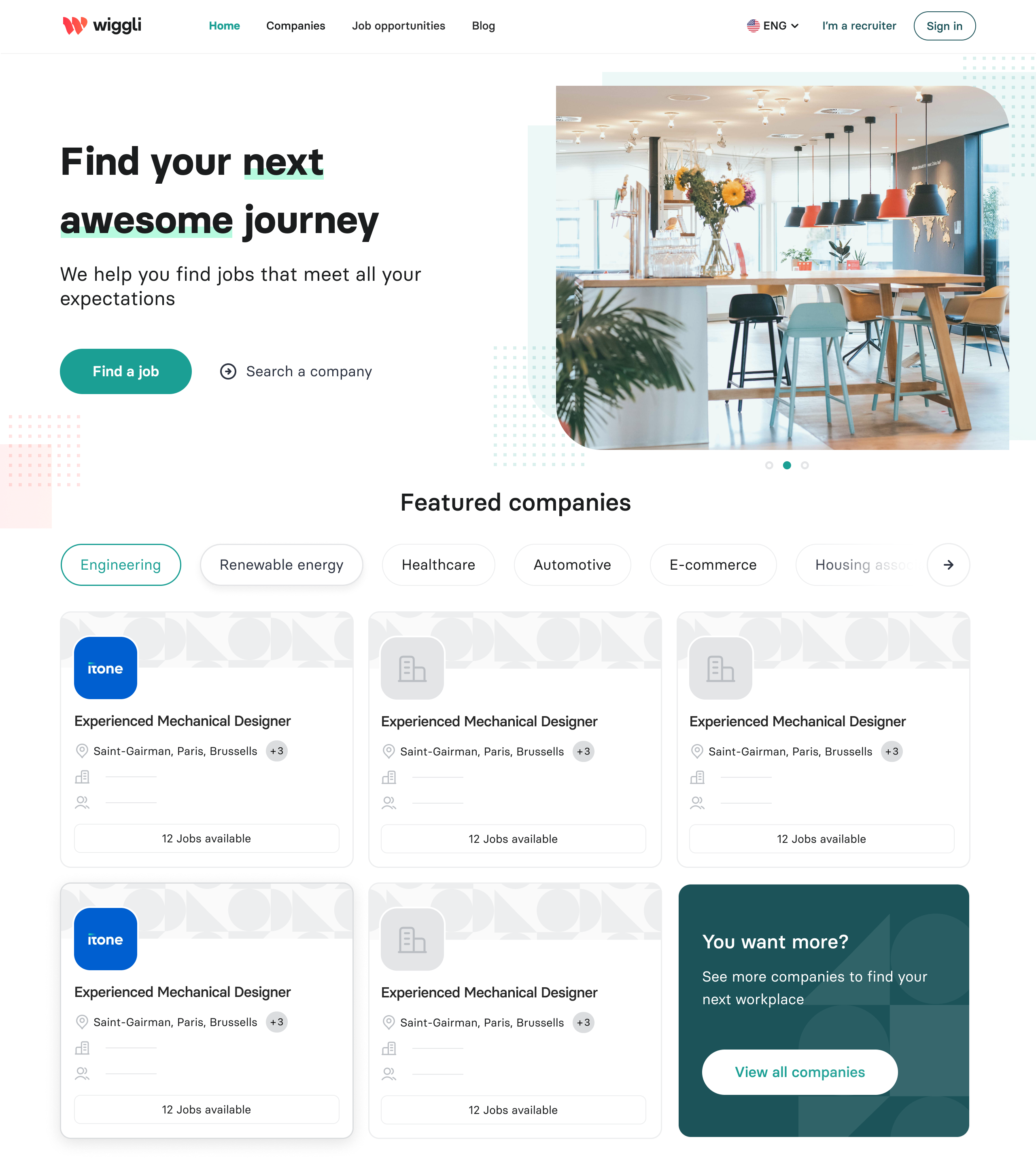
Employer Branding is a platform made by Wiggli in order to give its clients a way to show off their company and its culture in a beautiful modern way using text, images & videos.
Enable feature toggle
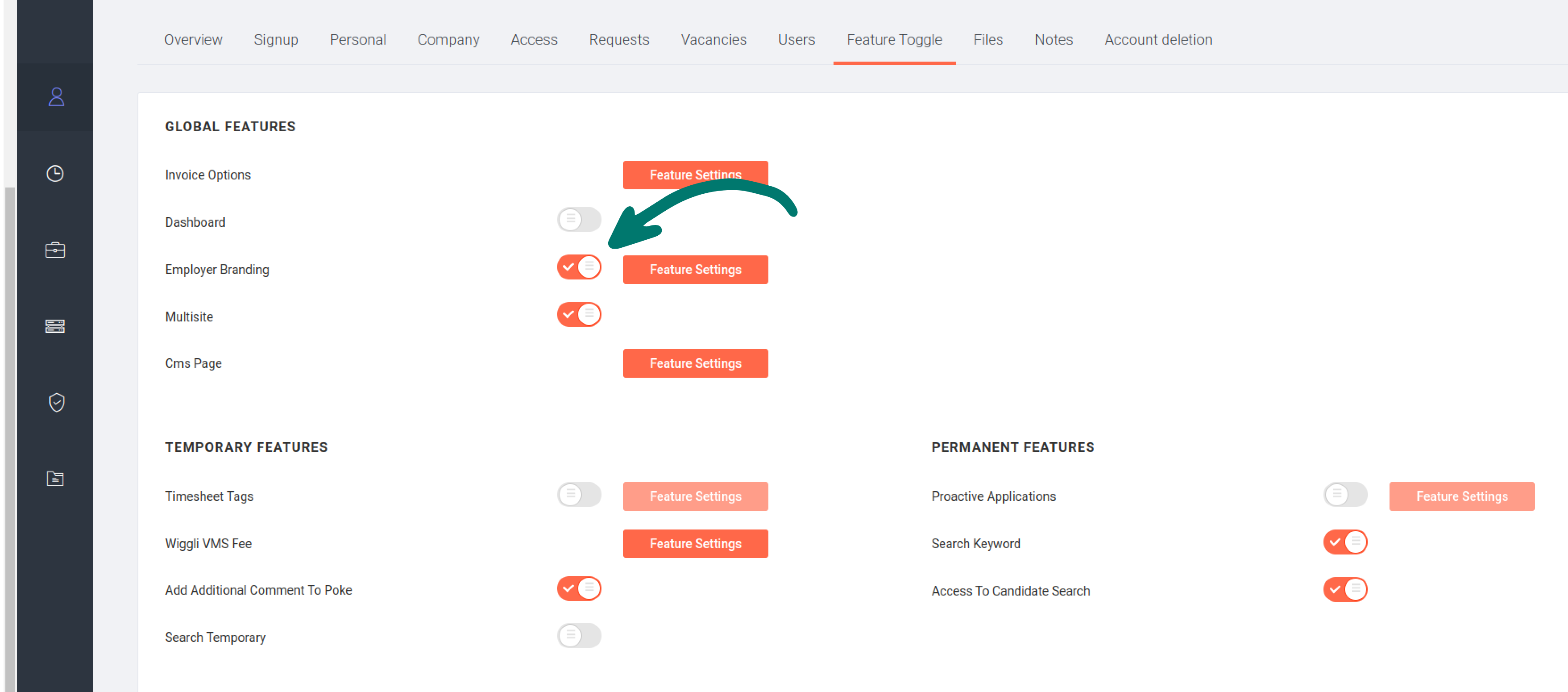
First, you should enable the employer branding feature toggle for the desired company.
- Go to Wiggli Admin
- Then go to clients
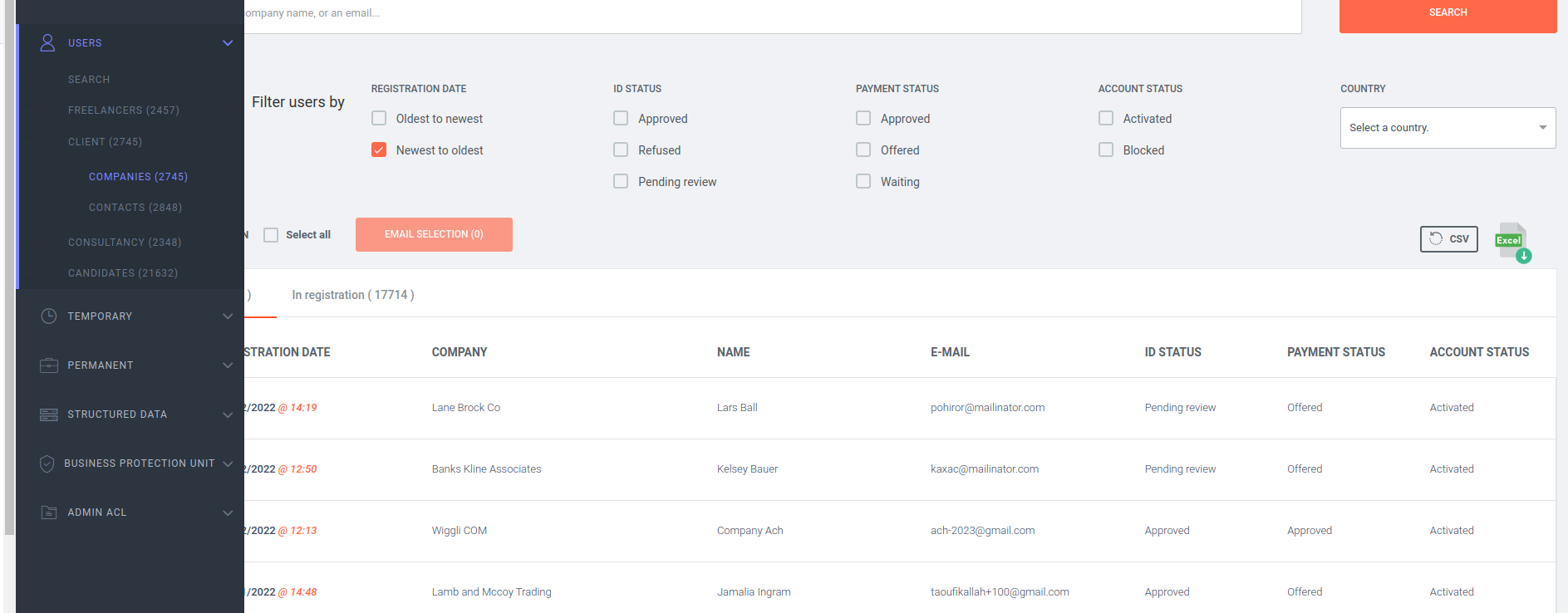
- Search for the company > feature toggle > enable
Employer Branding
Note that the company should be activated & approved!
Publish company site
Publish company site
Setting a company as featured or publishing one of its sites and generate its company page.
- Go to the
Employer Brandingfeature settings
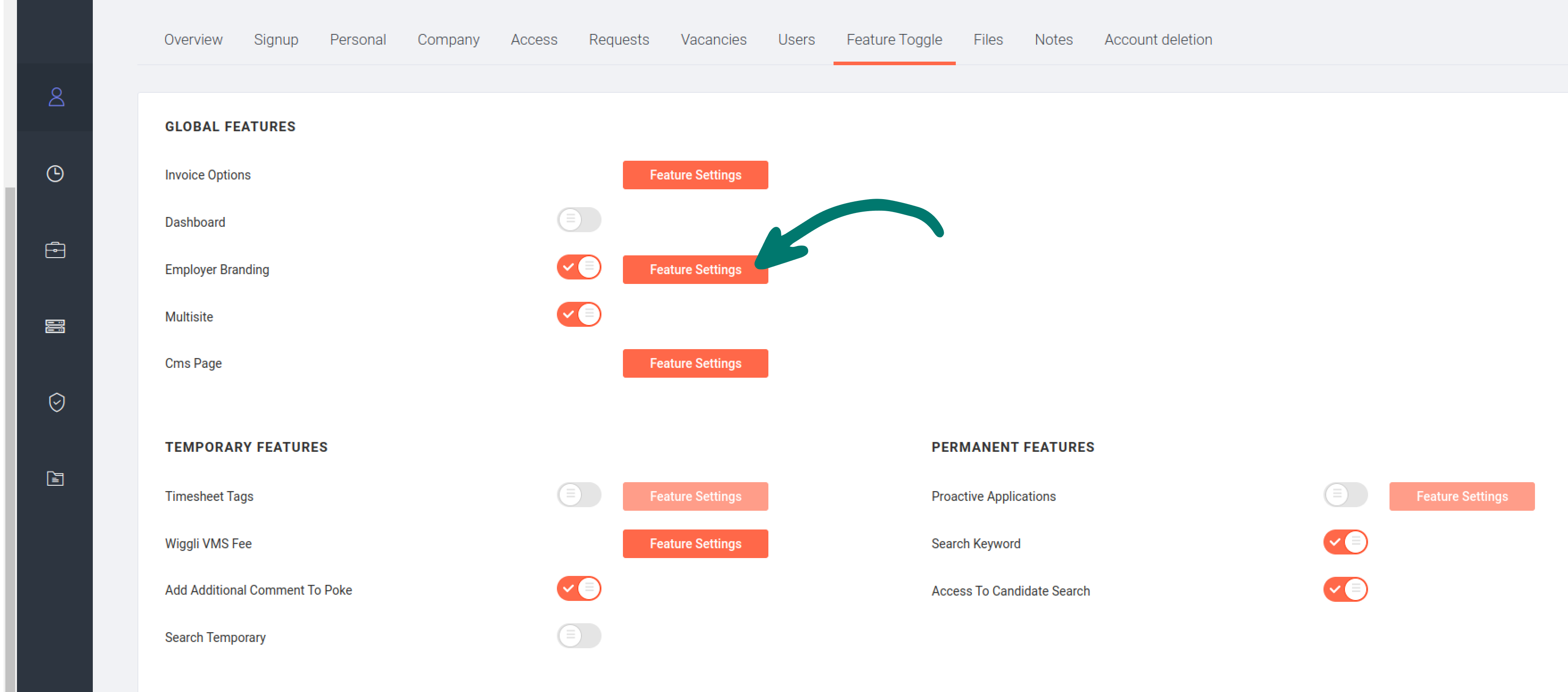
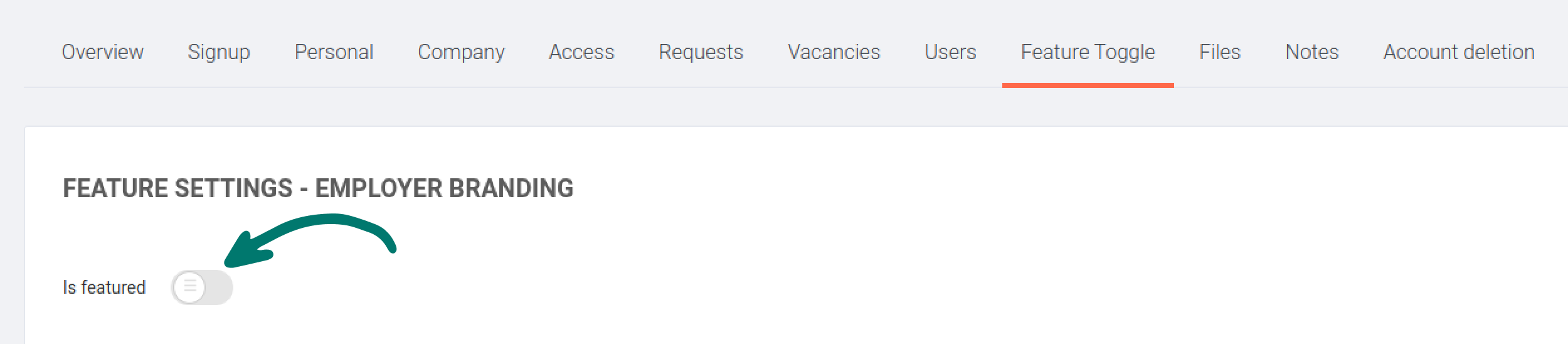
- Set the company as
featured
When a company is featured, it'll be displayed on the Home page (featured companies section) this will also put their jobs in the latest jobs section
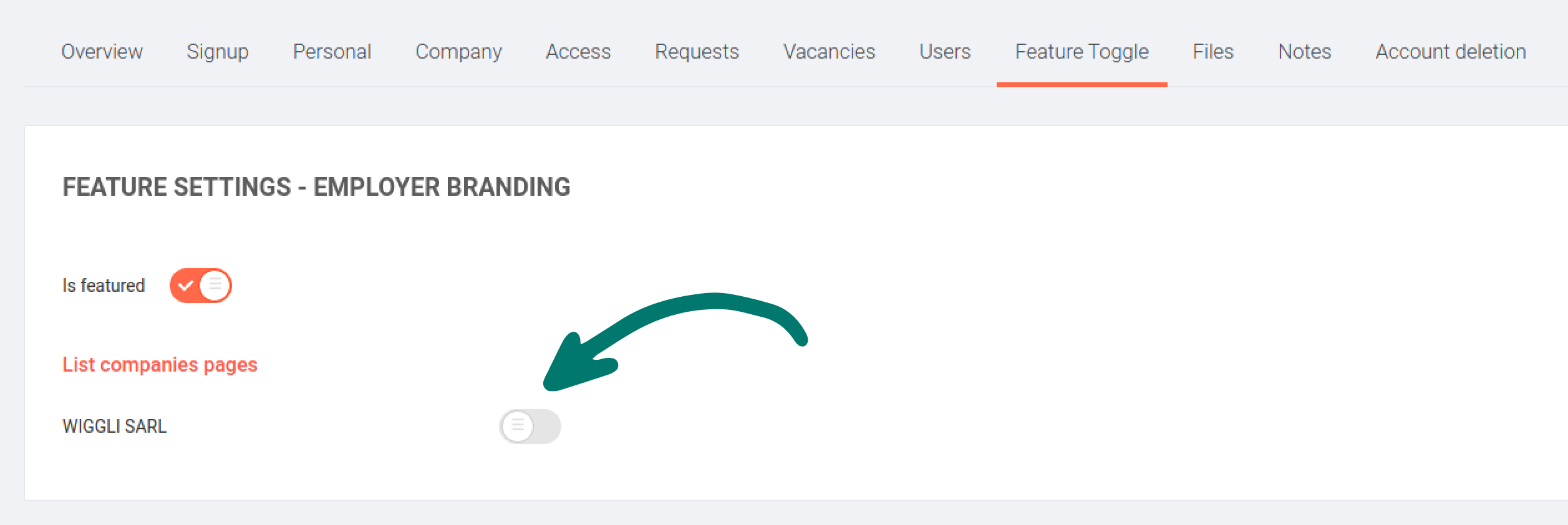
- Enable a site from
list companies pages
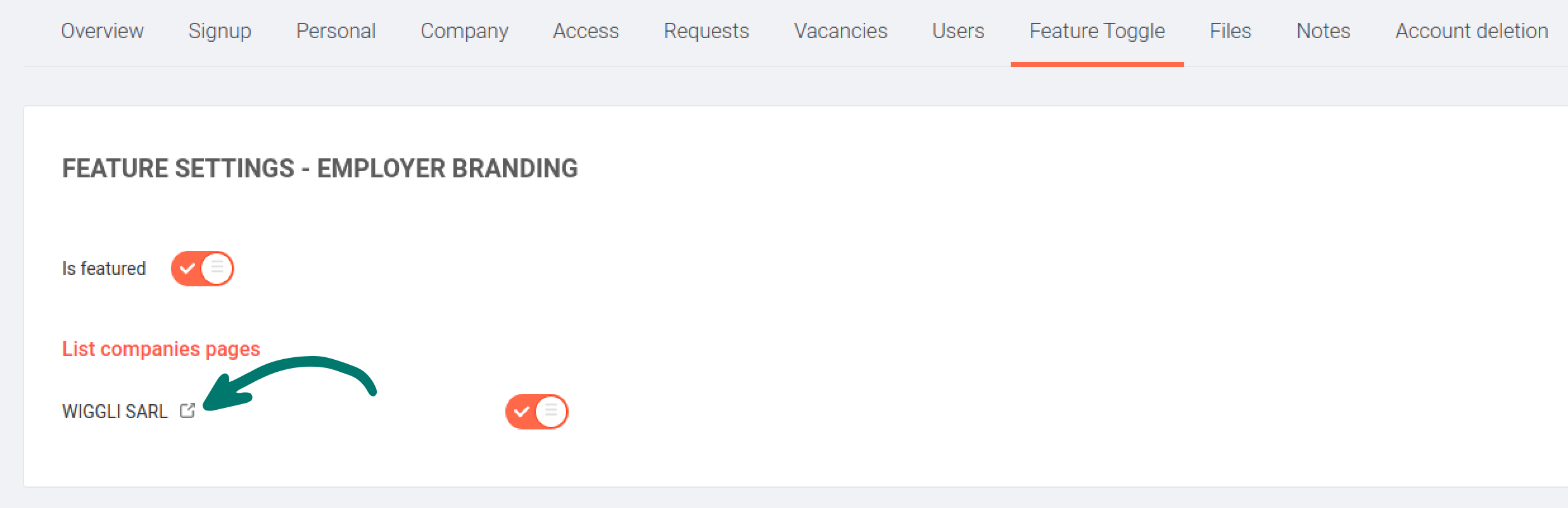
- View the published company page
After publishing a company site you'll get the link icon to take you to the published company page
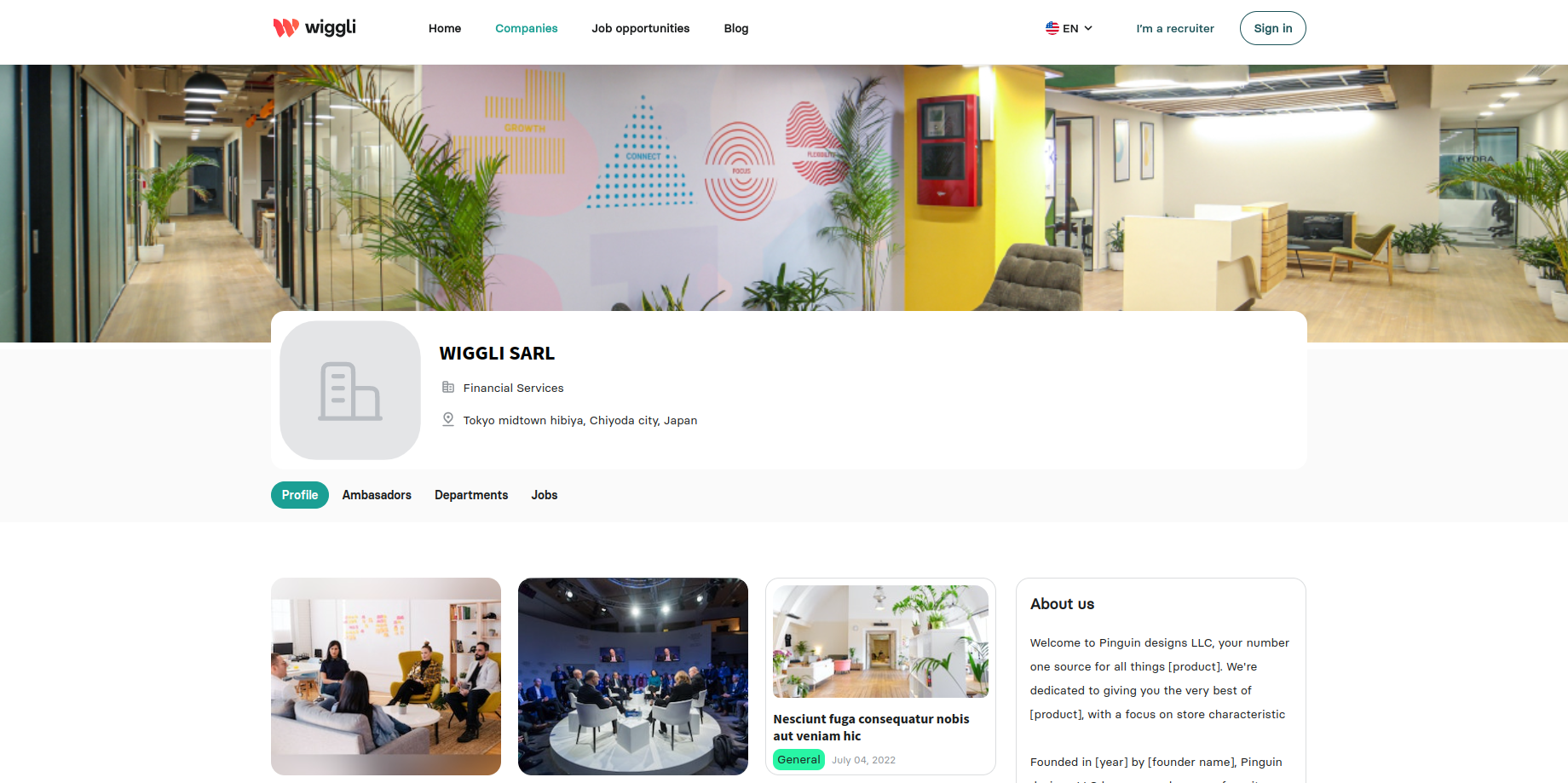
Edit company page information
Before getting started with customizing a company page, you should sign in as a support or admin member in the employer branding admin area. https://eb.demo.hme.ovh/signin
After publishing a company page, some information should be entered by the support, like about the company, recruitment process, fun facts, and social media links.
- Go to companies > desired company page > click
Edit
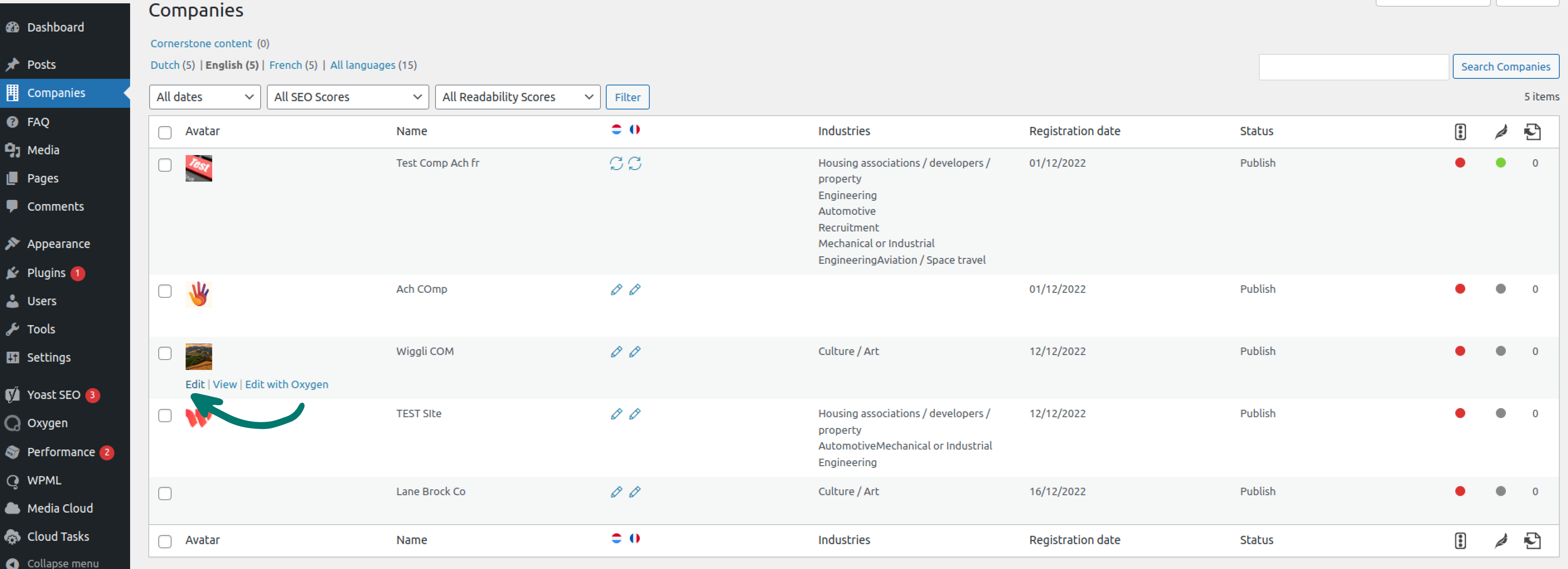
- Manage the recruitment process
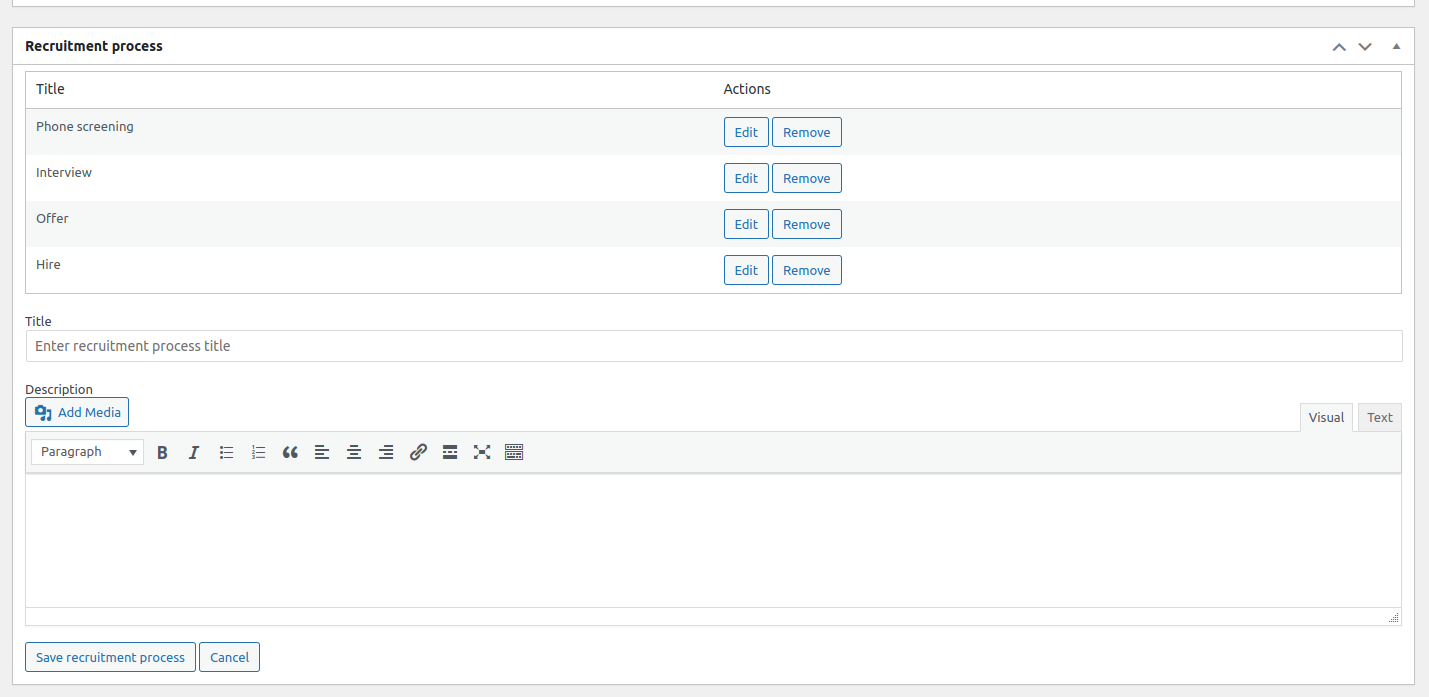
- Manage fun facts
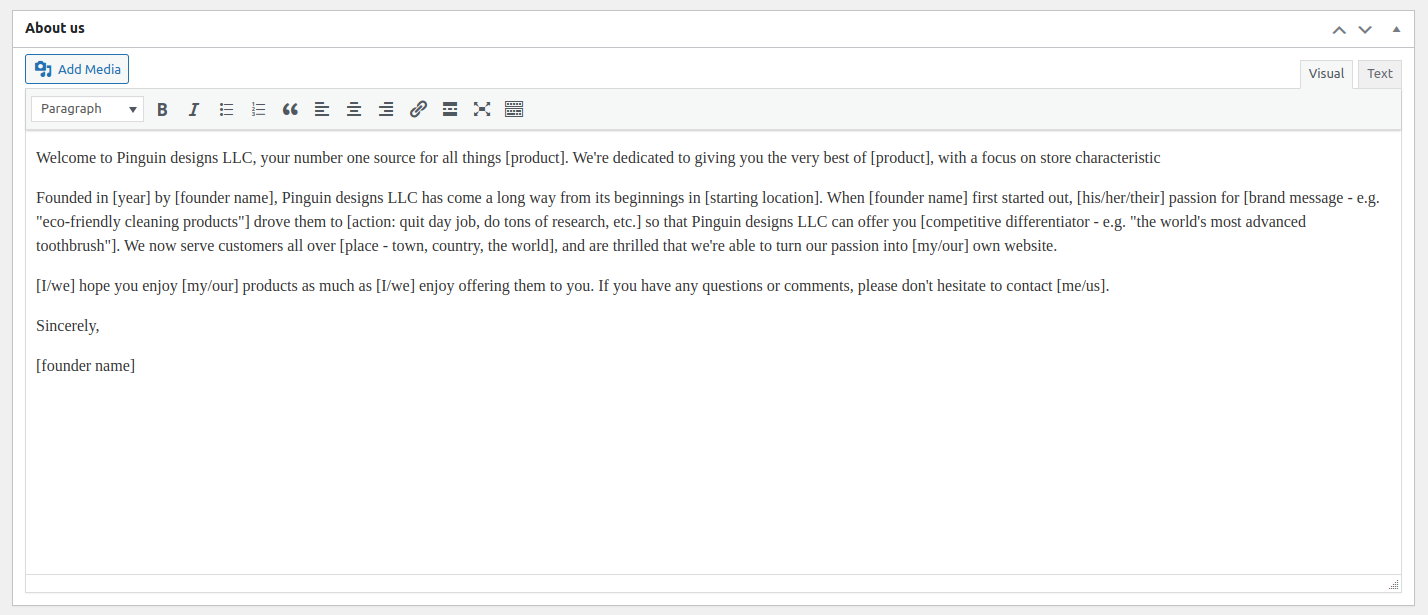
- Edit about us
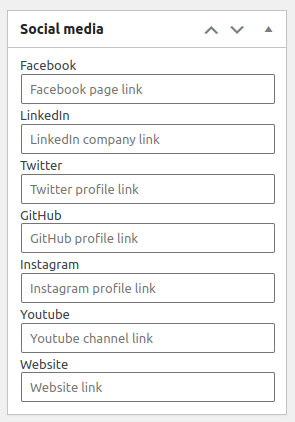
- Edit social media links
Edit company page information
Before publishing a company page, you should edit the site information and set the right data, following the steps below.
- Sign in as a client
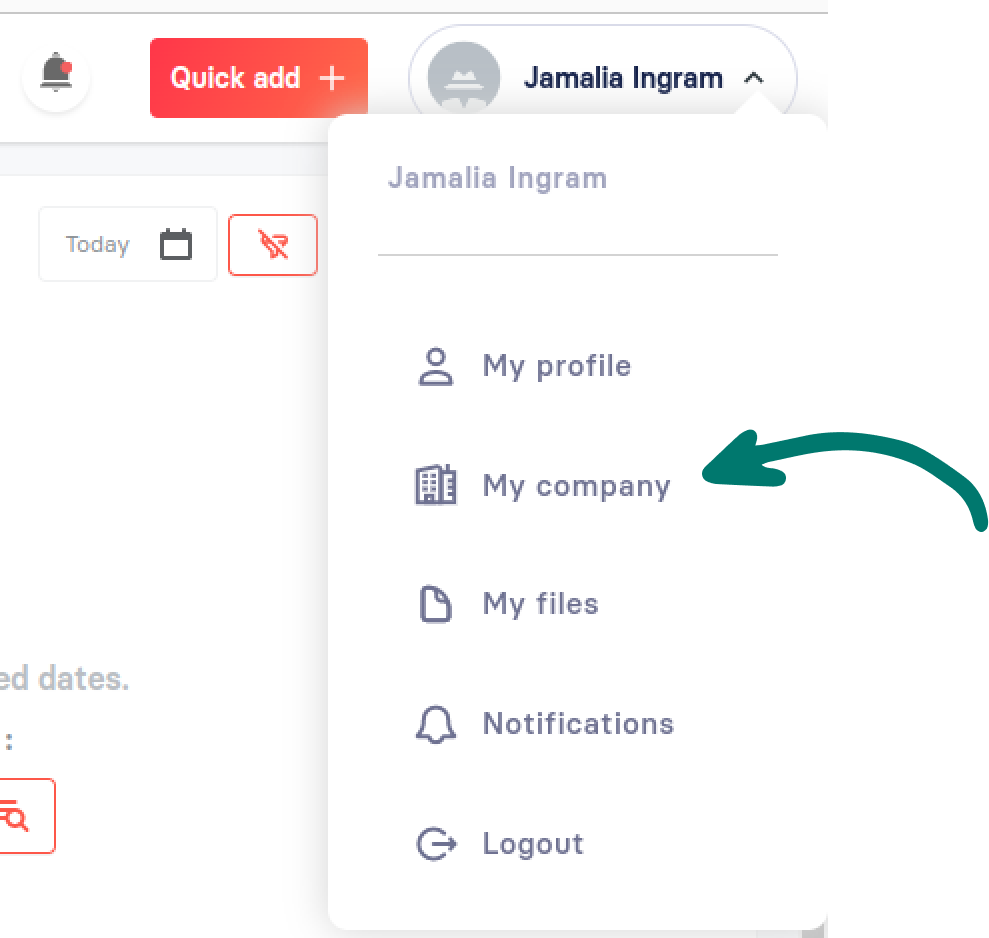
- Go to My Company page
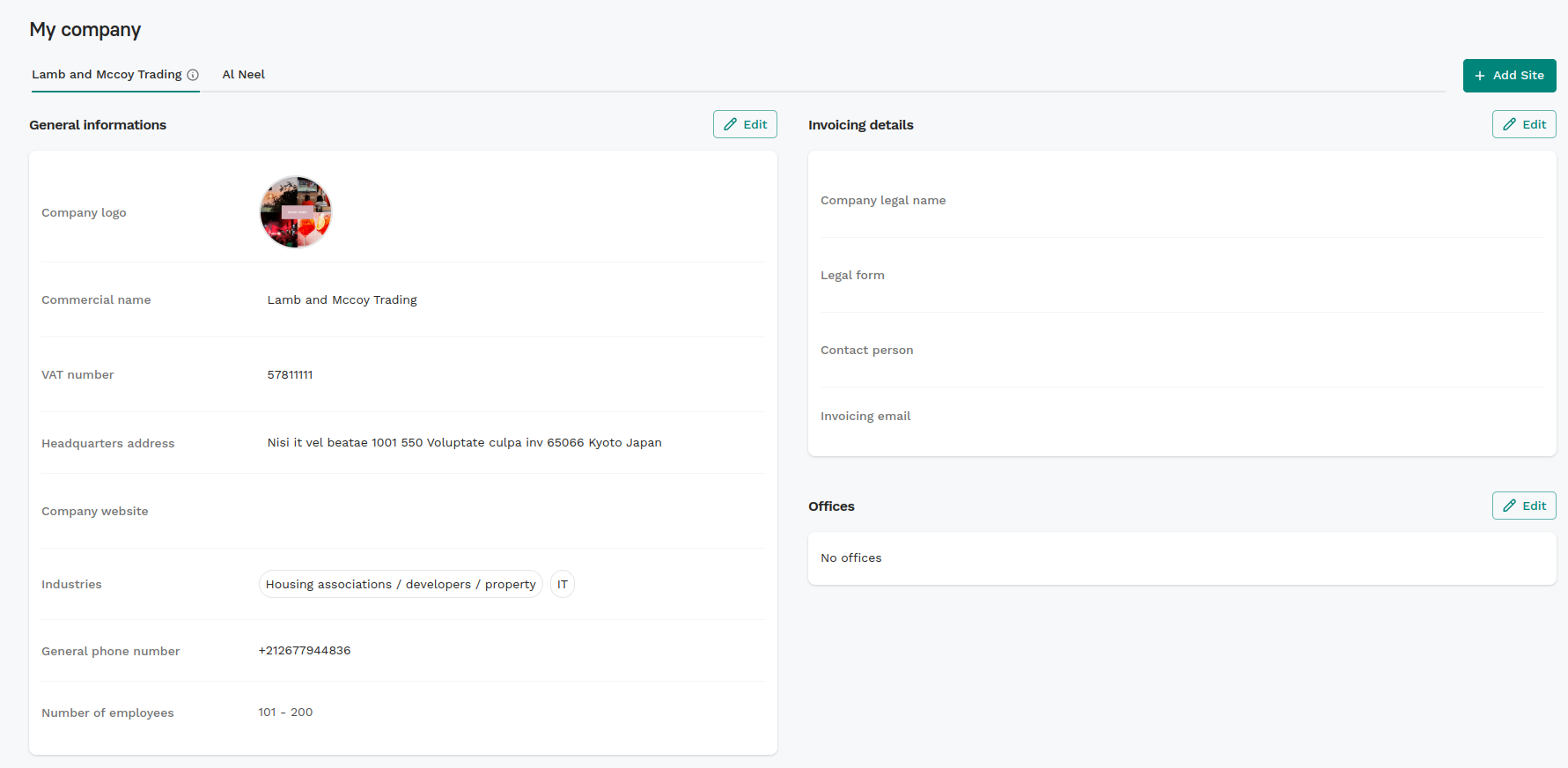
- Edit the company/site information
Such as: the company logo, headquarters address, website, number of employees, offices
Preview company page
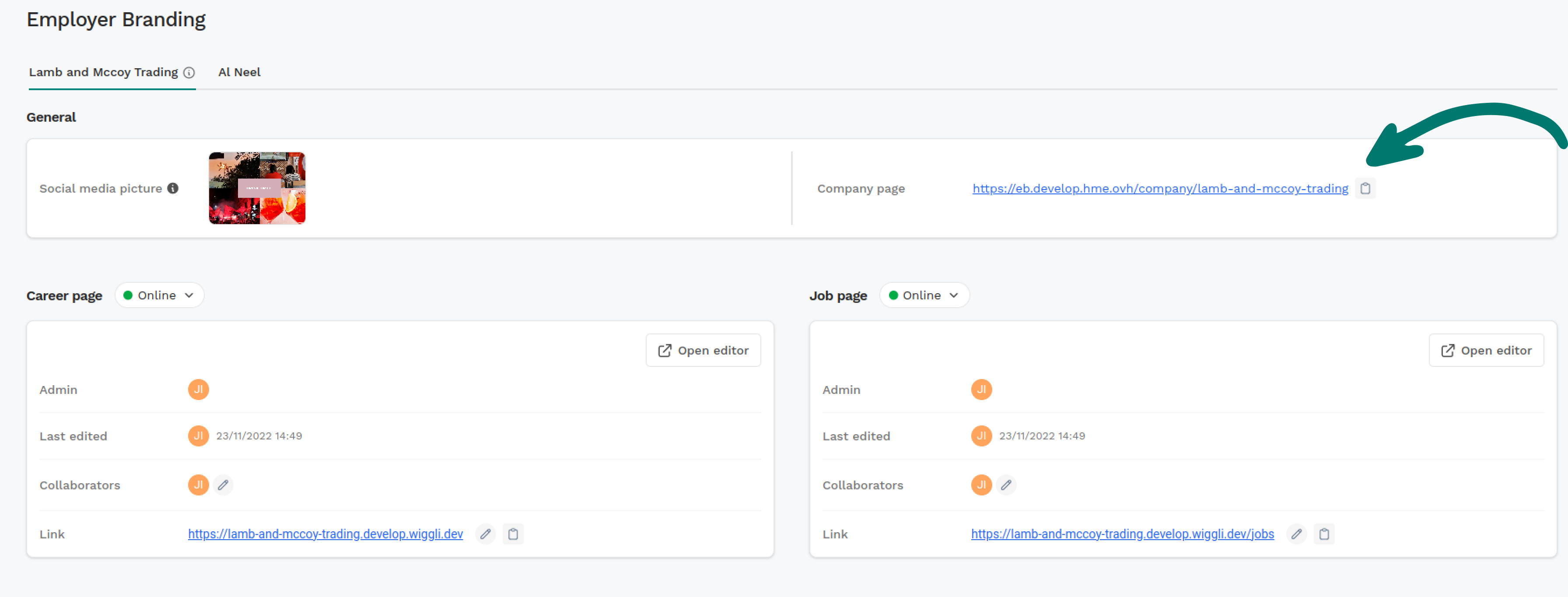
For each company/site you get generated link for the company page, which you can reach by the following steps.
- Go to settings > employer branding
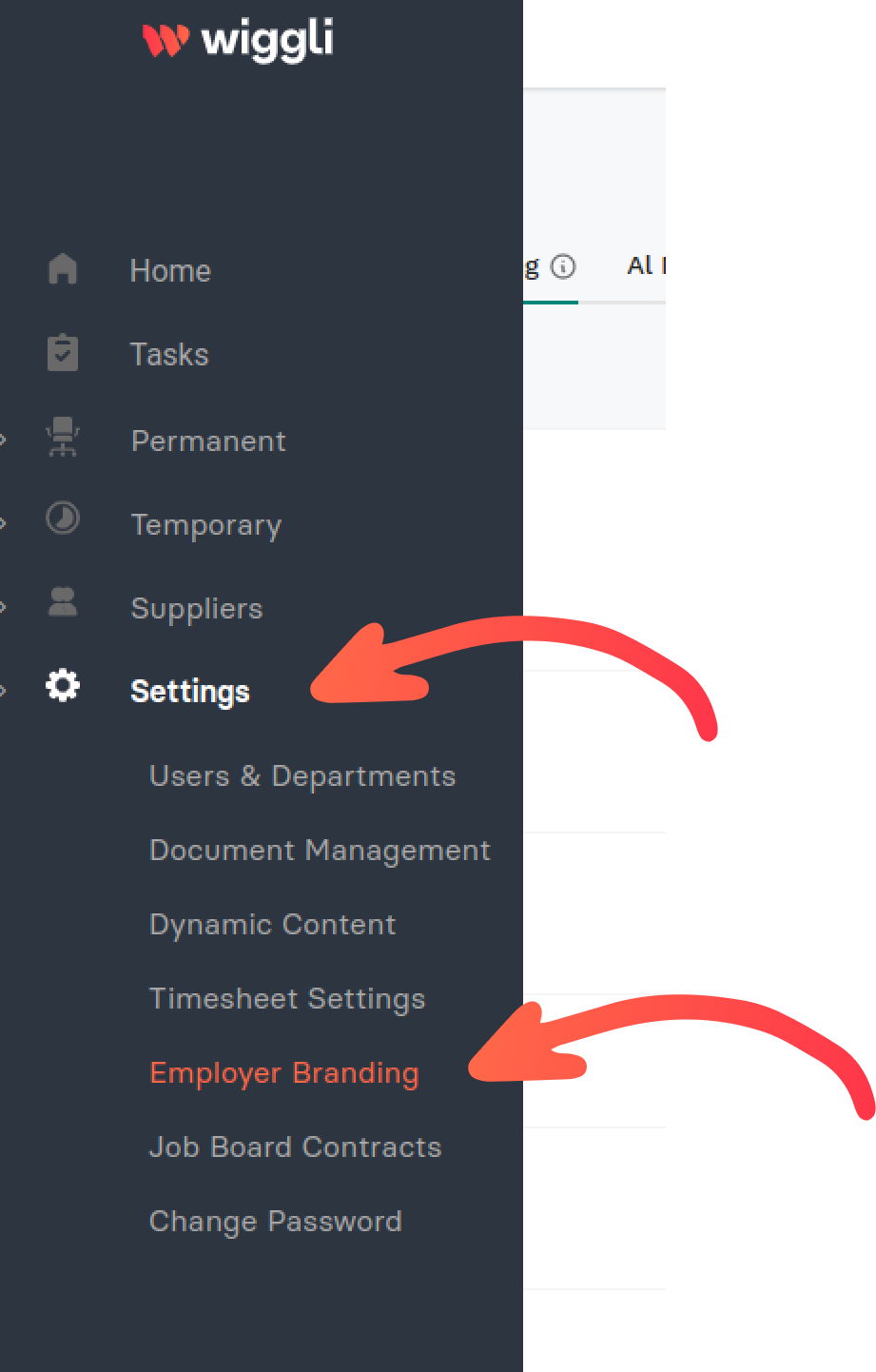
- Click on the link to preview company page or you can copy it
Home page
- Go to pages
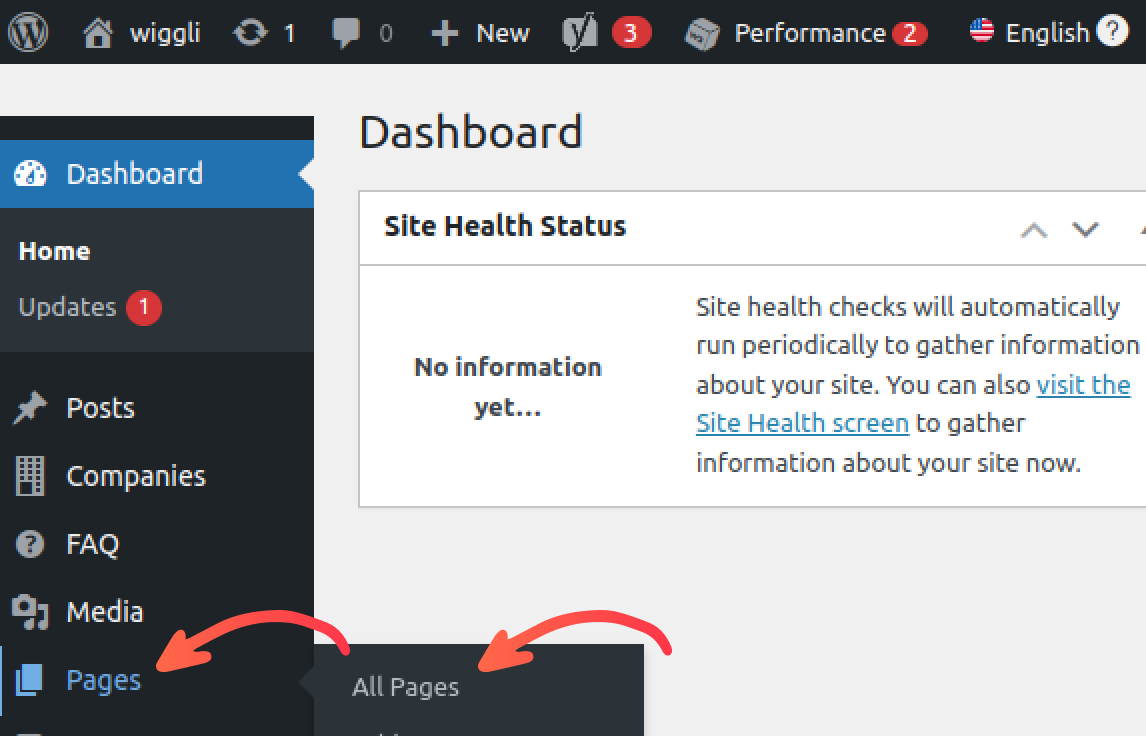
- Search for the
Homepage > click Edit with Oxygen

Or you can click Edit with Oxygen from the edit page

- Editing mode
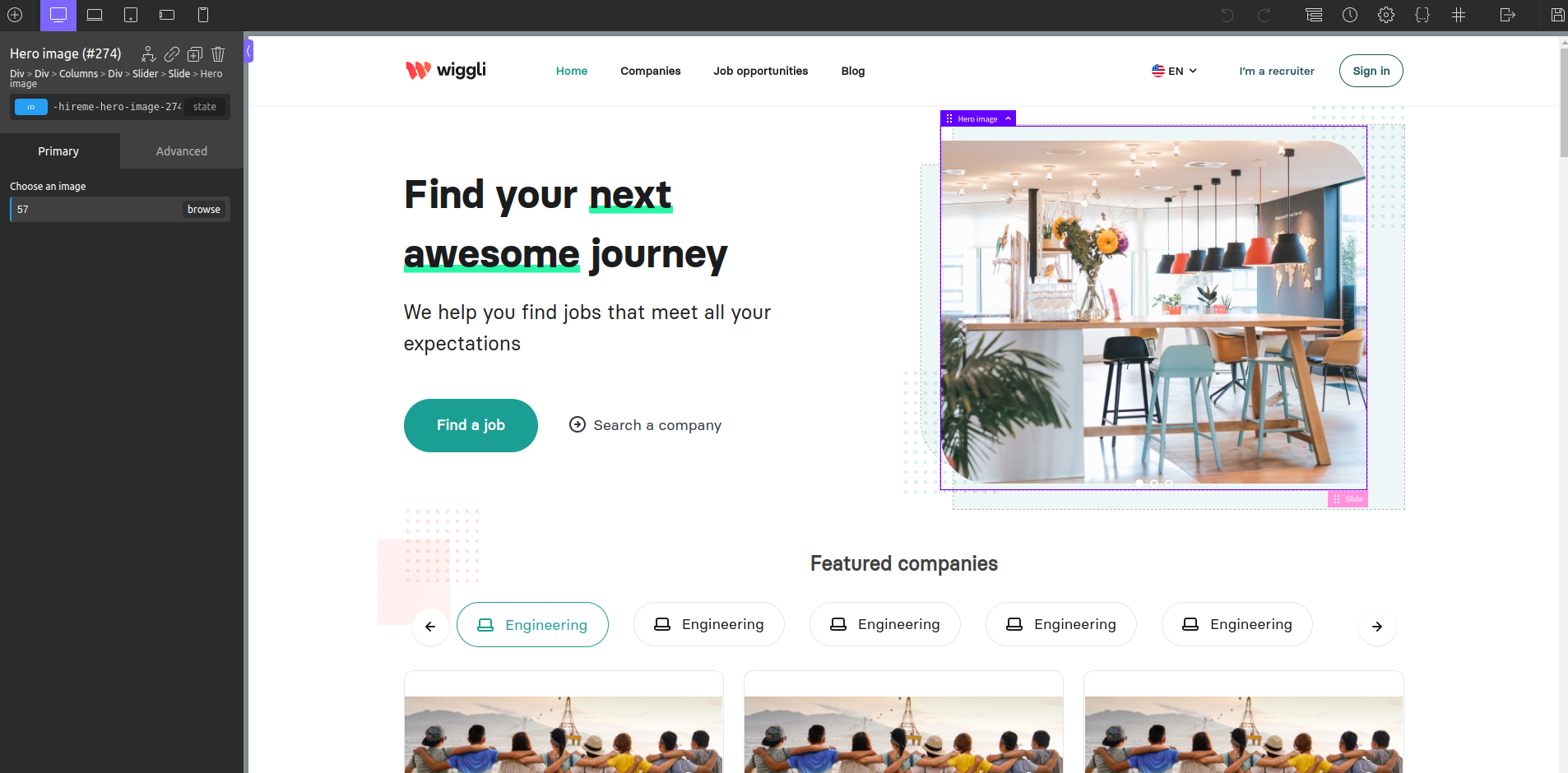
Check out Get familiar with Oxygen Builder guide for the pages and templates editing tutorials.
Companies page
- Go to pages
- Search for the
CompaniesorCompanies searchpage > click Edit with Oxygen
Companies search page depends on the Companies page when a user interacts with the search form element then the results showed on the Companies search page.
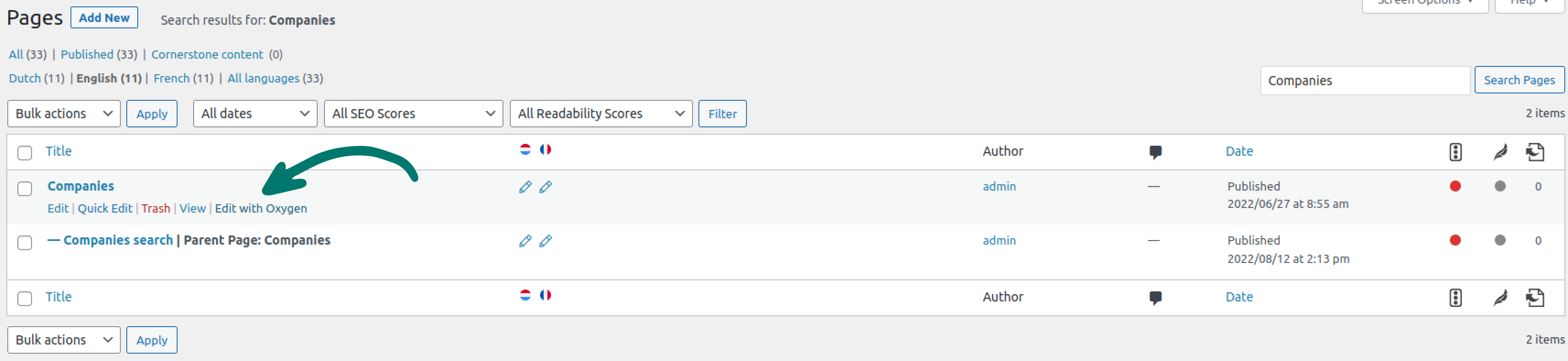
Or you can click Edit with Oxygen from the edit page
- Editing mode
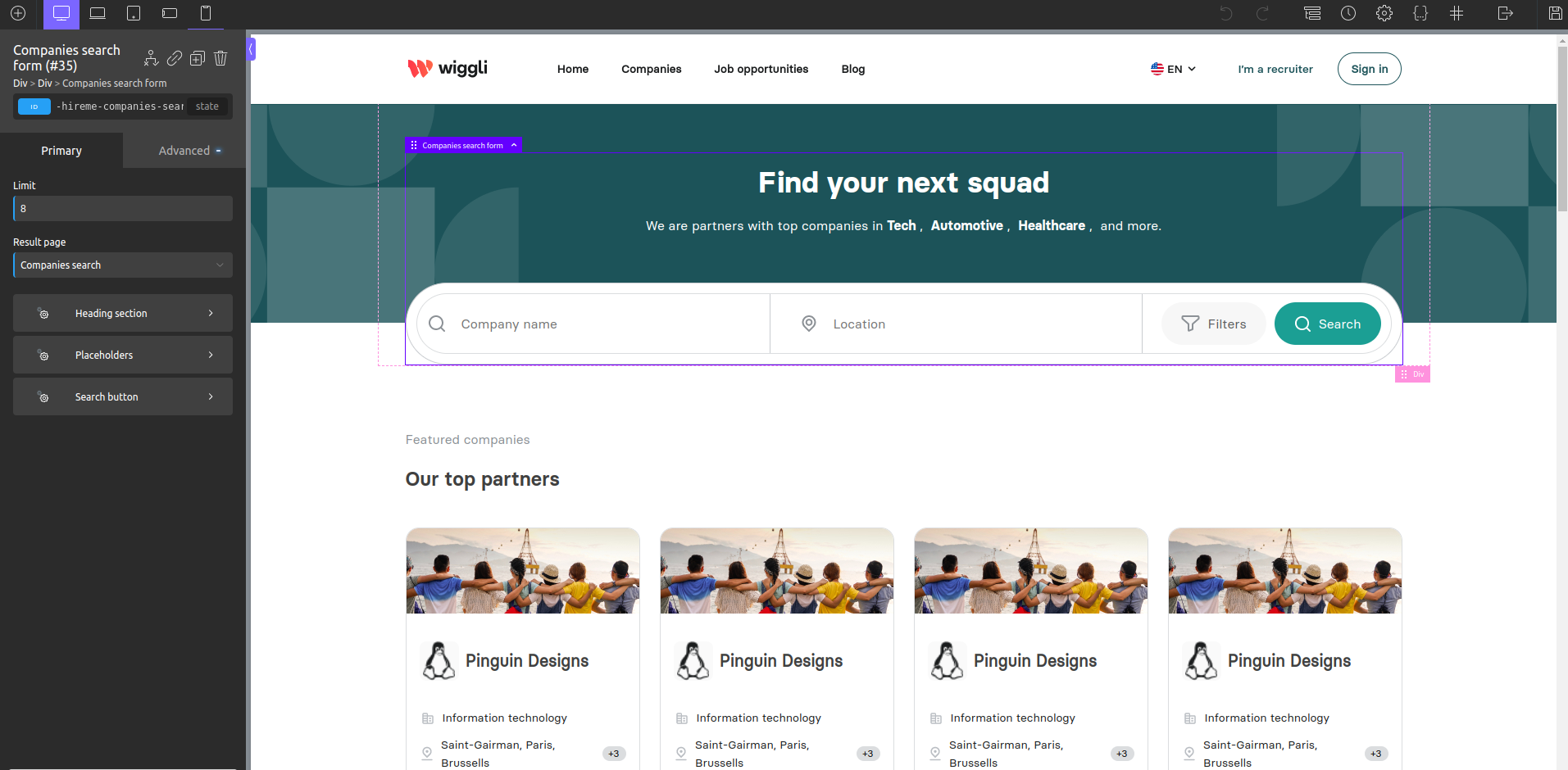
Check out Get familiar with Oxygen Builder guide for the pages and templates editing tutorials.
Job opportunities page
- Go to pages
- Search for the
Job opportunitiesorJob opportunities searchpage > click Edit with Oxygen
Job opportunities search page depends on the Job opportunities page when a user interacts with the search form element then the results showed on the Job opportunities search page.
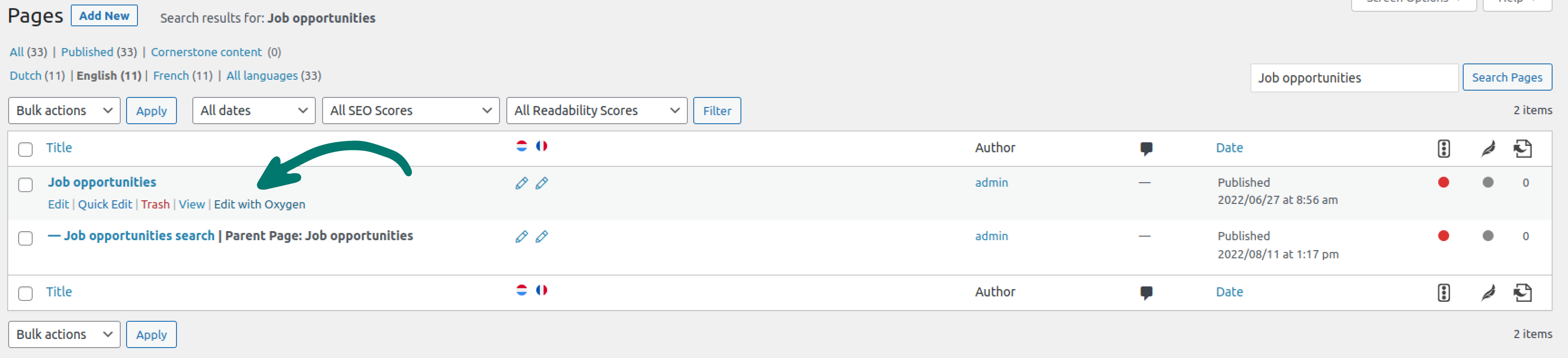
Or you can click Edit with Oxygen from the edit page
- Editing mode
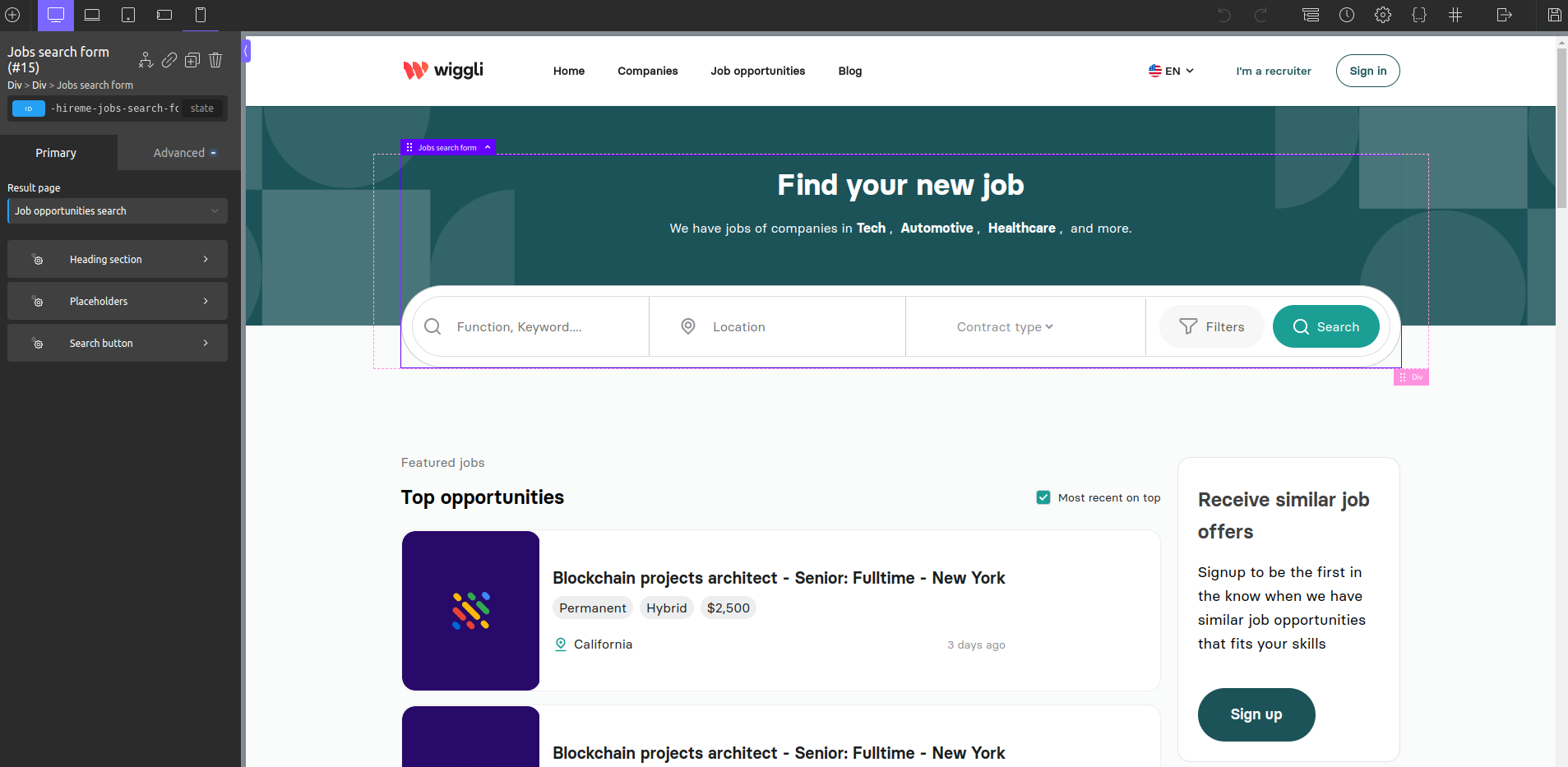
Check out Get familiar with Oxygen Builder guide for the pages and templates editing tutorials.
Blog page
- Go to pages
- Search for the
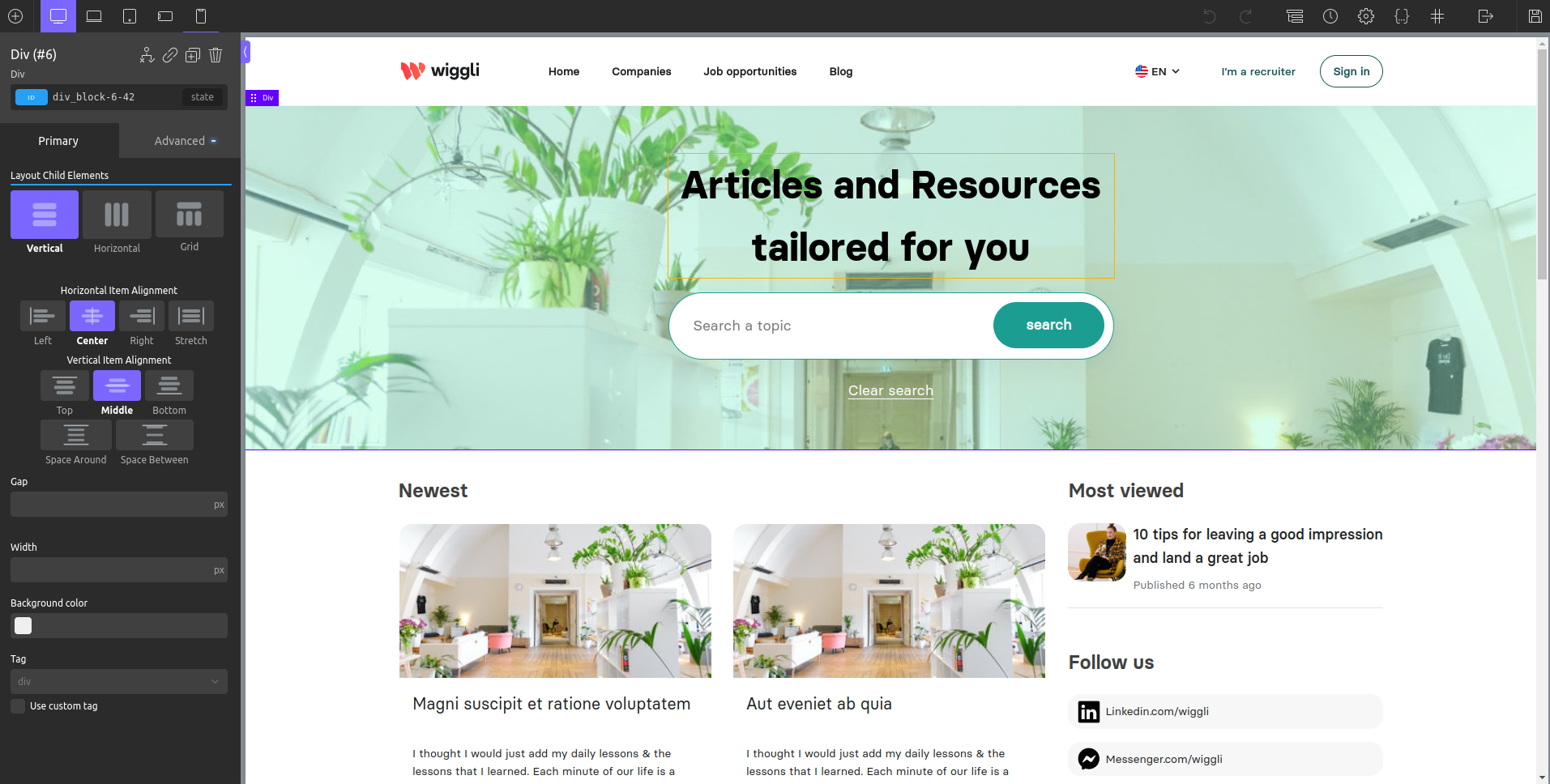
Blogpage > click Edit with Oxygen

Or you can click Edit with Oxygen from the edit page
- Editing mode
Check out Get familiar with Oxygen Builder guide for the pages and templates editing tutorials.
Company template
Note that the changes are only applied to future published companies pages.
- Go to Oxygen > Templates
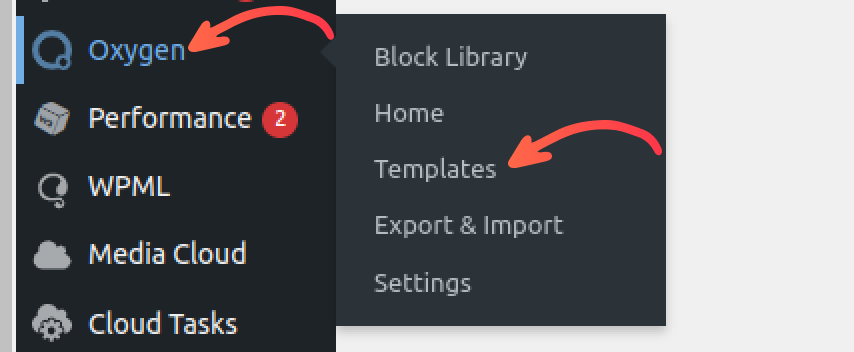
- Search for
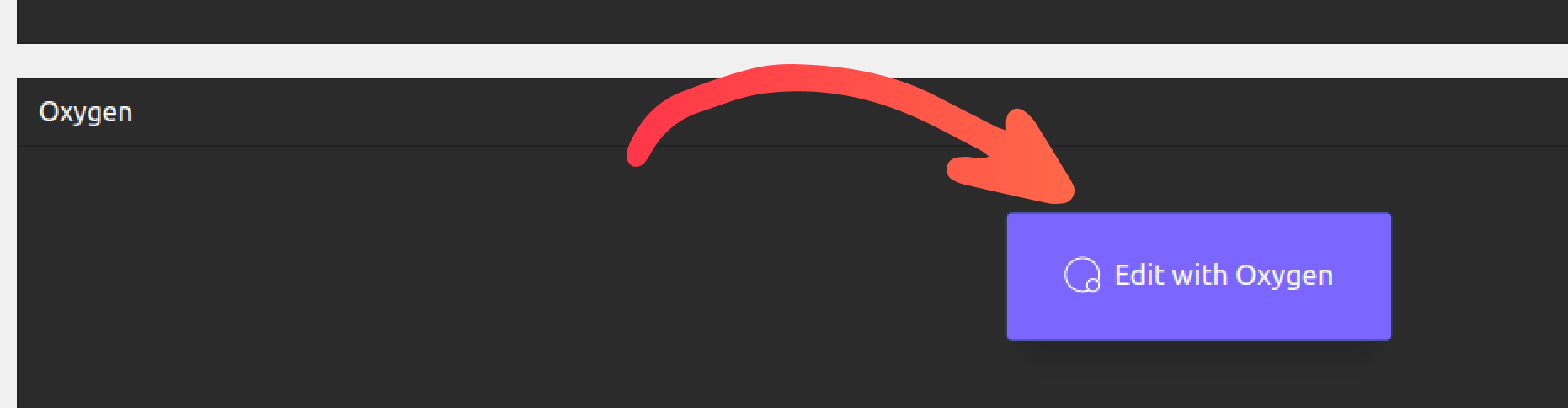
Single company content> click Edit with oxygen

Or you can click Edit > scroll to Oxygen section > click Edit with oxygen
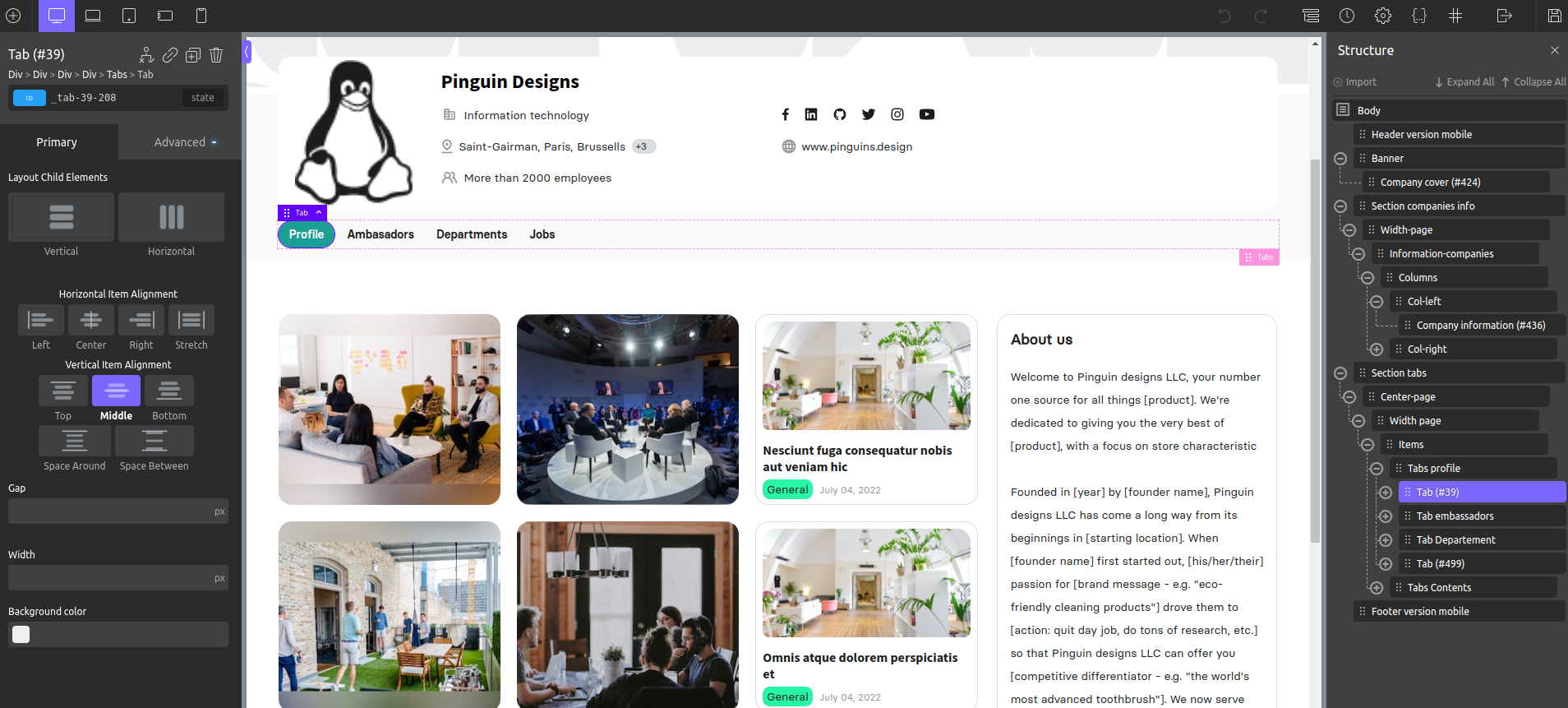
- Edit the company page template
Note that you can re-style, add, and delete elements without interacting with company data since you're editing the template, not a company.
Check out Get familiar with Oxygen Builder guide for the pages and templates editing tutorials.
Job template
Note that the changes are only applied to future published jobs.
- Go to Oxygen > Templates
- Search for
Single job> click Edit with oxygen

Or you can click Edit > scroll to Oxygen section > click Edit with oxygen
- Edit the job content template
Note that you can re-style, add, and delete elements without interacting with job data since you're editing the template.
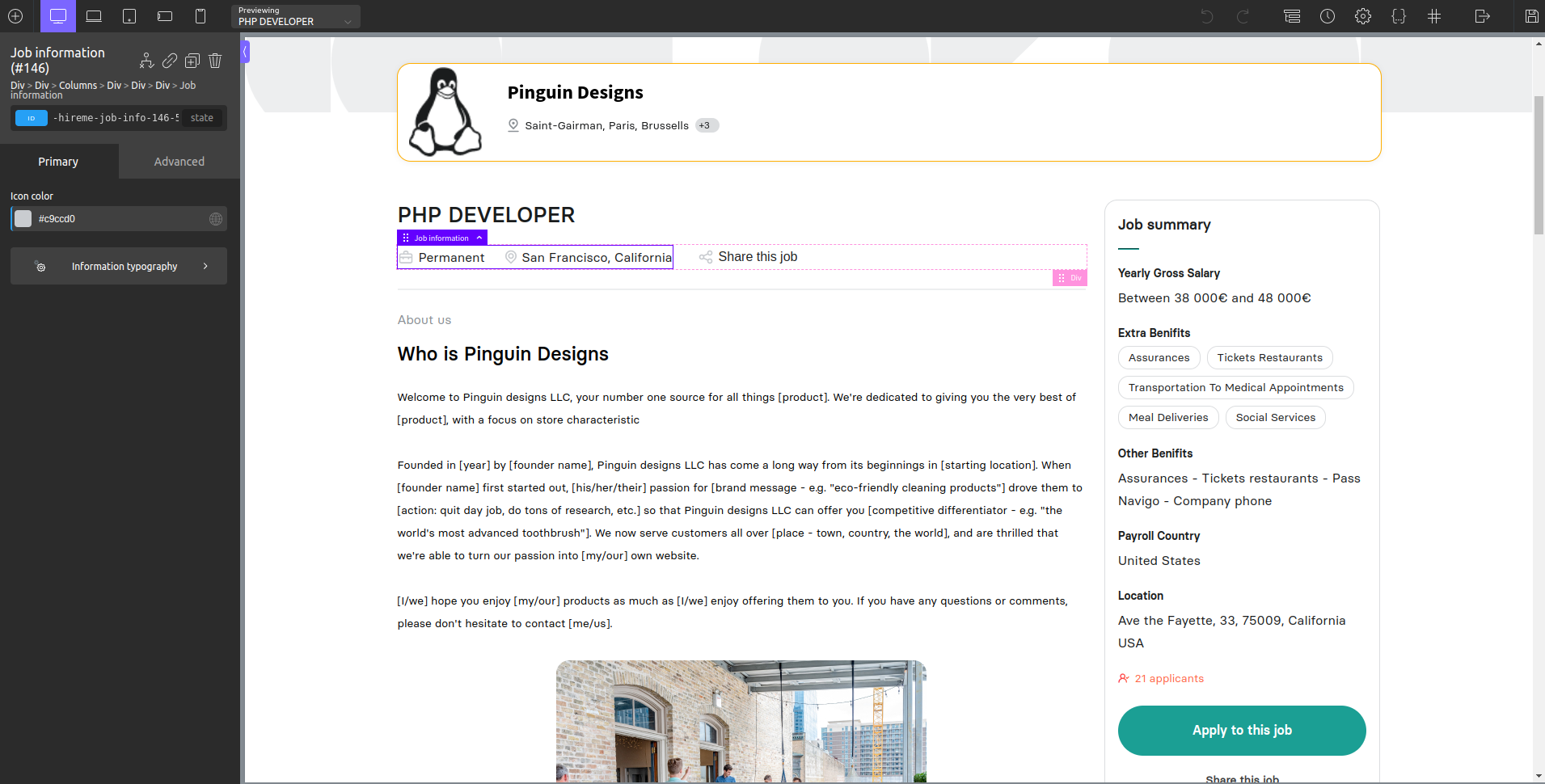
Check out Get familiar with Oxygen Builder guide for the pages and templates editing tutorials.
Elements
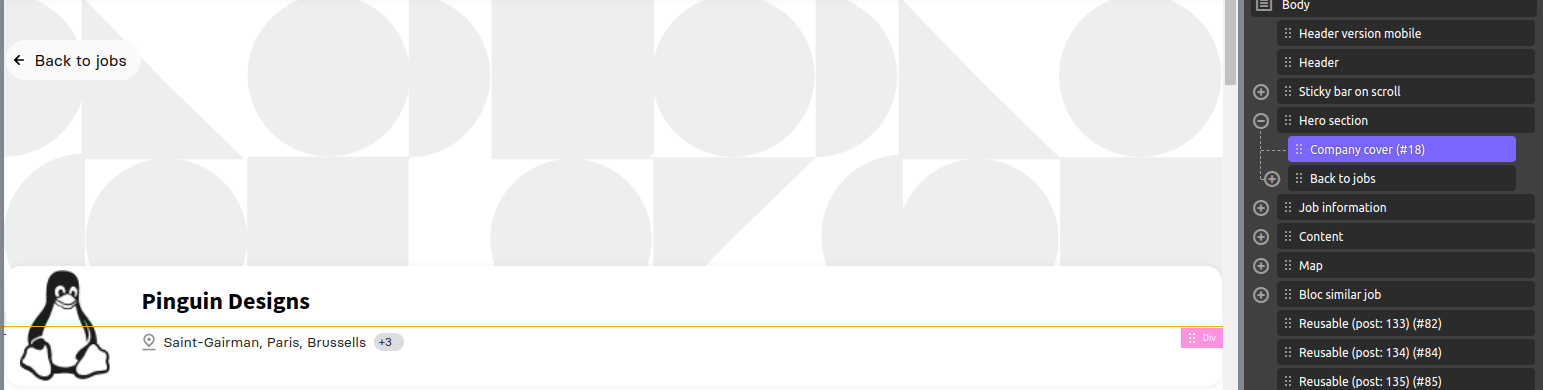
Company Cover
Display company cover and fallback to default cover if not set, you can upload company cover by following the steps.
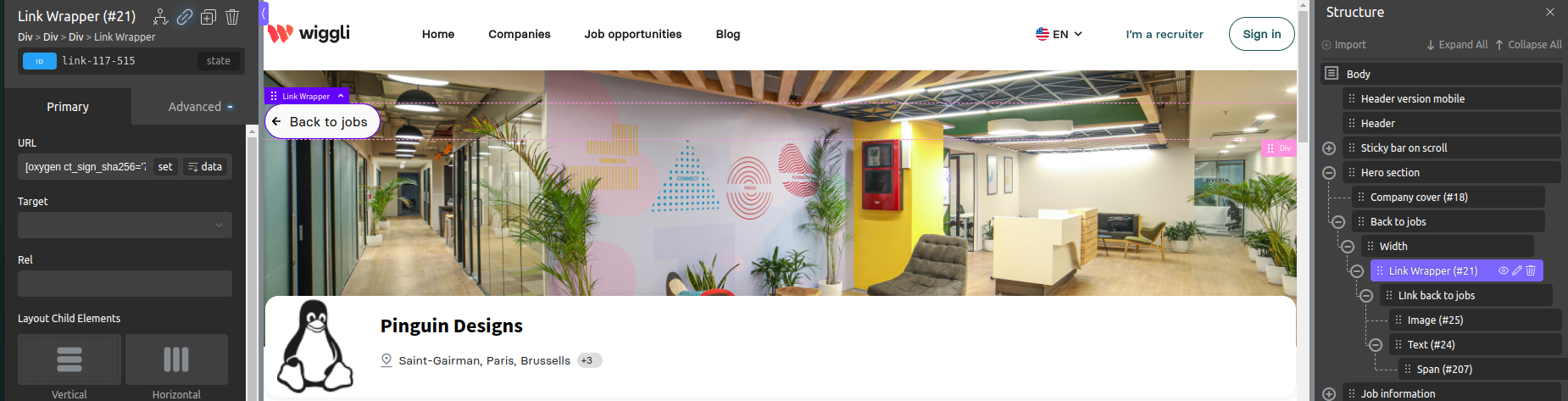
Back to jobs
Button redirect back to search jobs including filters, using ebGoToJobsOpportunitiesList function.
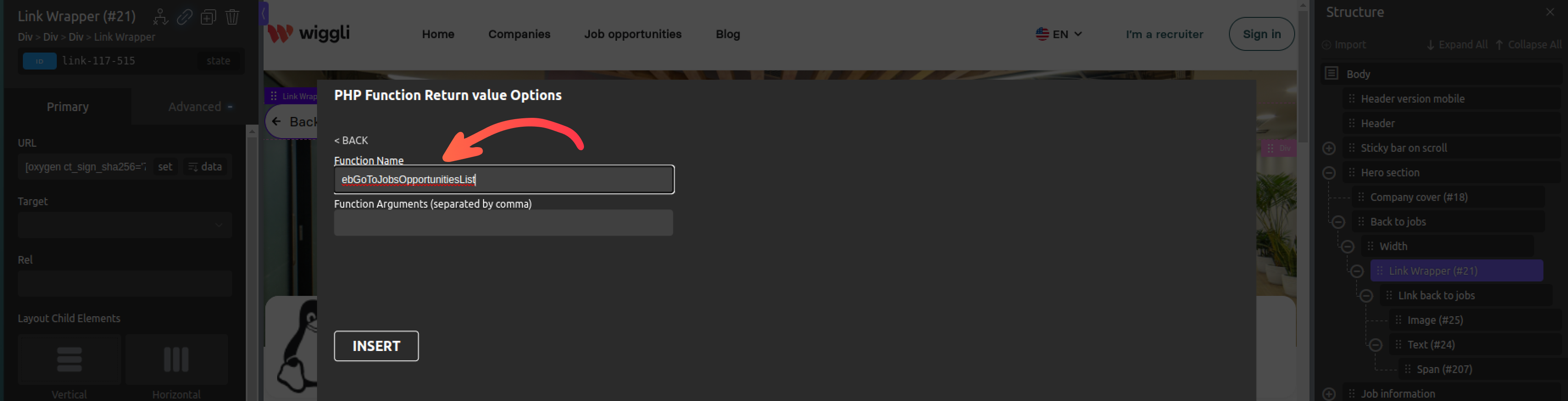
Following the dynamic data tutorial you can use PHP Function Return Value to set ebGoToJobsOpportunitiesList function as redirect link.
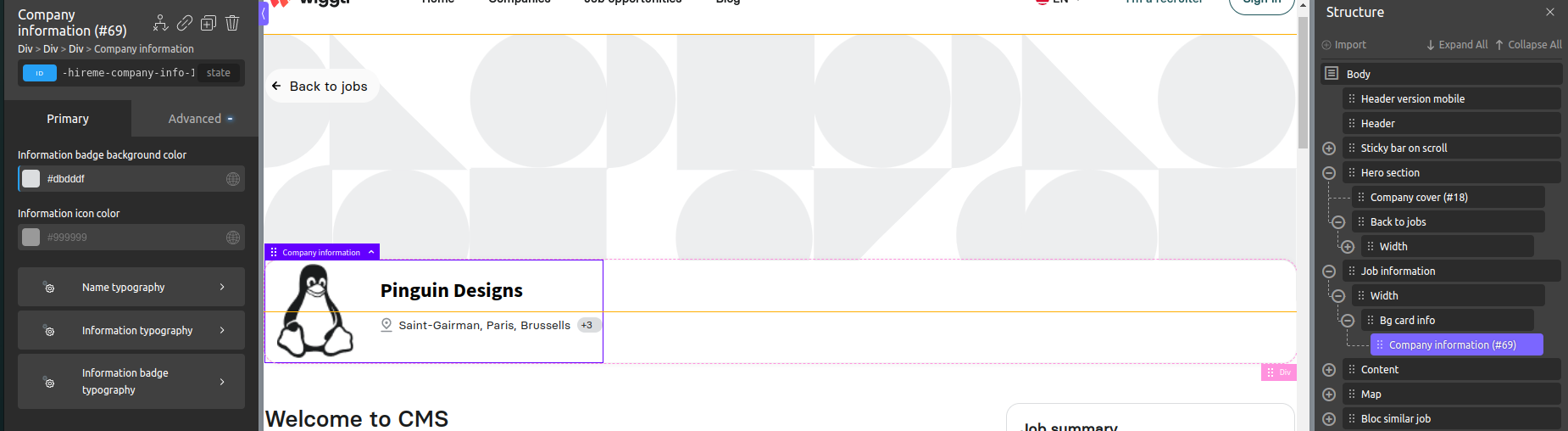
Company information
Display company information such the name, avatar and the offices.
Job title
Display job title from Wiggli API using getJobTitle function.
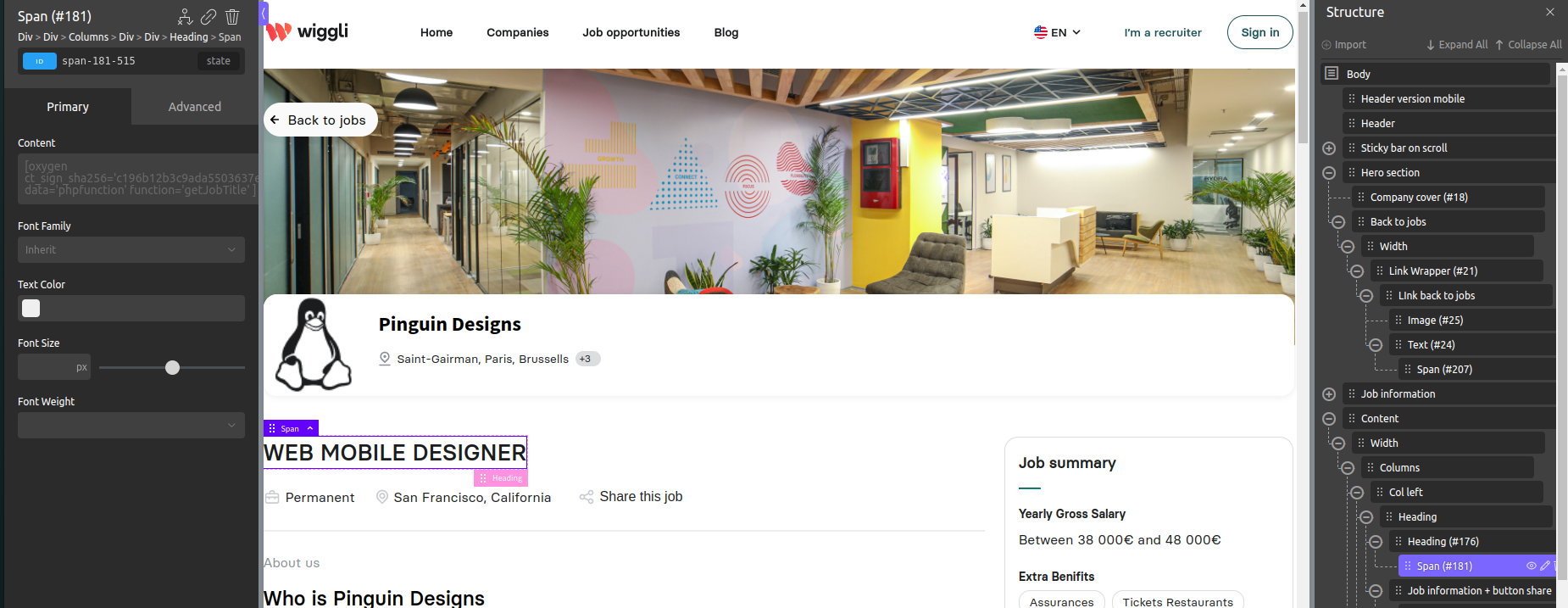
Following the dynamic data tutorial you can use PHP Function Return Value to set getJobTitle function as job title callback.
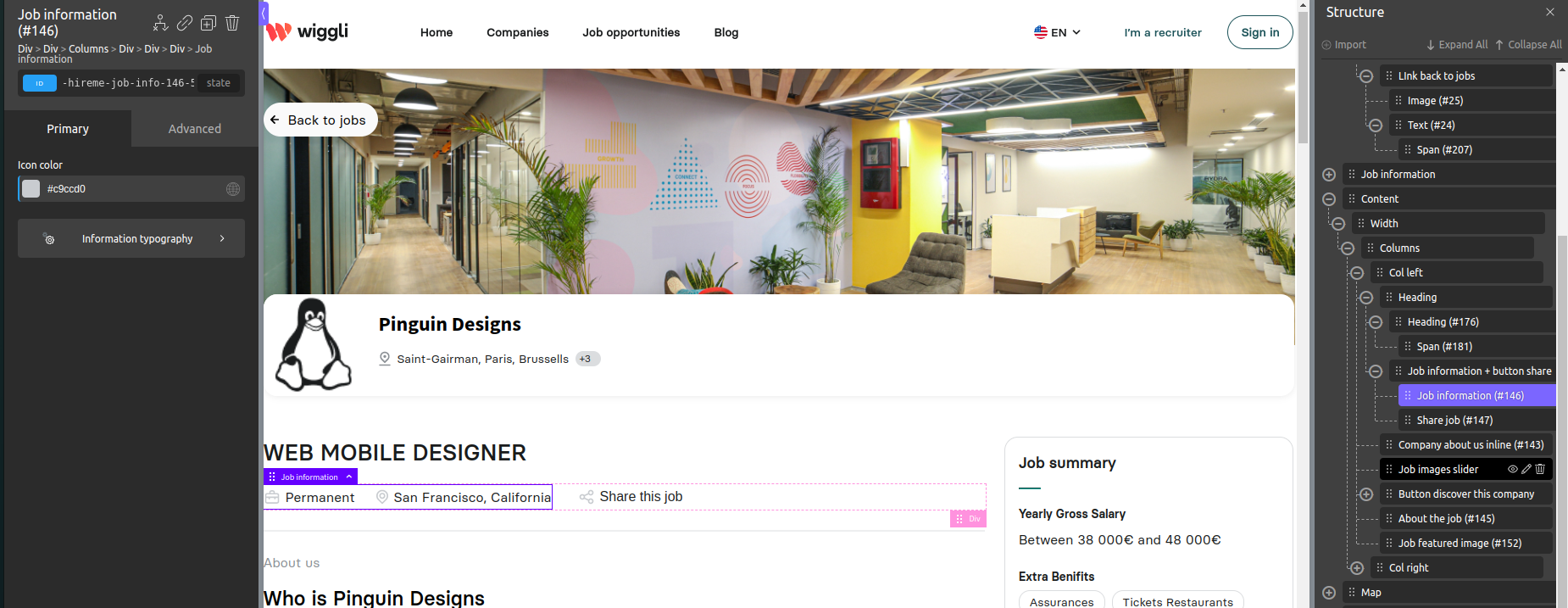
Job information
Display job information from Wiggli API such job type and location.
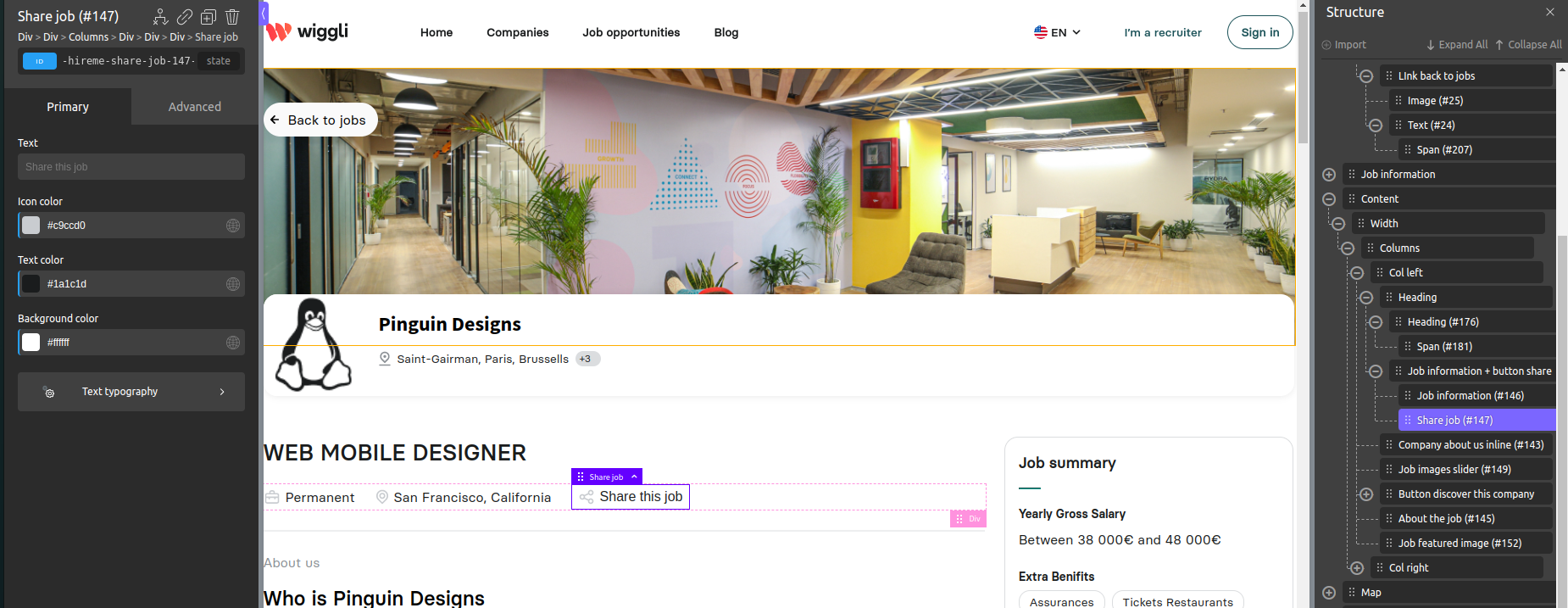
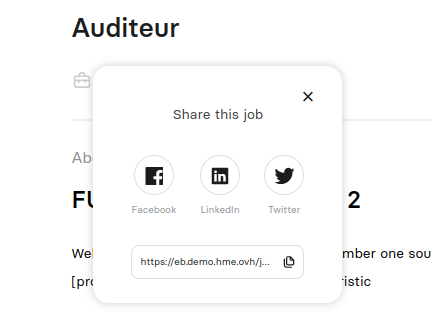
Share job
Links to share job into Facebook, LinkedIn, Twitter and copy link action.
User behavior:
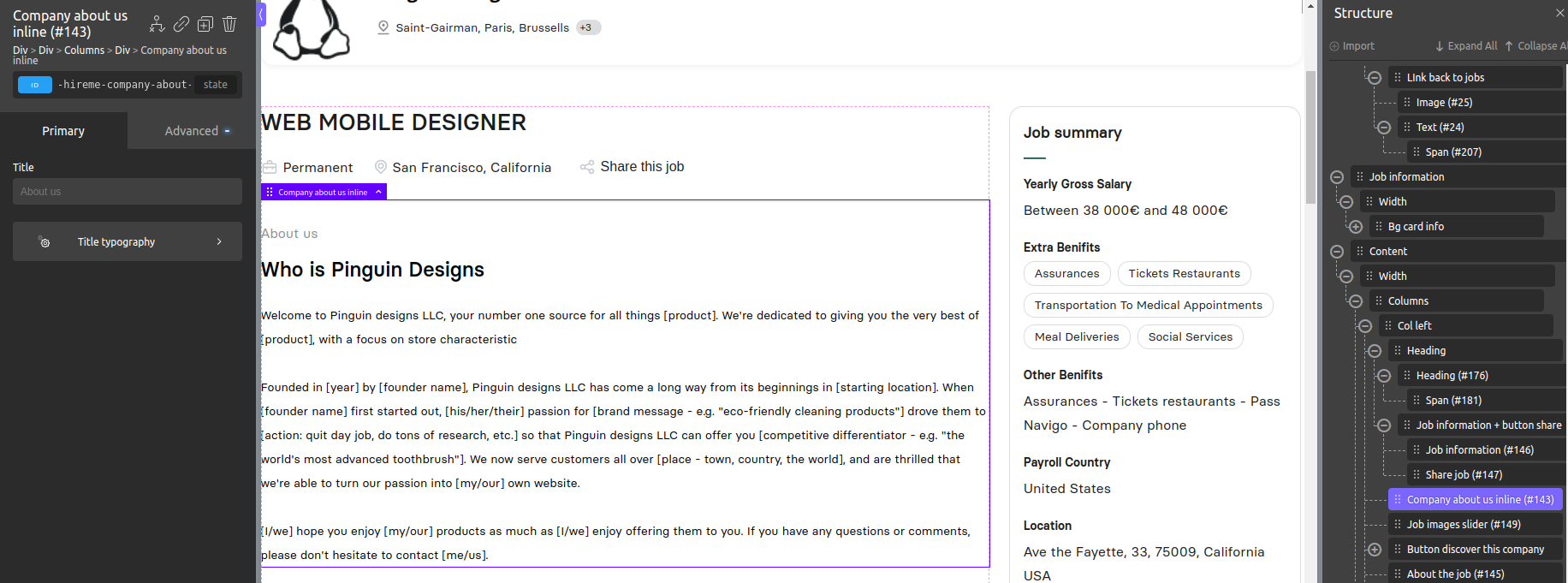
Company about us inline
Display about the company, you can edit by following the steps.
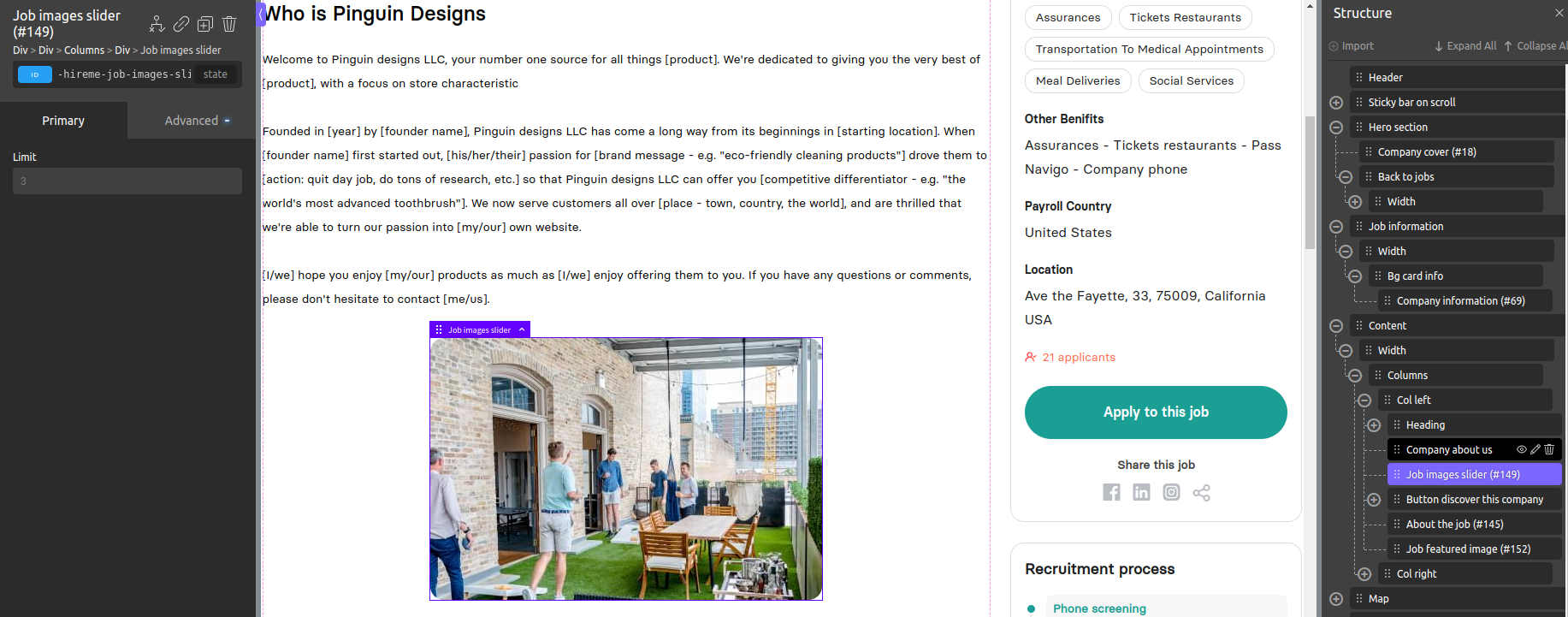
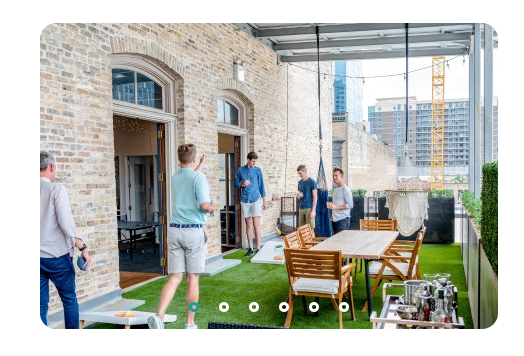
Job images slider
Display Image gallery from company that published current job as images slider.
User behavior:
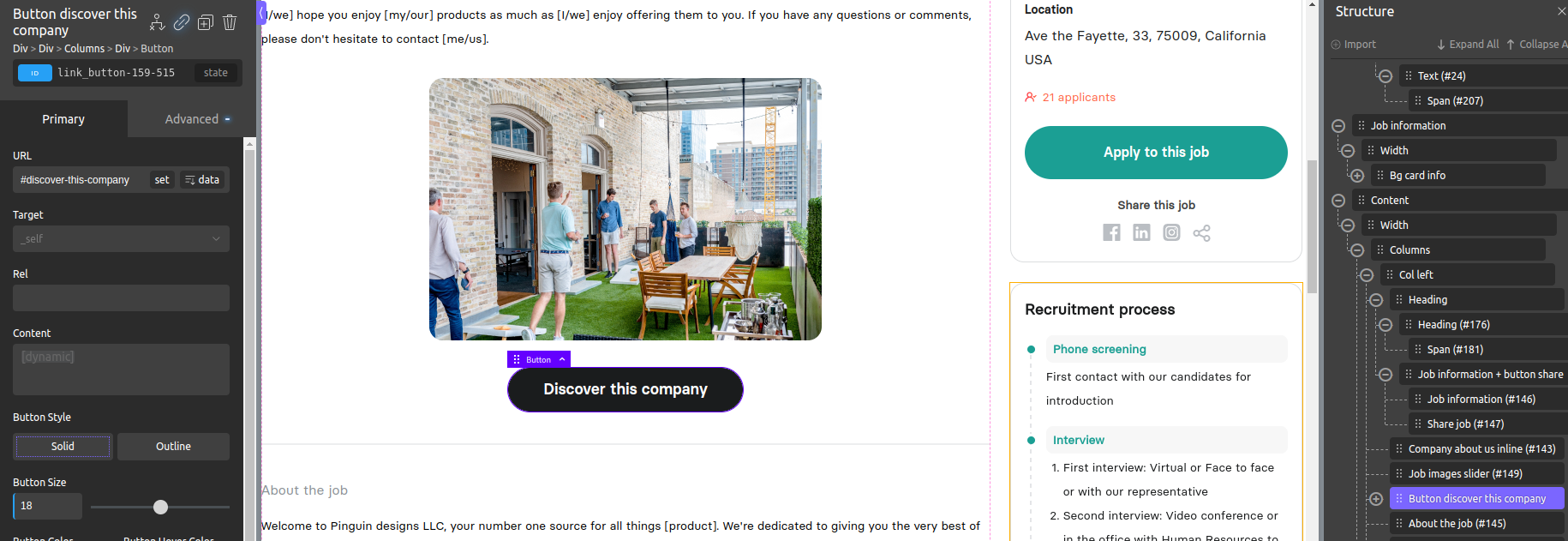
Discover this company
Redirect to company page that published current job.
Should set #discover-this-company as link (href).
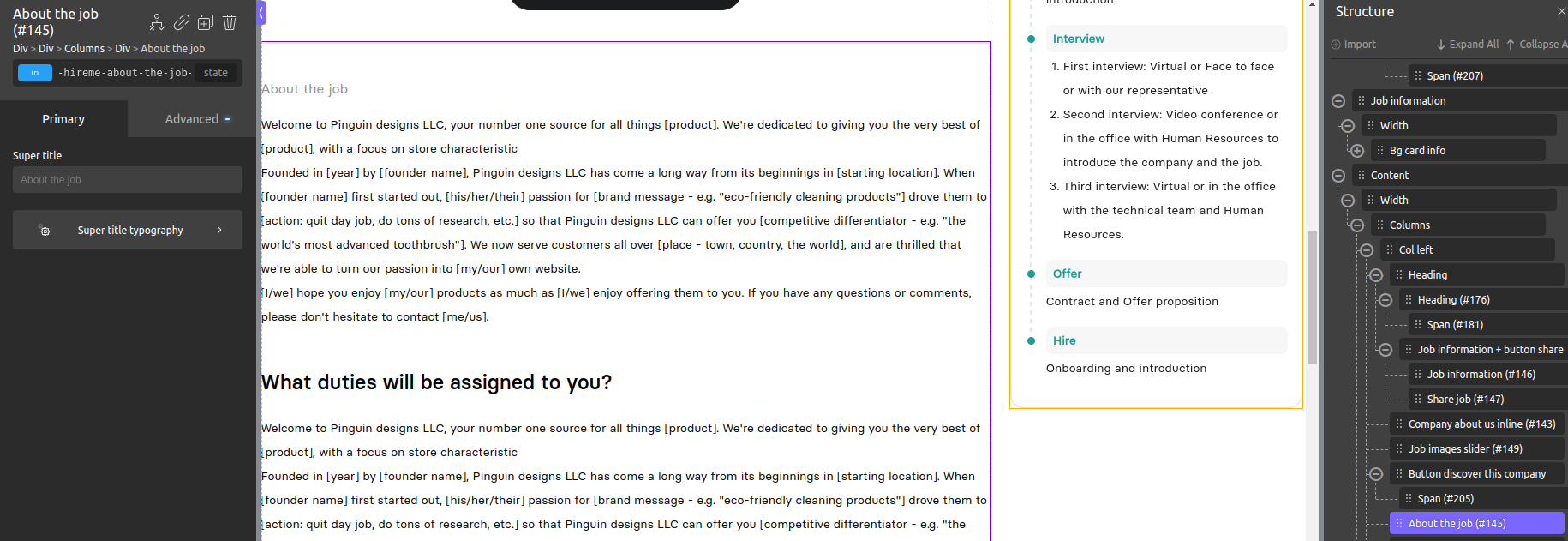
About the job
Display about the job from Wiggli API.
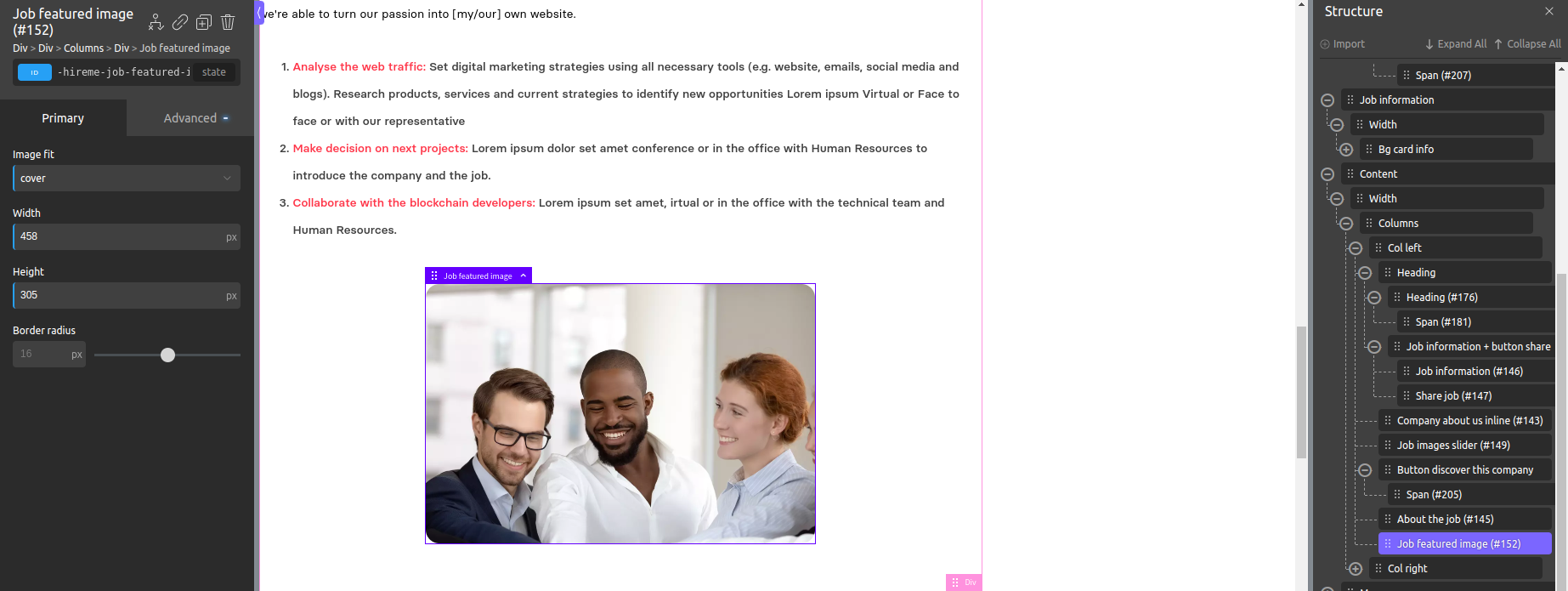
Job featured image
Display featured image of the current job, you can change dimension of the image also apply more styles.
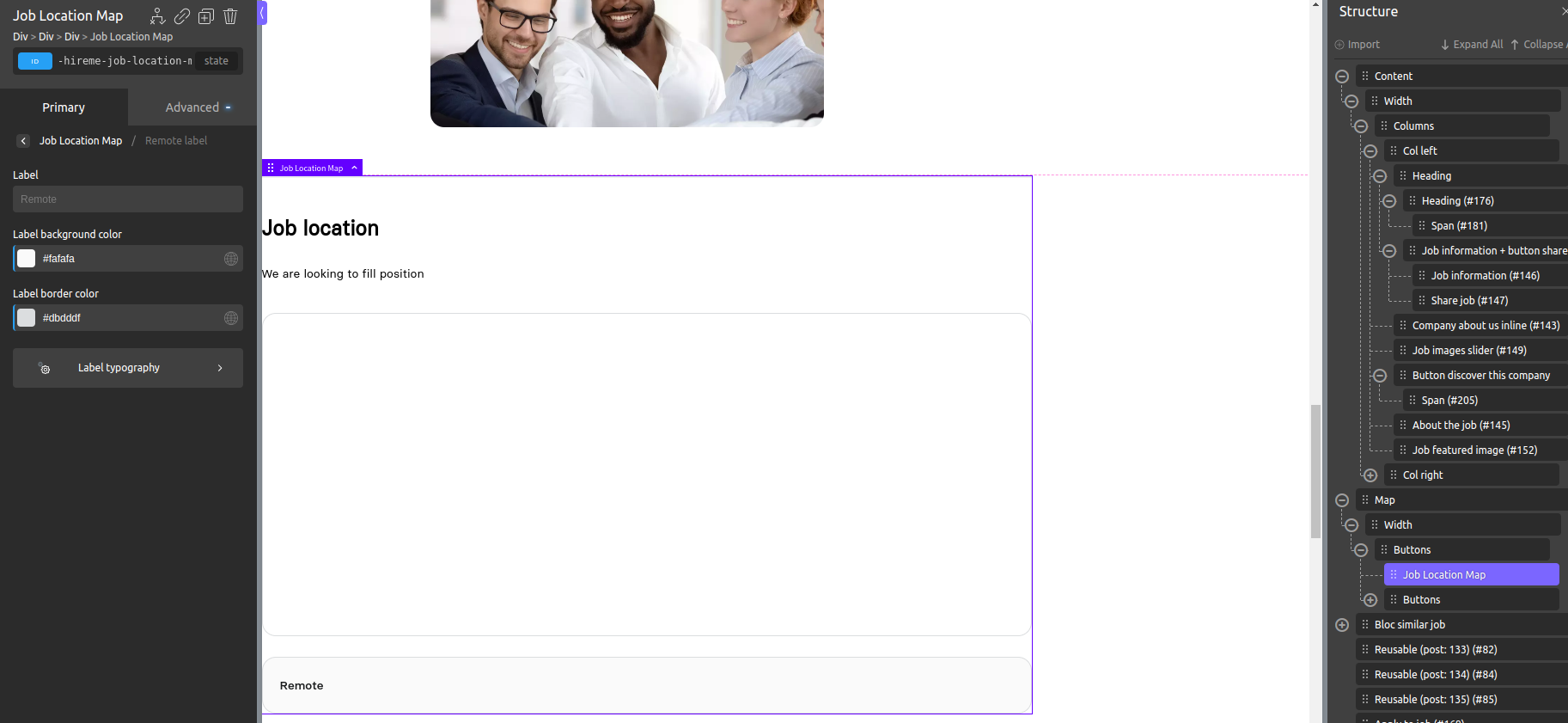
Job location map
Display current job location on the map or defined label if the job is remotely.
Apply to this job
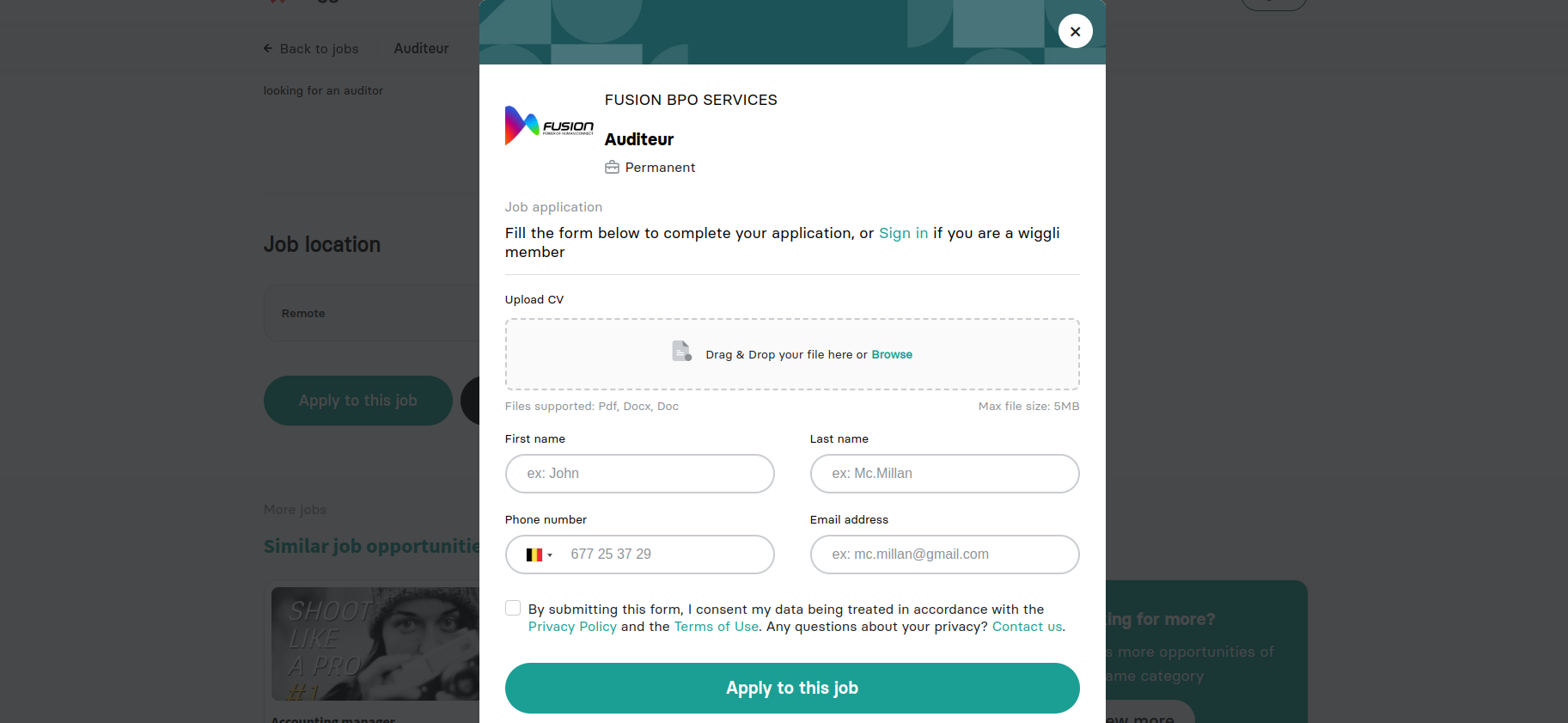
Allow user to apply direct to the current job, you should set #apply-to-job-modal as button link (href).
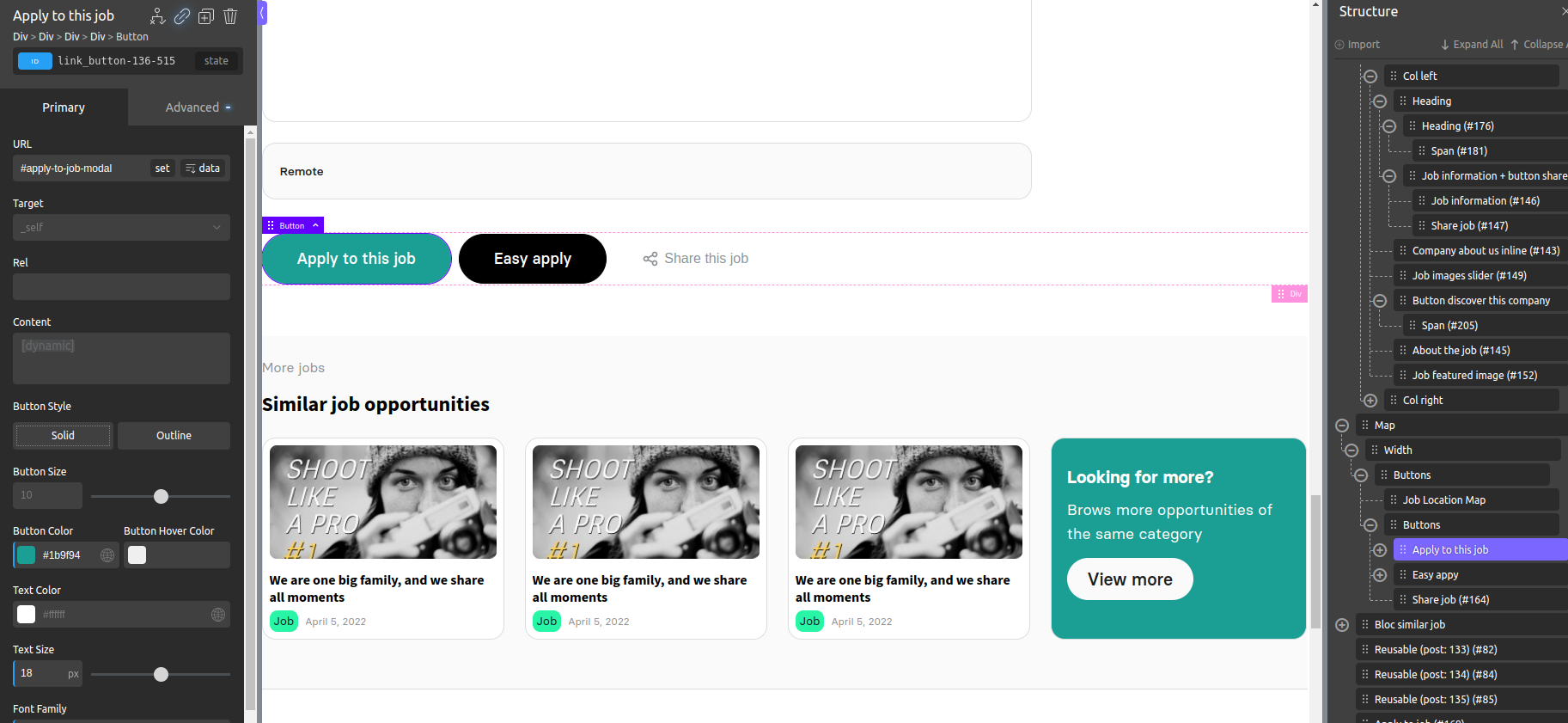
User behavior:
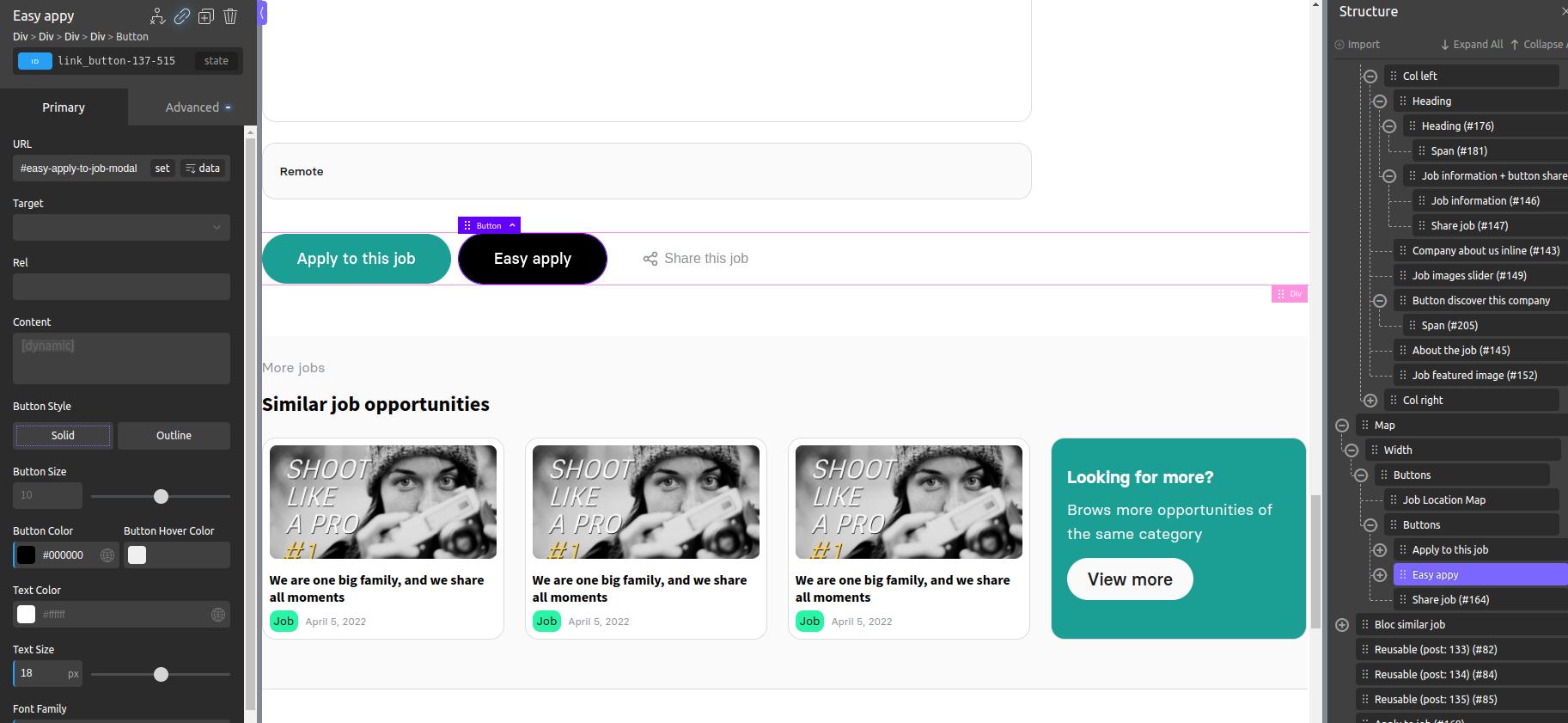
Easy apply
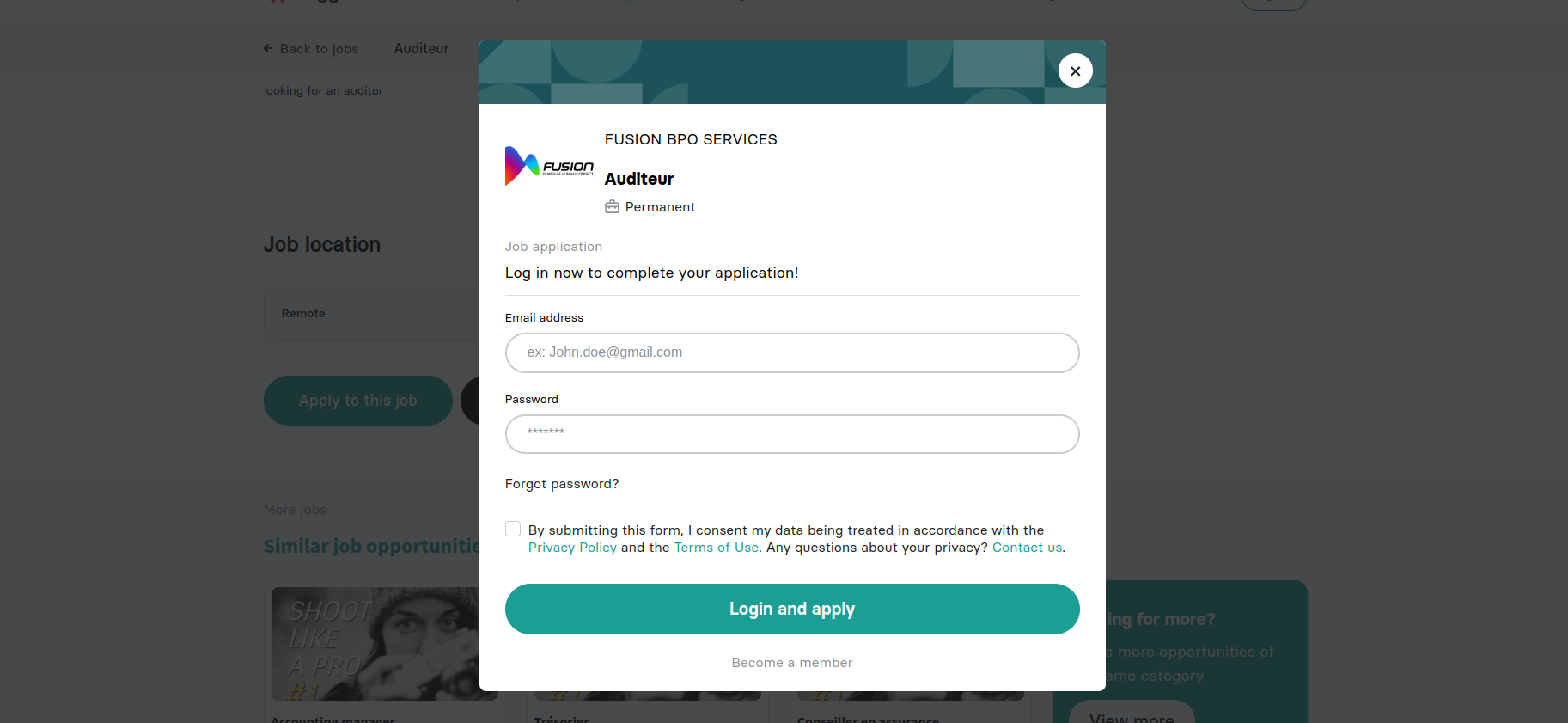
Allow user that already resisted as candidate in Wiggli to apply direct to the current job, you should set #easy-apply-to-job-modal as button link (href).
User behavior:
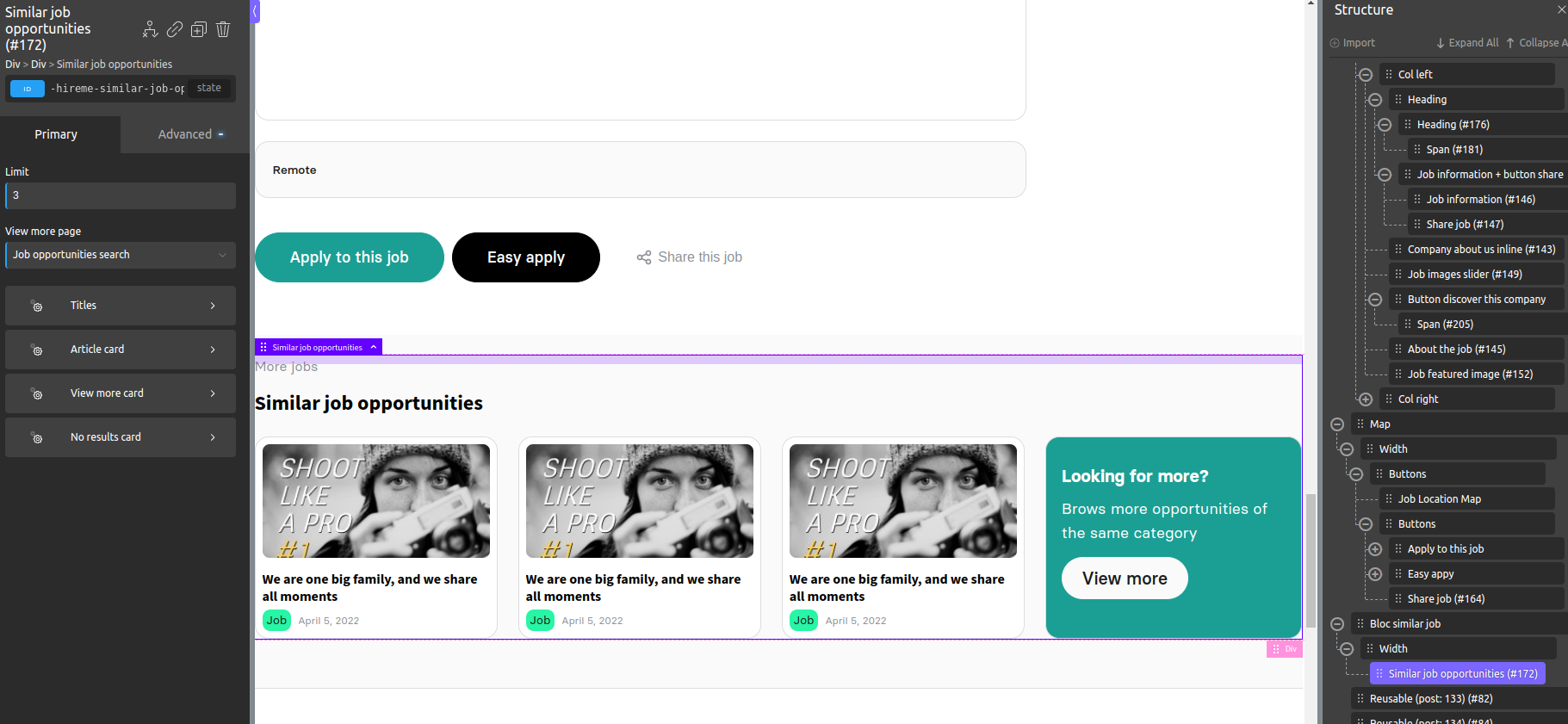
Similar job opportinuties
Display related jobs to the current job.
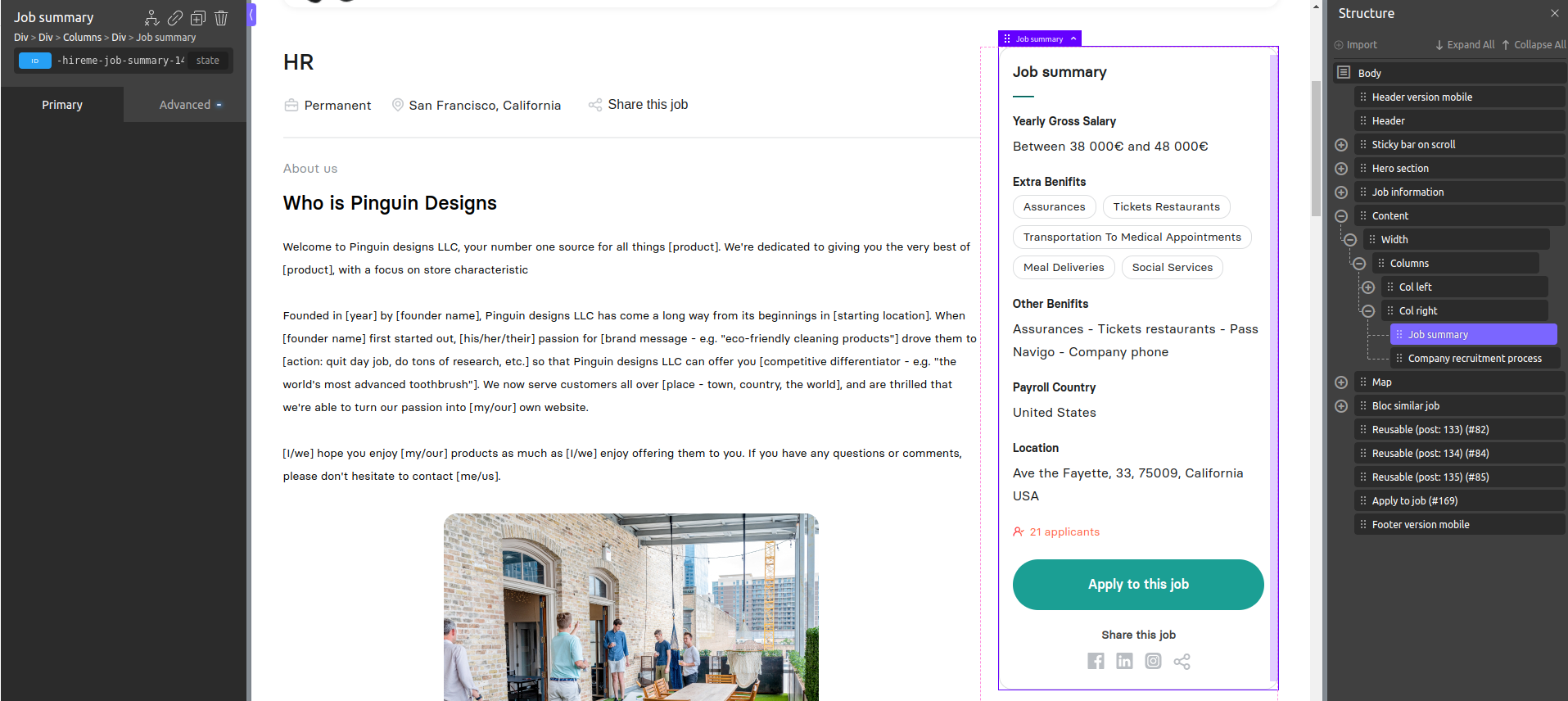
Job summary
List main information about the job from Wiggli such the salary, benifits and location...
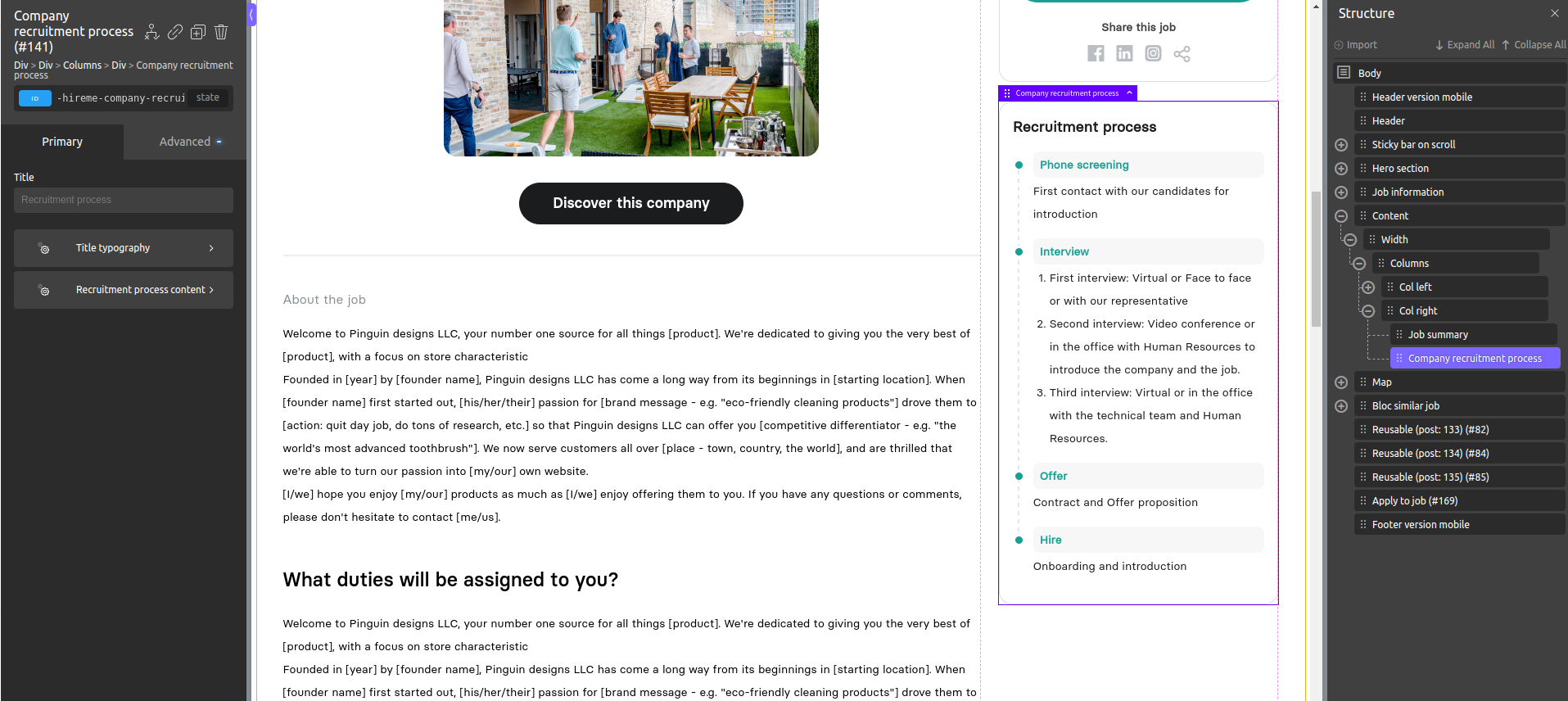
Recruitment process
List recruitment process from the company information that published current job.
Blog template
Note that the changes are only applied to future published blog articles.
- Go to Oxygen > Templates
- Search for
template post> click Edit with oxygen

Or you can click Edit > scroll to Oxygen section > click Edit with oxygen
- Edit the job content template
Note that you can re-style, add, and delete elements without interacting with blog article data since you're editing the template.
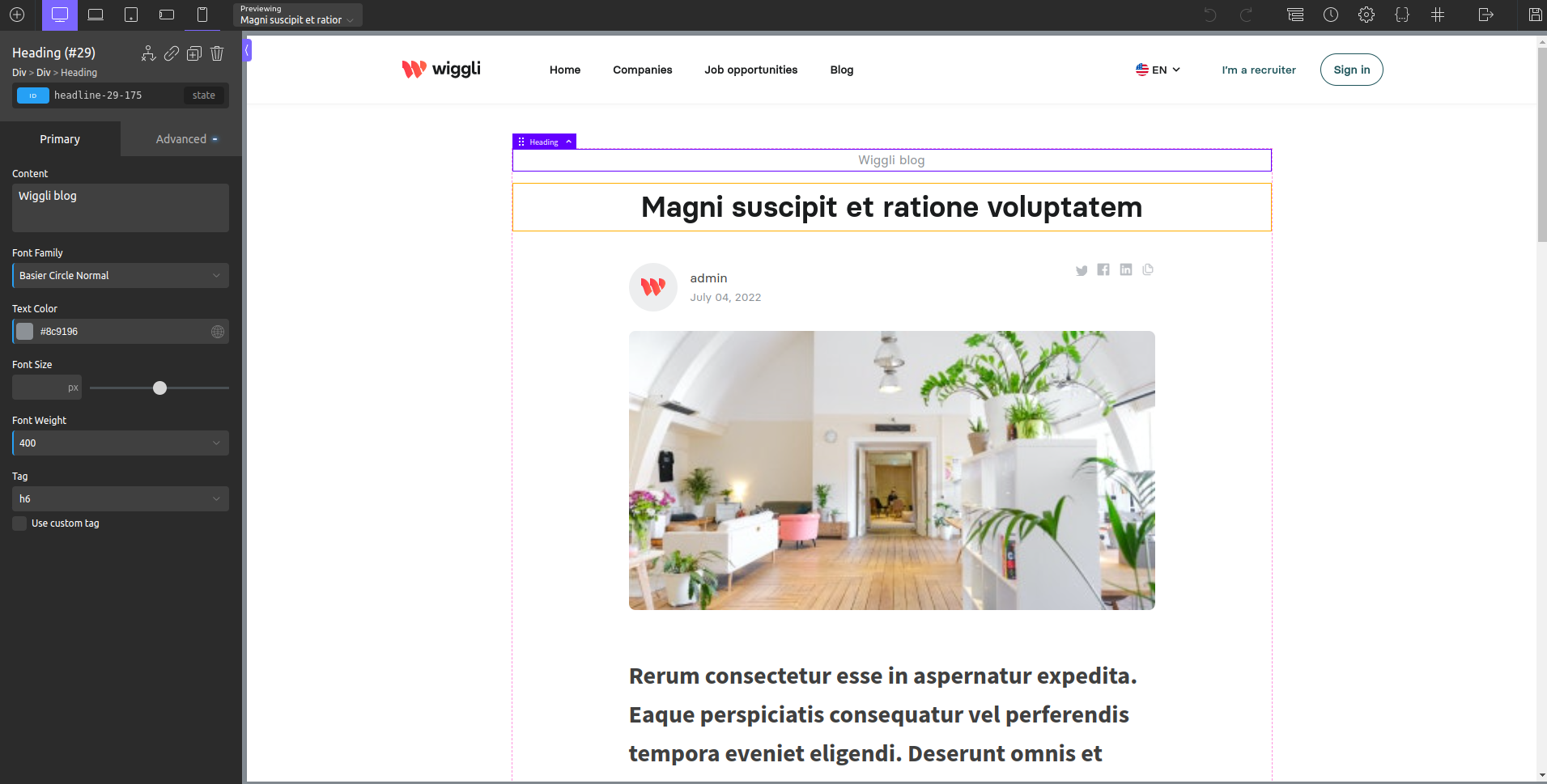
Check out Get familiar with Oxygen Builder guide for the pages and templates editing tutorials.
FAQ template
Note that the changes are only applied to future published FAQ articles.
- Go to Oxygen > Templates
- Search for
Single faq> click Edit with oxygen

Or you can click Edit > scroll to Oxygen section > click Edit with oxygen
- Edit the job content template
Note that you can re-style, add, and delete elements without interacting with FAQ article data since you're editing the template.
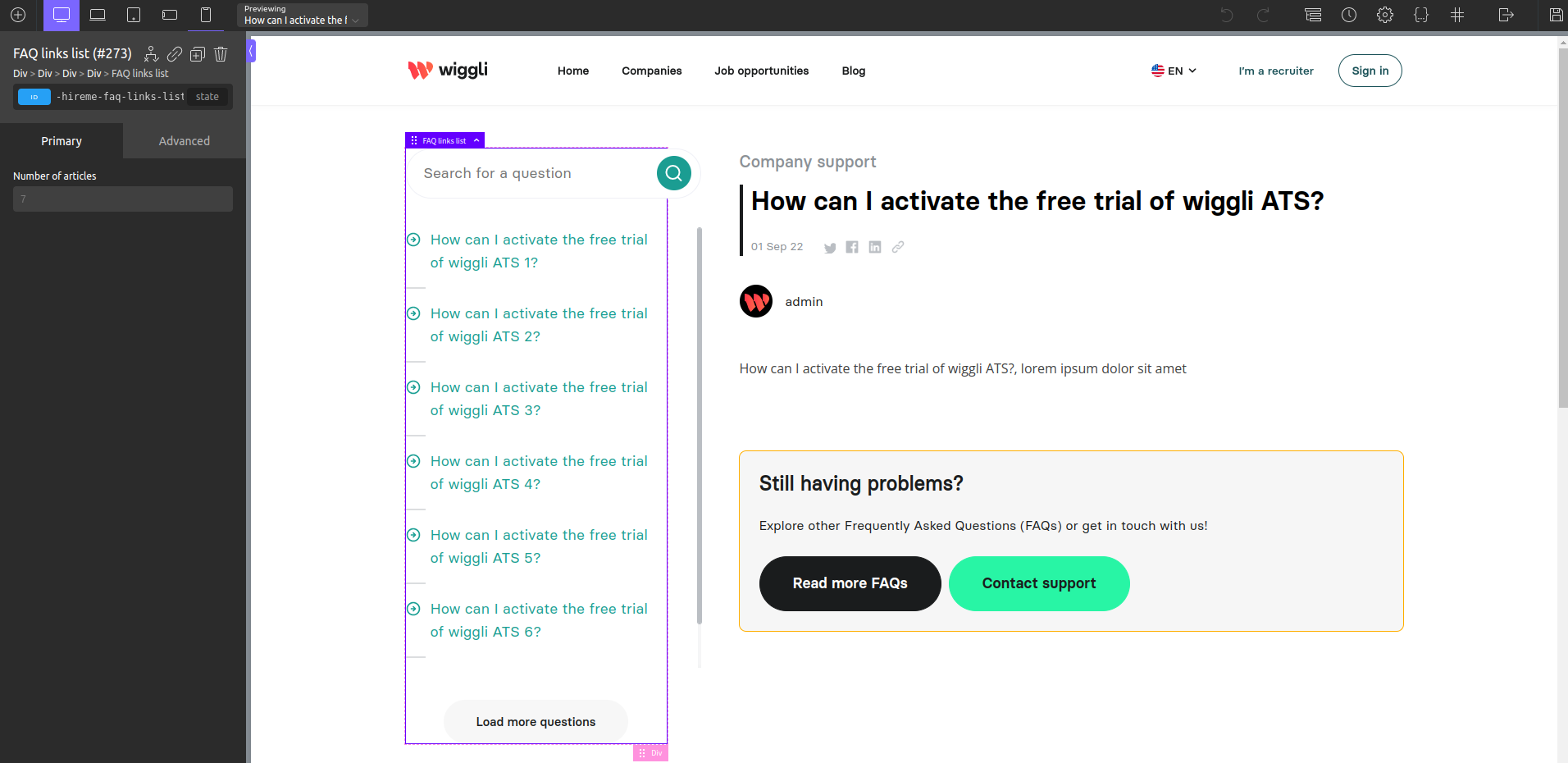
Check out Get familiar with Oxygen Builder guide for the pages and templates editing tutorials.
Blog article
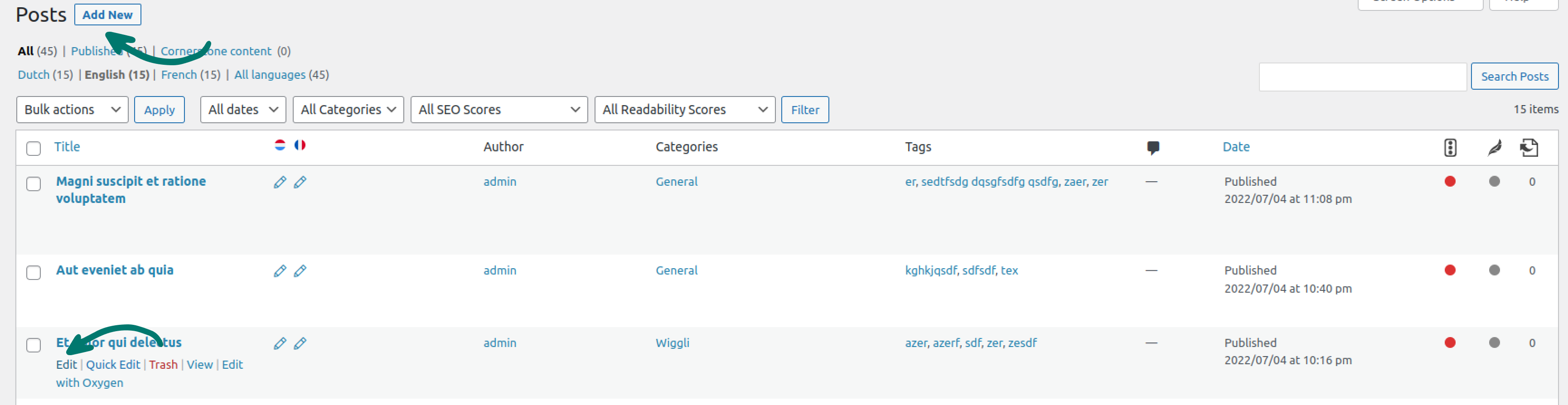
- Go to Posts
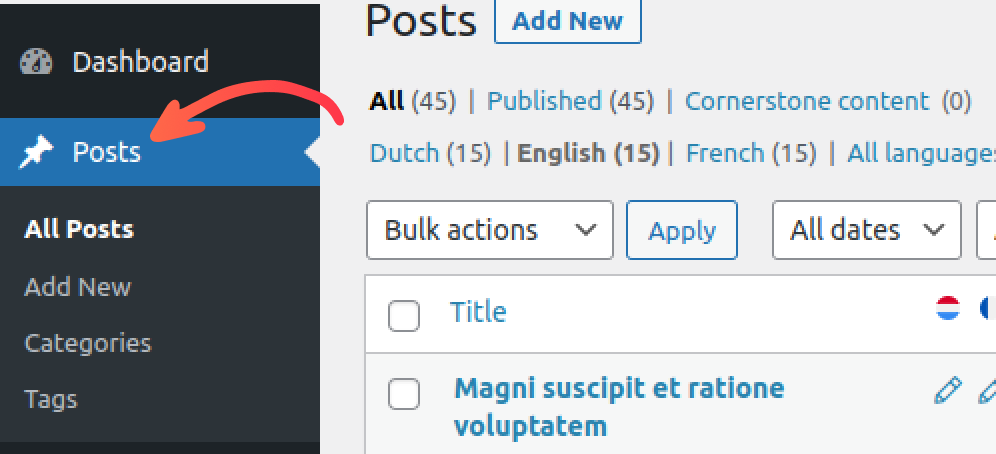
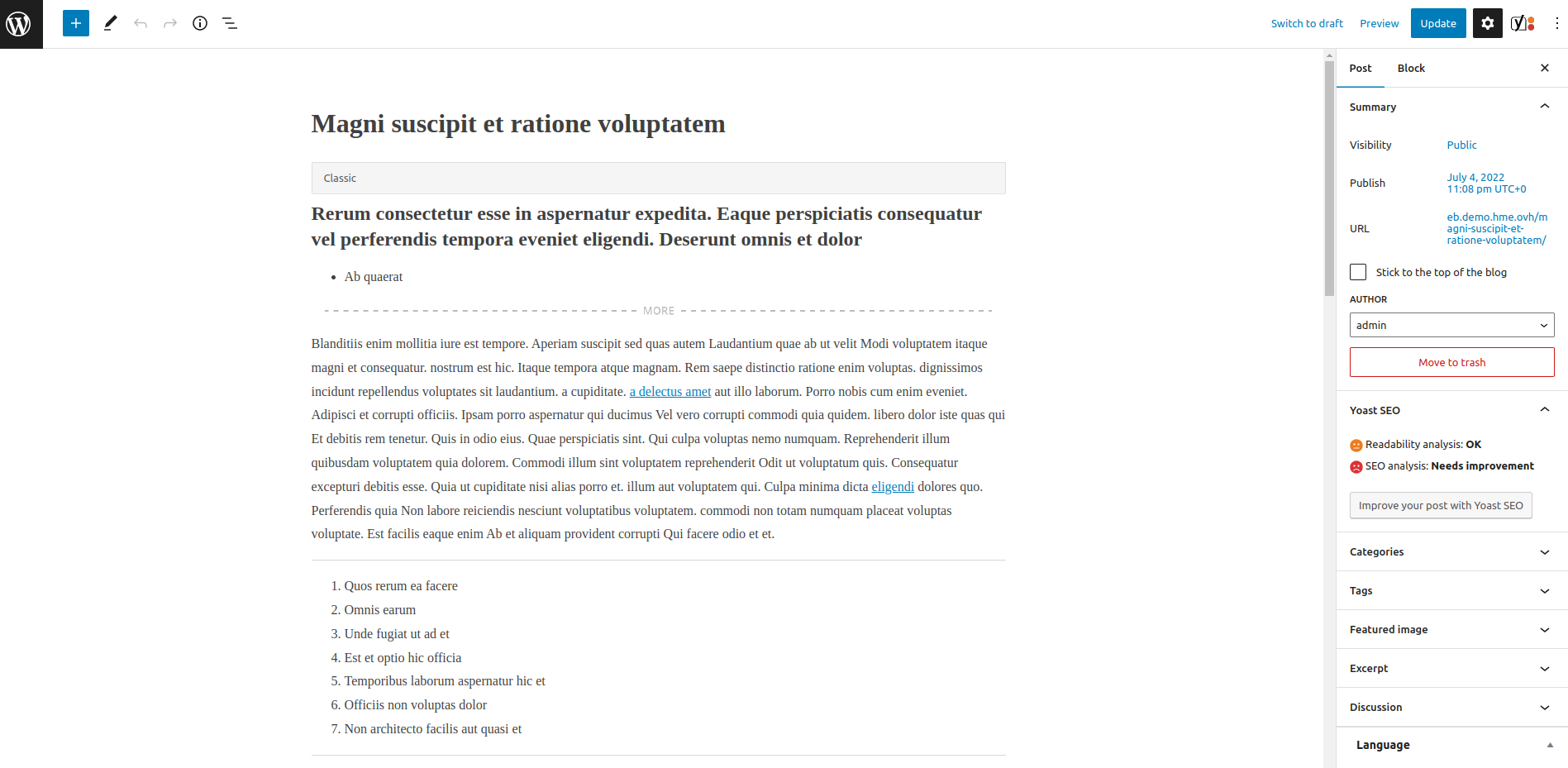
- Add new or edit an existing one
FAQ article
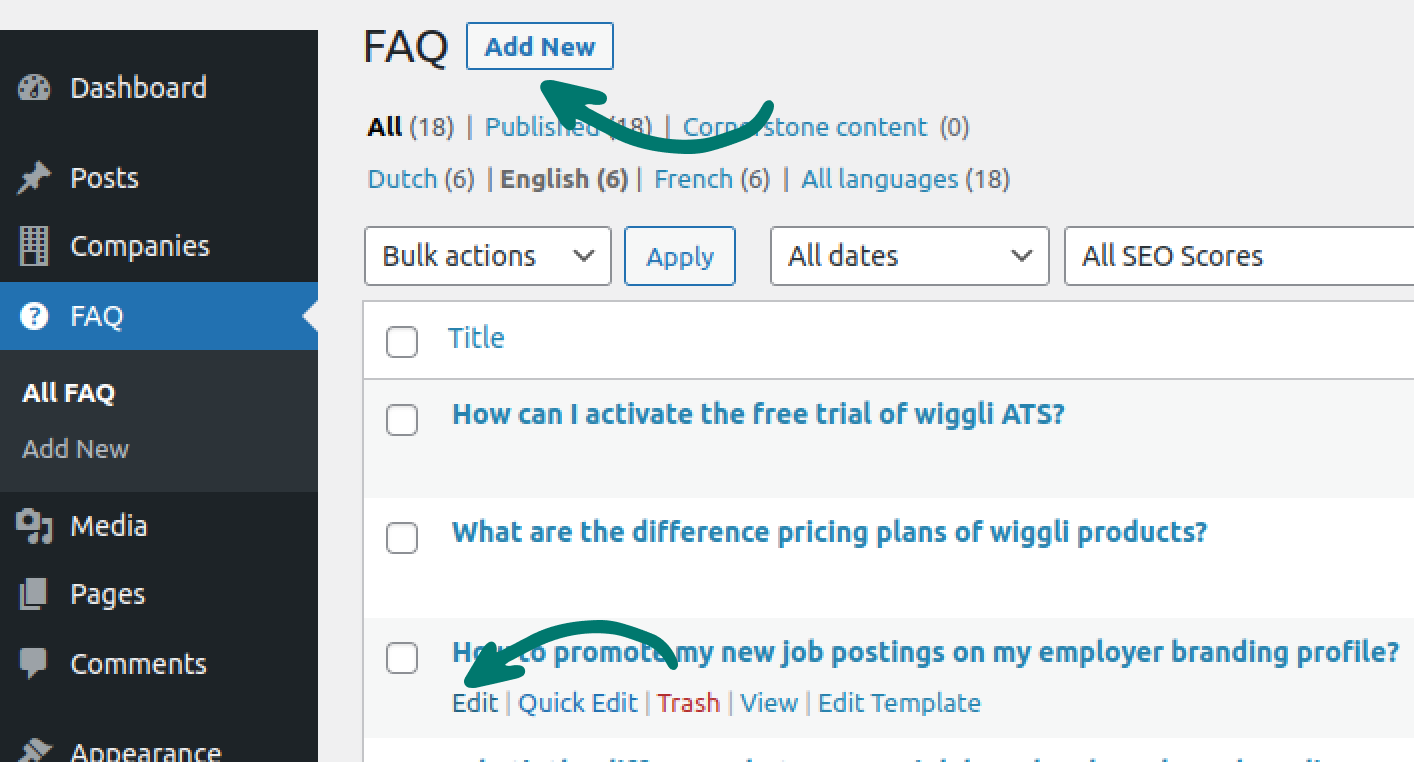
- Go to FAQ
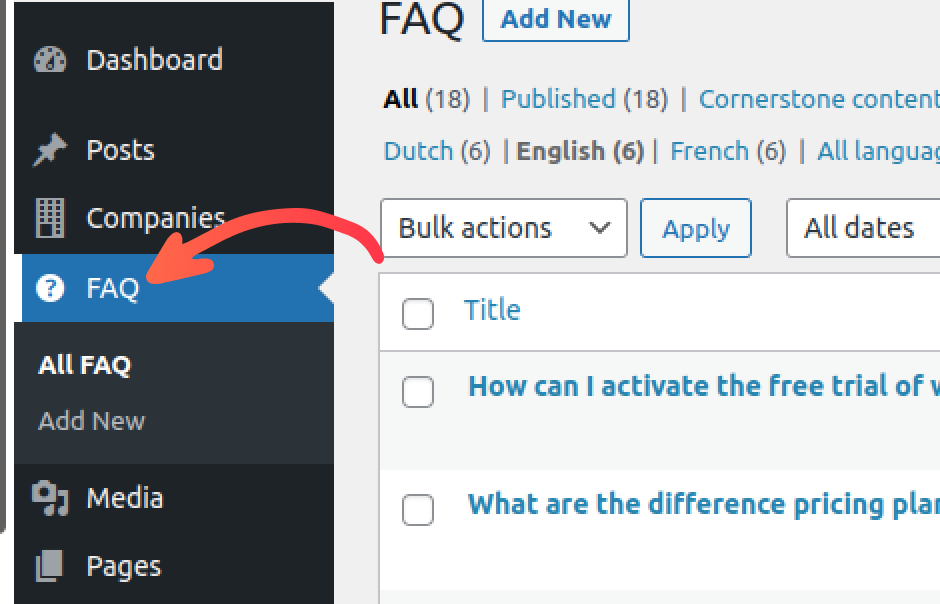
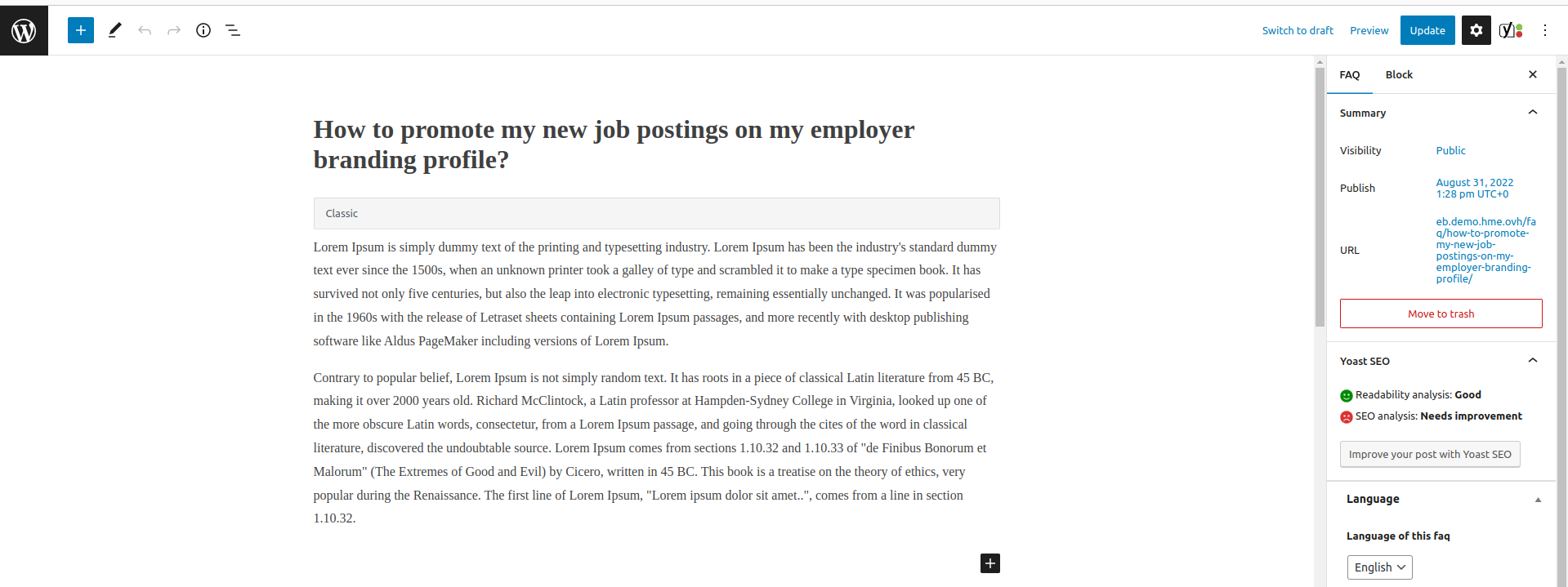
- Add new or Edit existing one
Company
A company page inherits from the company content template, when editing elements or styling it's only applied on an edited company page. otherwise, you can edit the main company content template that is applied on all future published companies pages.
- Go to companies > targeted company page > click
Edit with oxygen
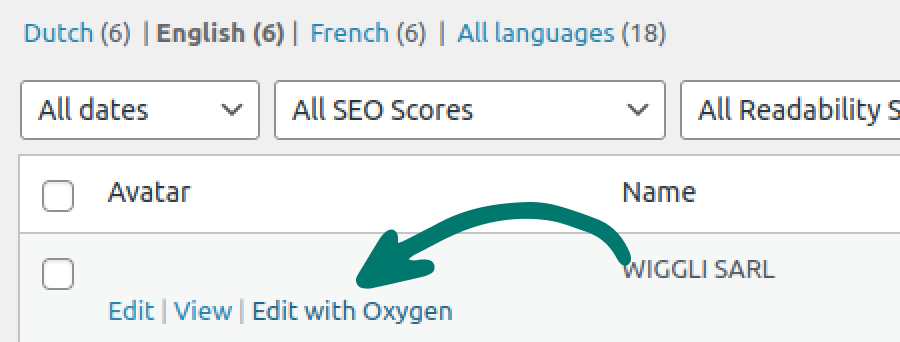
- Editing mode
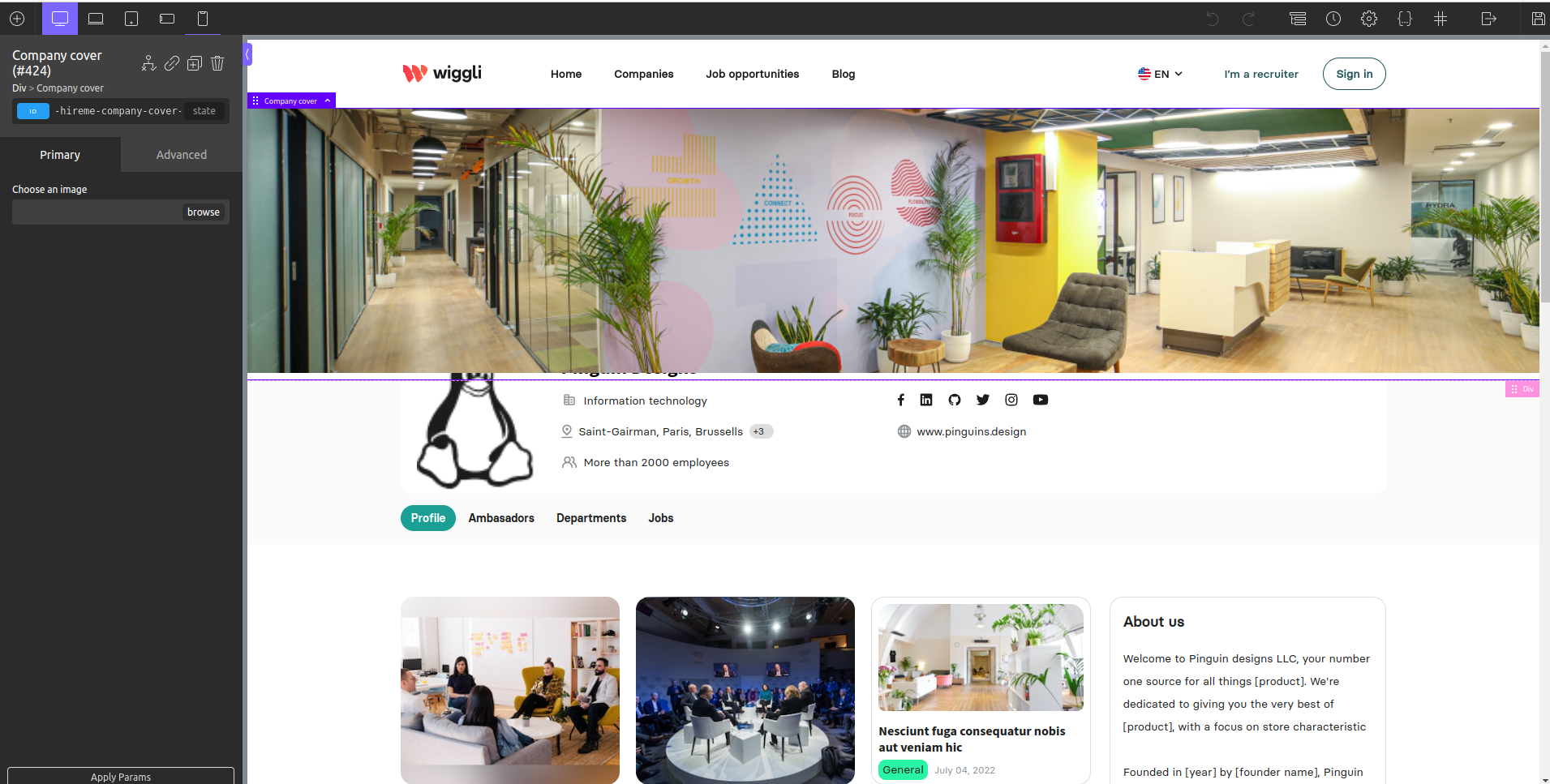
Or you can click Edit with Oxygen from the edit page
Check out Get familiar with Oxygen Builder guide for the pages and templates editing tutorials.
Change cover
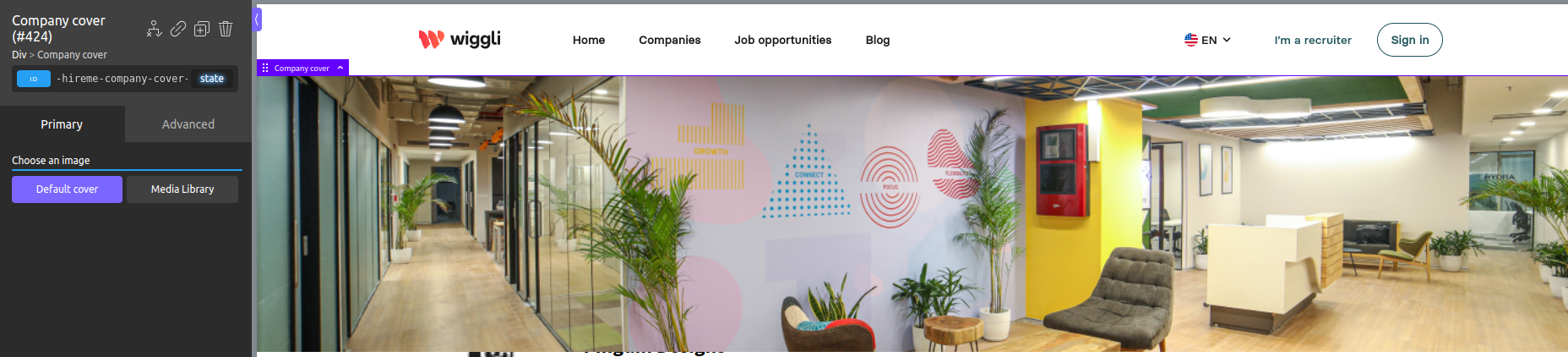
You can change the company cover by clicking on the element in the builder then going to the controls section and browsing an existing image or uploading a new one.

Also you can switch to the default cover, like following example:
Information styling
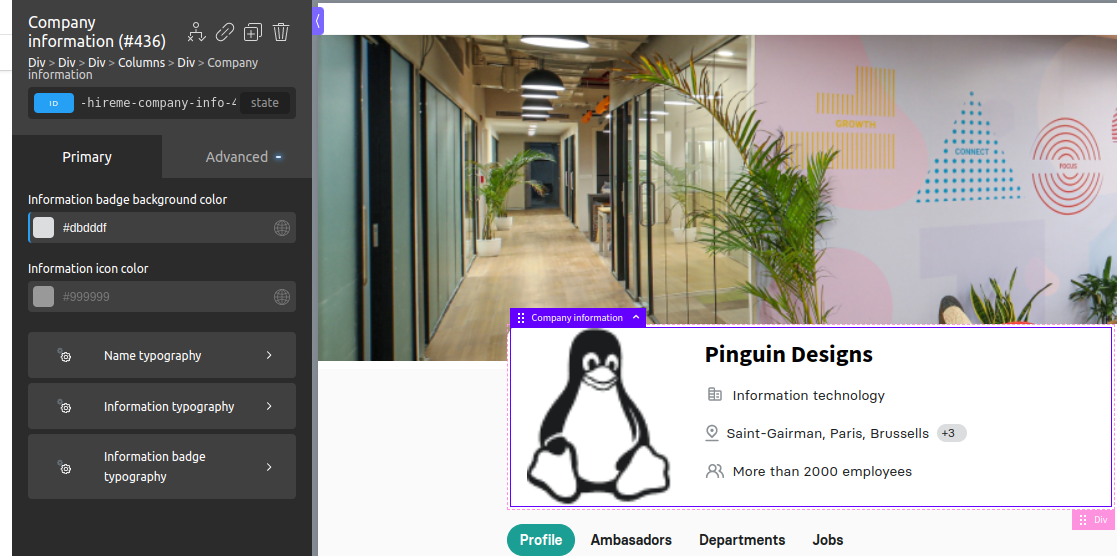
You can easily select the element by clicking on it from the builder, then you get the controls section that contains the company name and information (industries, offices, number of employees) typography also changing colors.
Social media styling
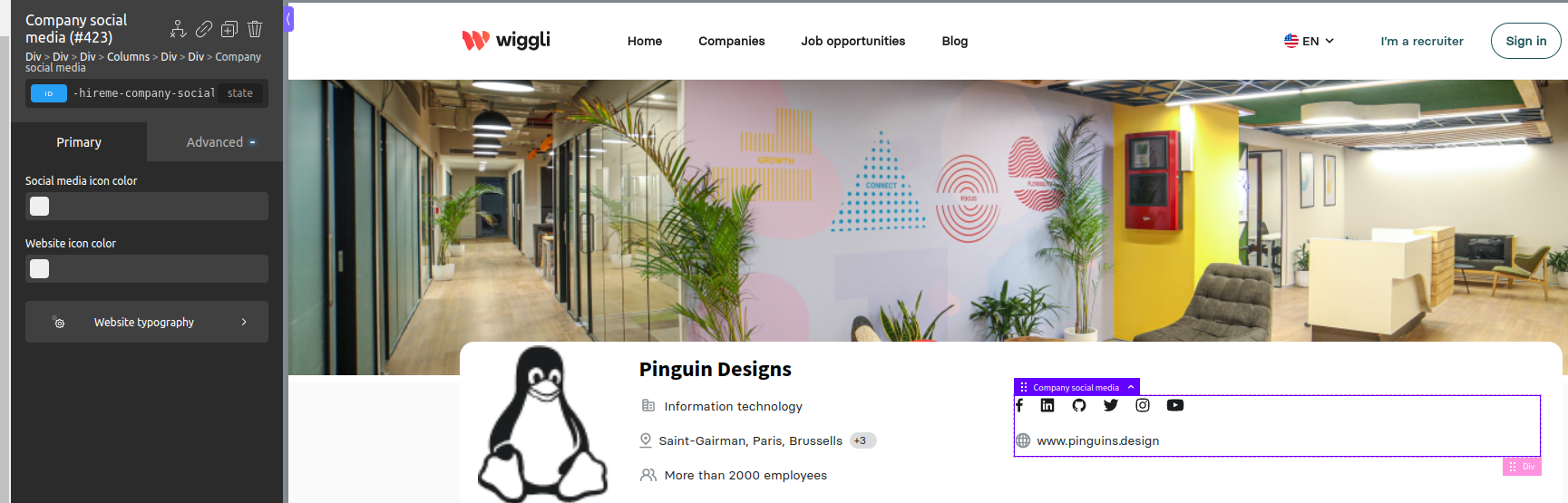
You can change the social media icon's color also the website icon's color, then you have the option to change the website typography.
Tabs
You can add/edit tabs or remove a tab, just keep in mind the tab title separated from the tab content when dropping a tab (both title and content).
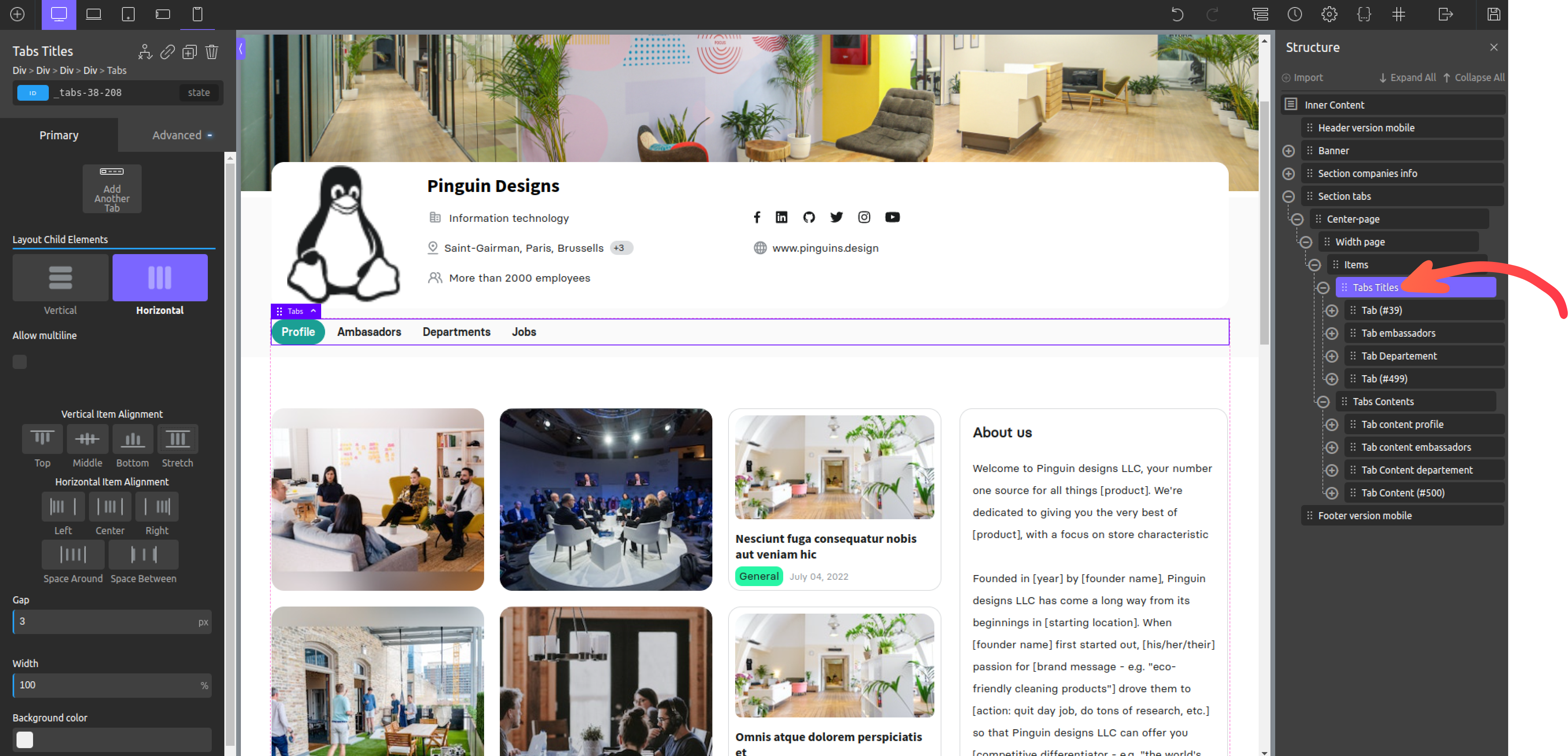
You can learn more about Oxygen Builder Tabs
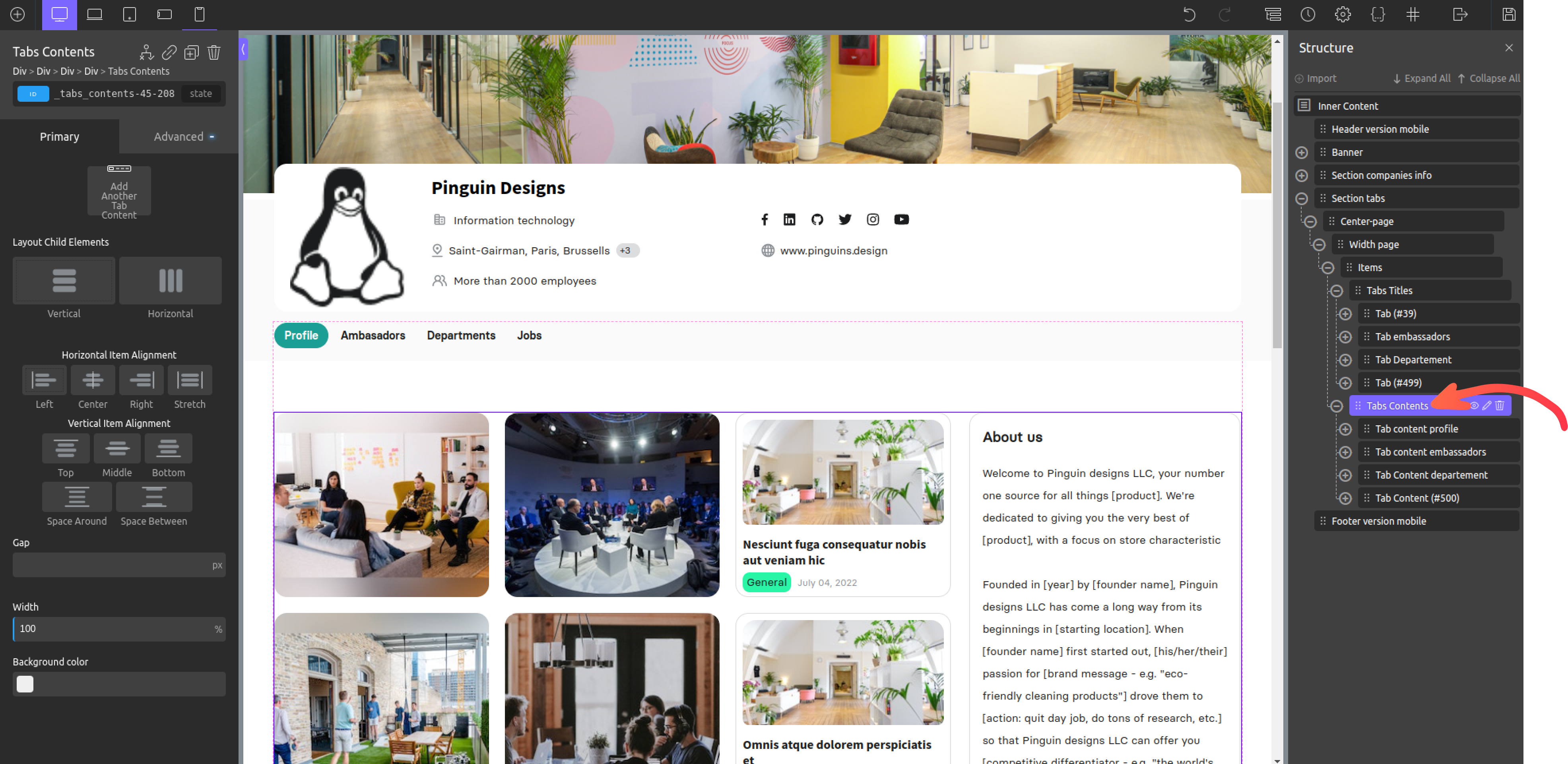
Same, you can edit targeted tab content as grouped children's.
Profile tab
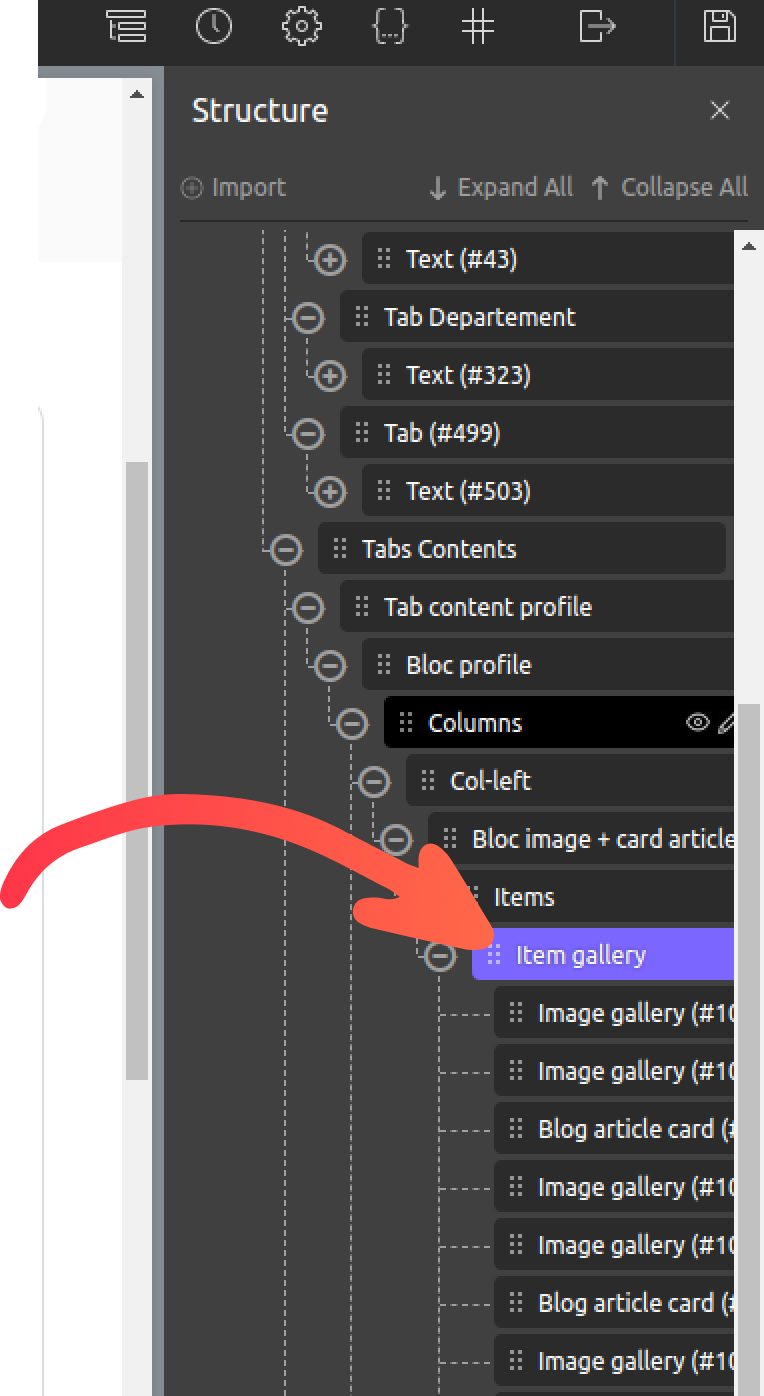
Profile tab spliced into three columns two are used as image gallery, third one contain selected blog articles.
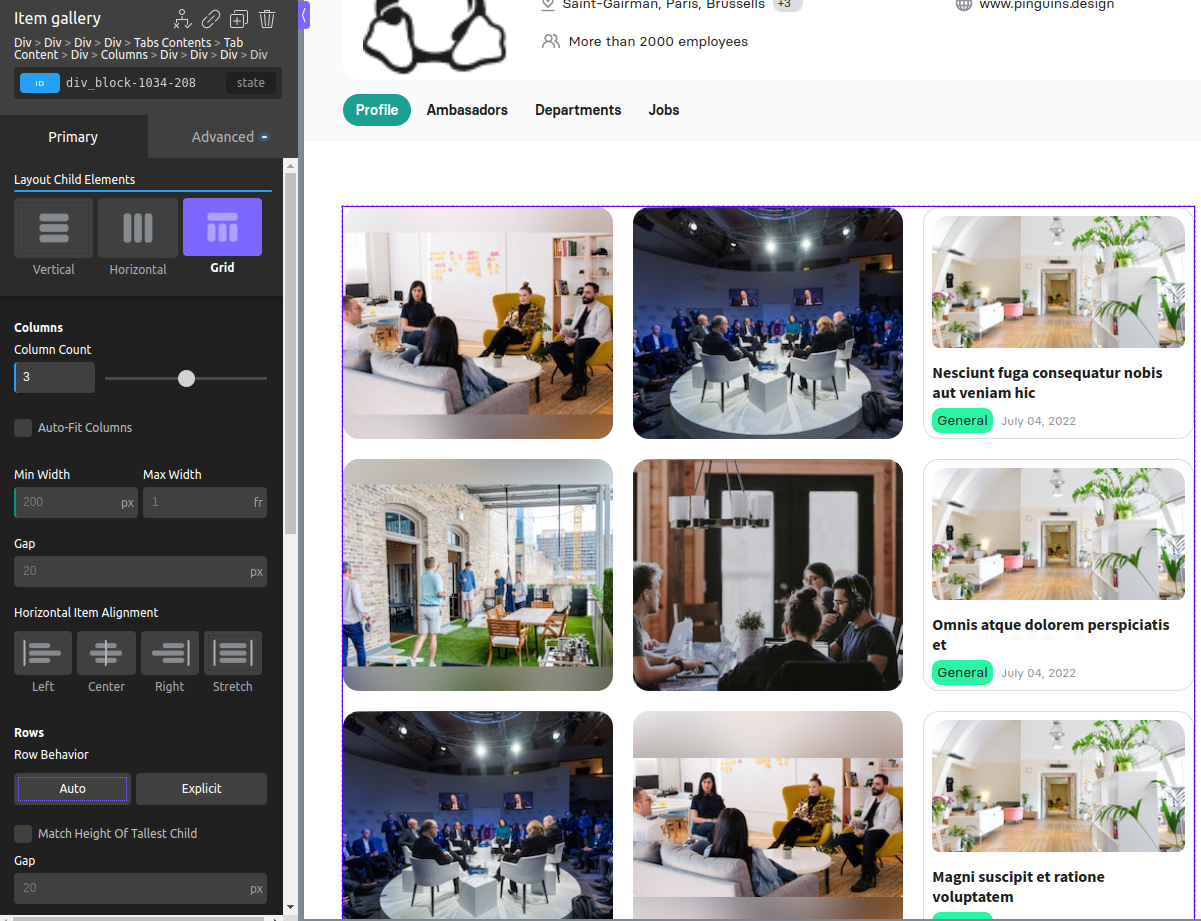
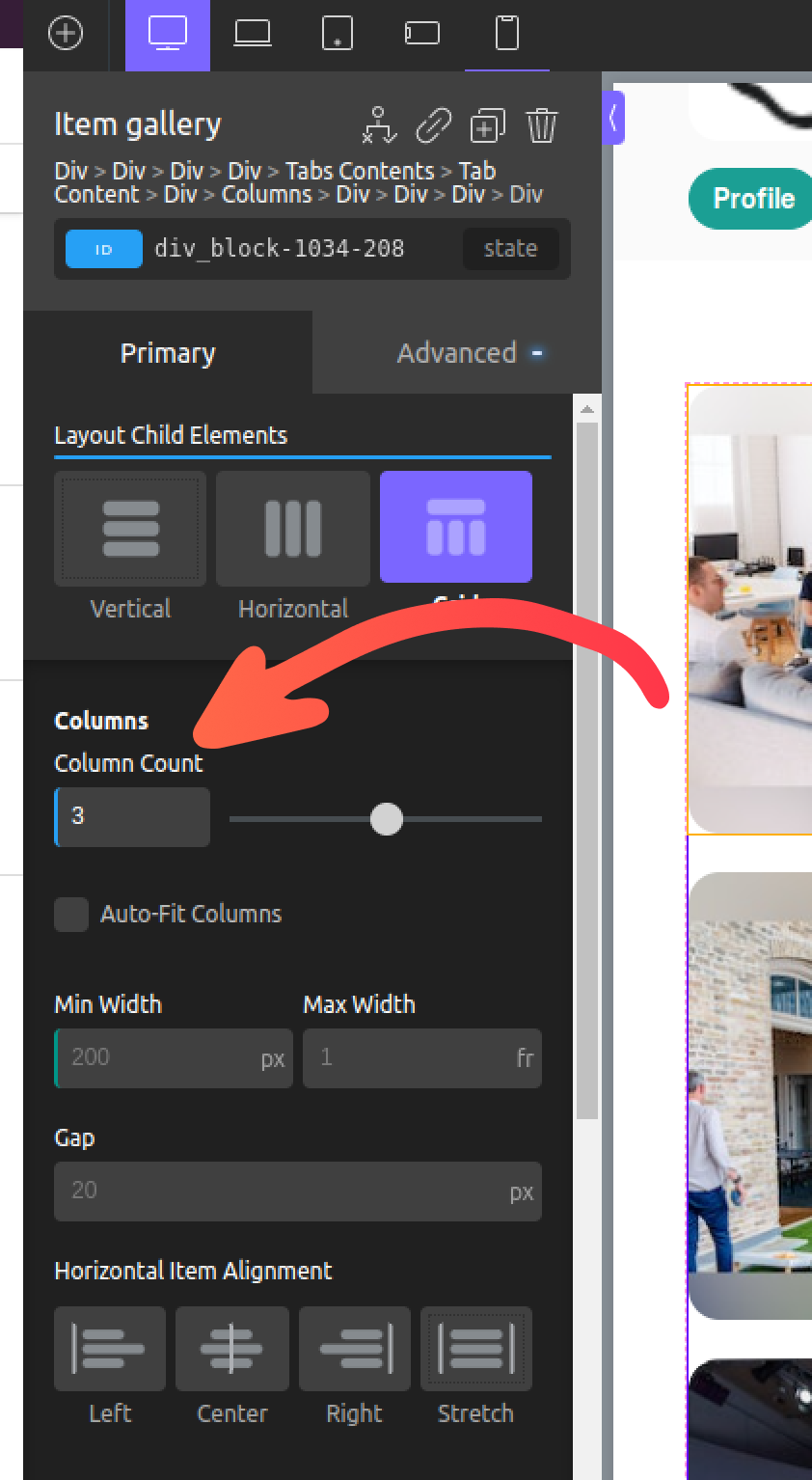
You can simply adjust the structure of profile tab by adding more or remove some columns, following steps below:
- Go to structure sidebar (right sidebar) > find Item gallery element
- Go to controls sidebar (left sidebar) > then adjust the columns number
- Scroll bottom > Child Span Override
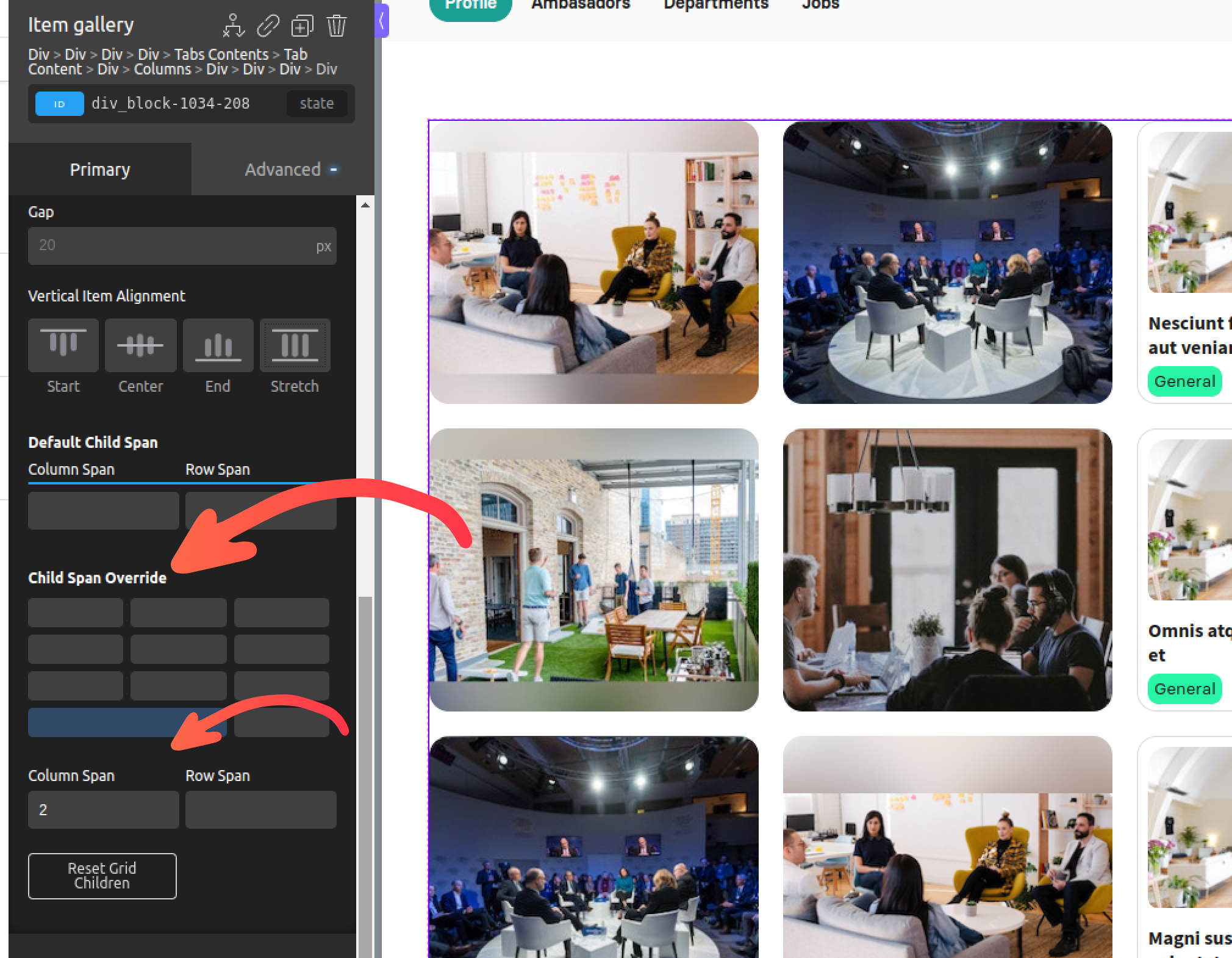
This control will reflect the number of items in the Grid. Click on one of them to explicitly set the number of rows or columns they will span.
Column Span: The number of columns that will be spanned by the selected child.
Row Span: The number of rows that will be spanned by the selected child.
Reset Grid Children: Reset everything set in the Child Span Override section.
Check out Oxygen builder layout & spacing works.
Image gallery
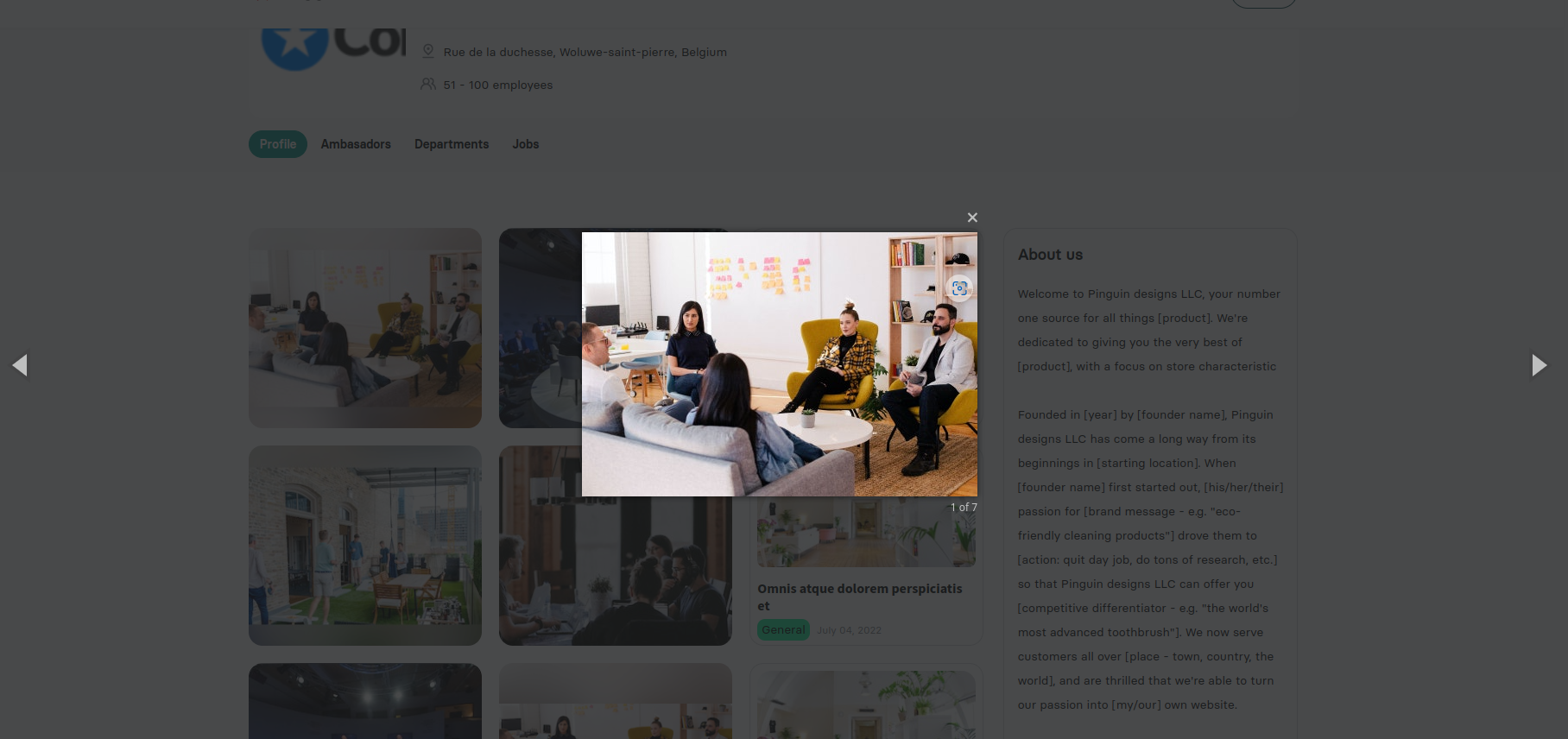
Allow to add an image to gallery then user can navigate between images via a slider.
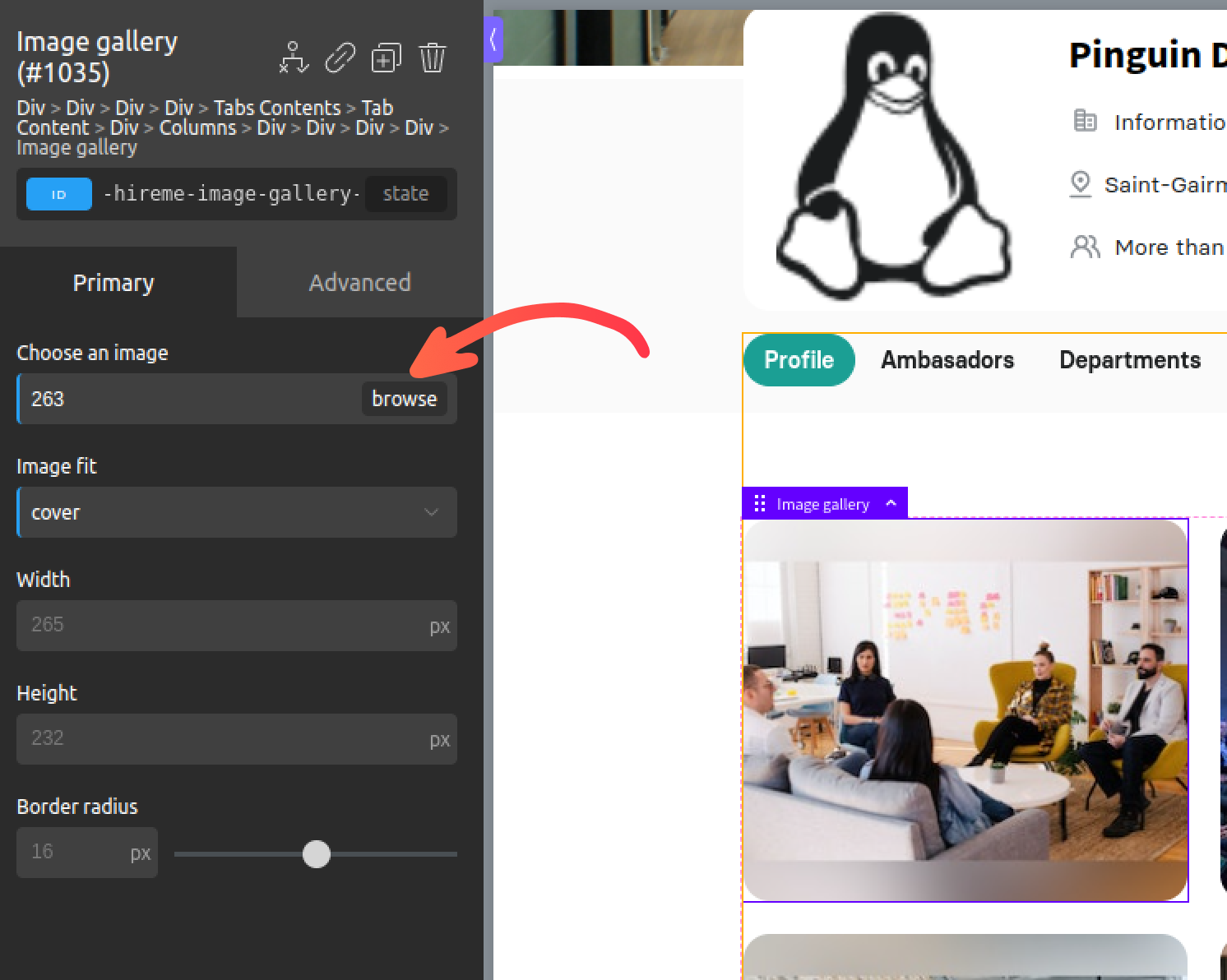
User behavior:
Blog article card
You can add specific blog article to the profile tab or any other tab using the Blog article card element, then set the post ID and you have all controls on card styling.
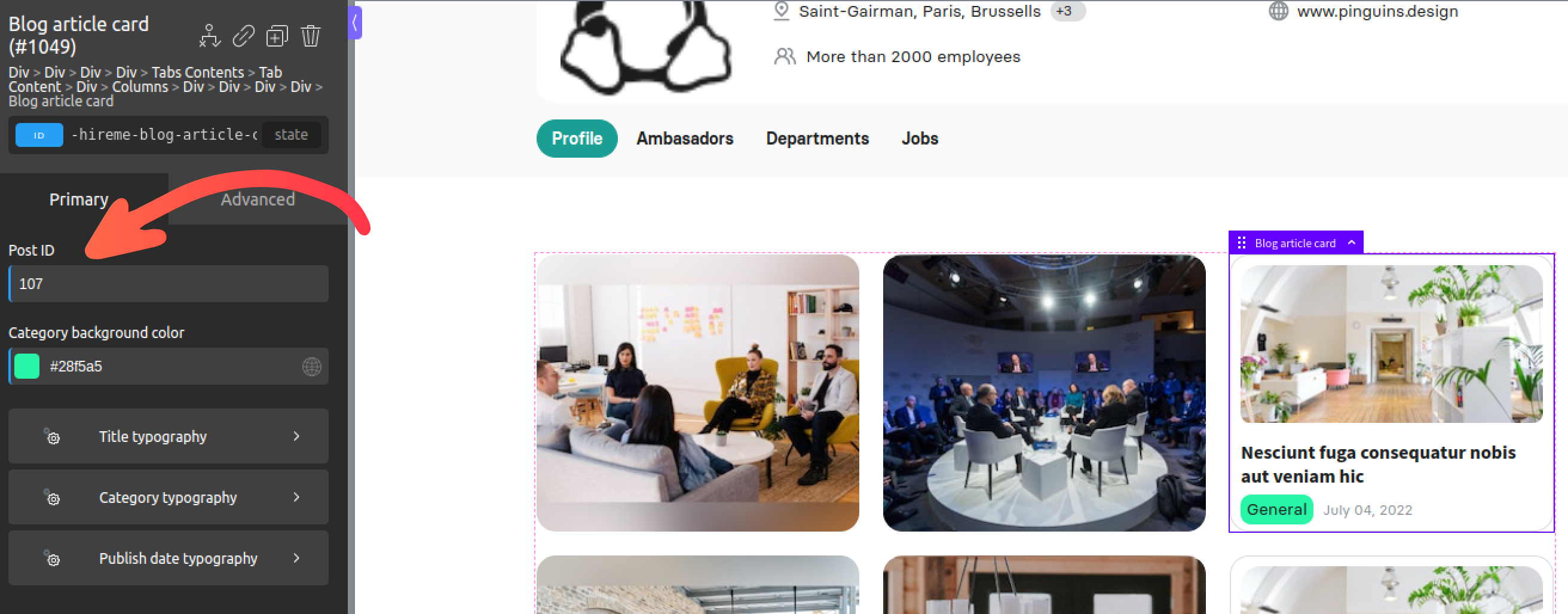
You can get the post ID from posts page > edit

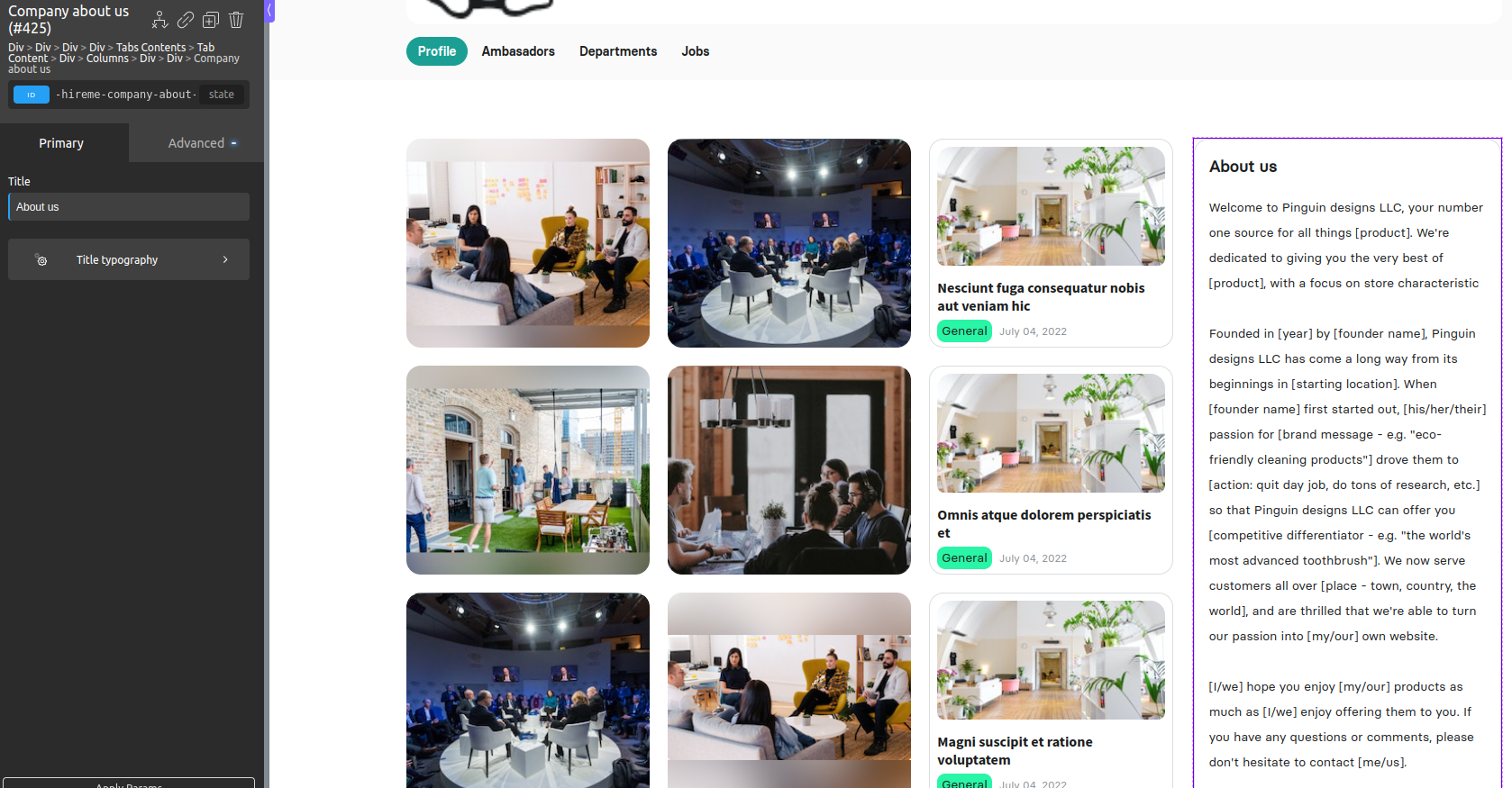
Company about us
The About Us element displays about the company that you can edit by following the steps.
Ambasadors tab
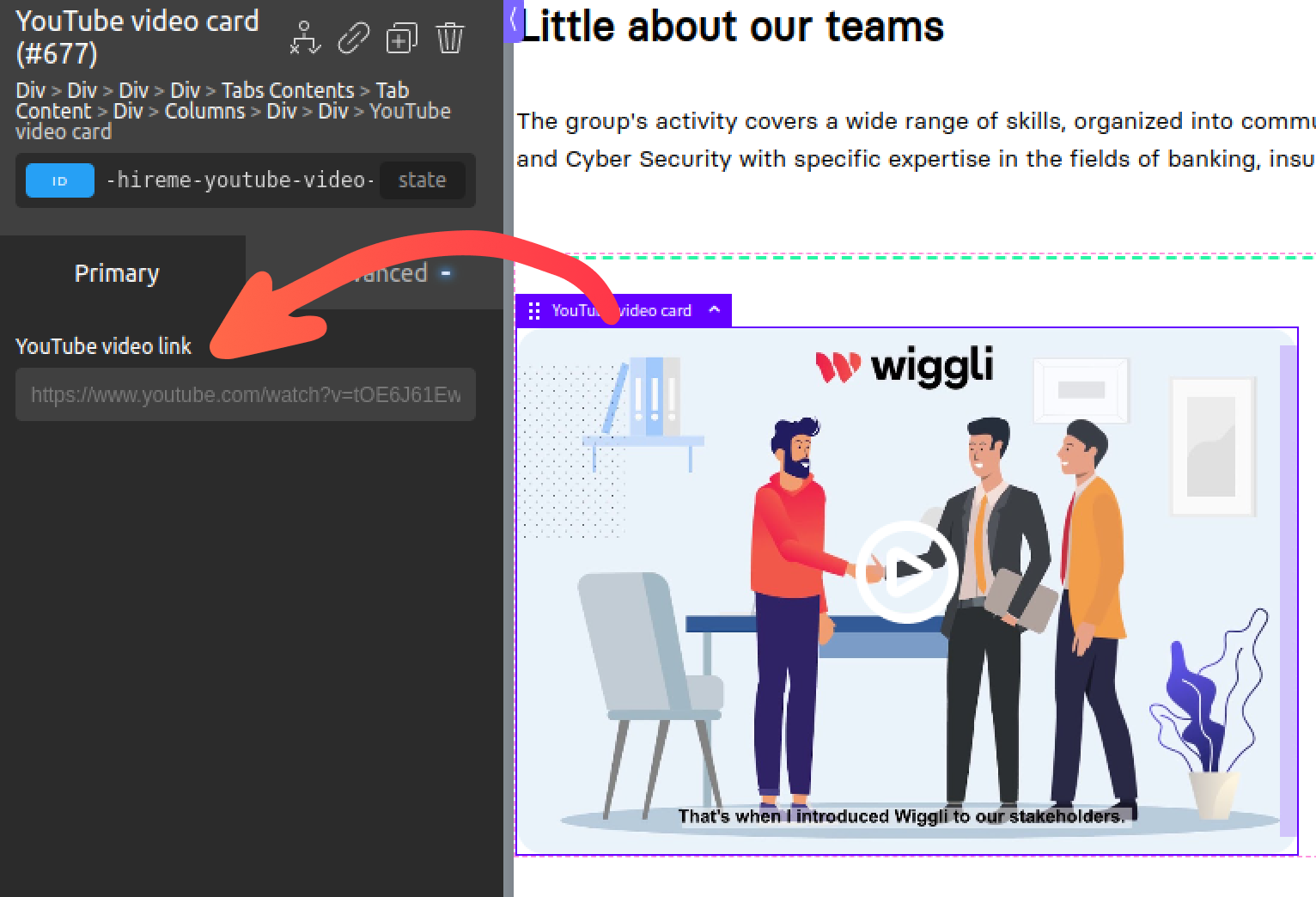
YouTube video card
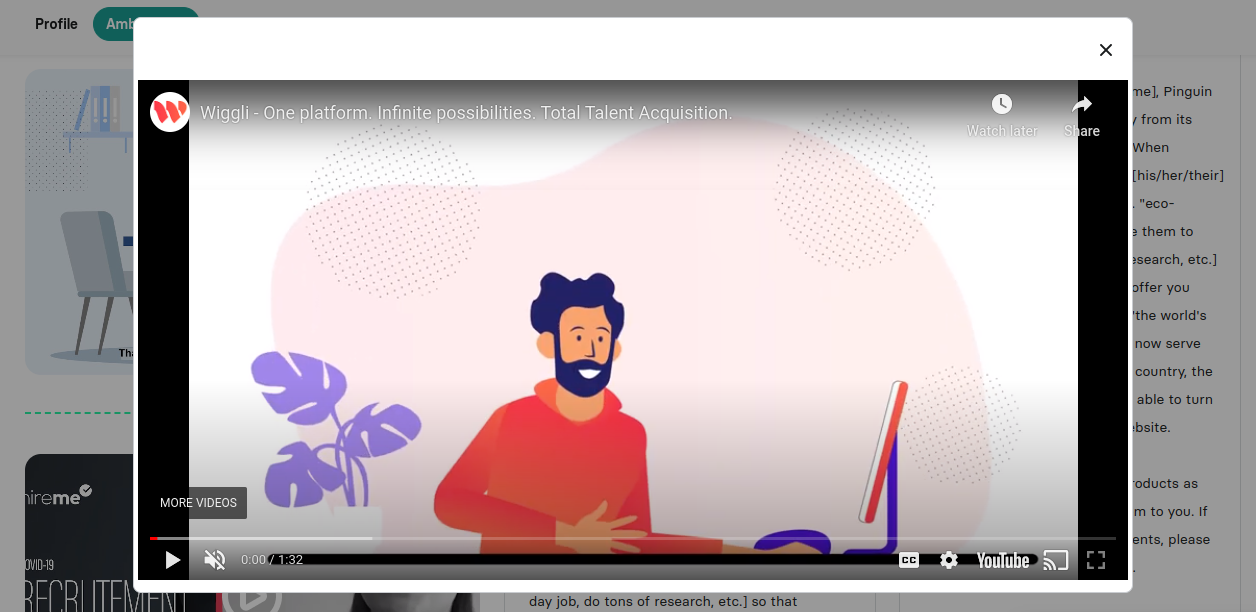
Allow you to add video from YouTube as modal.
User behavior:
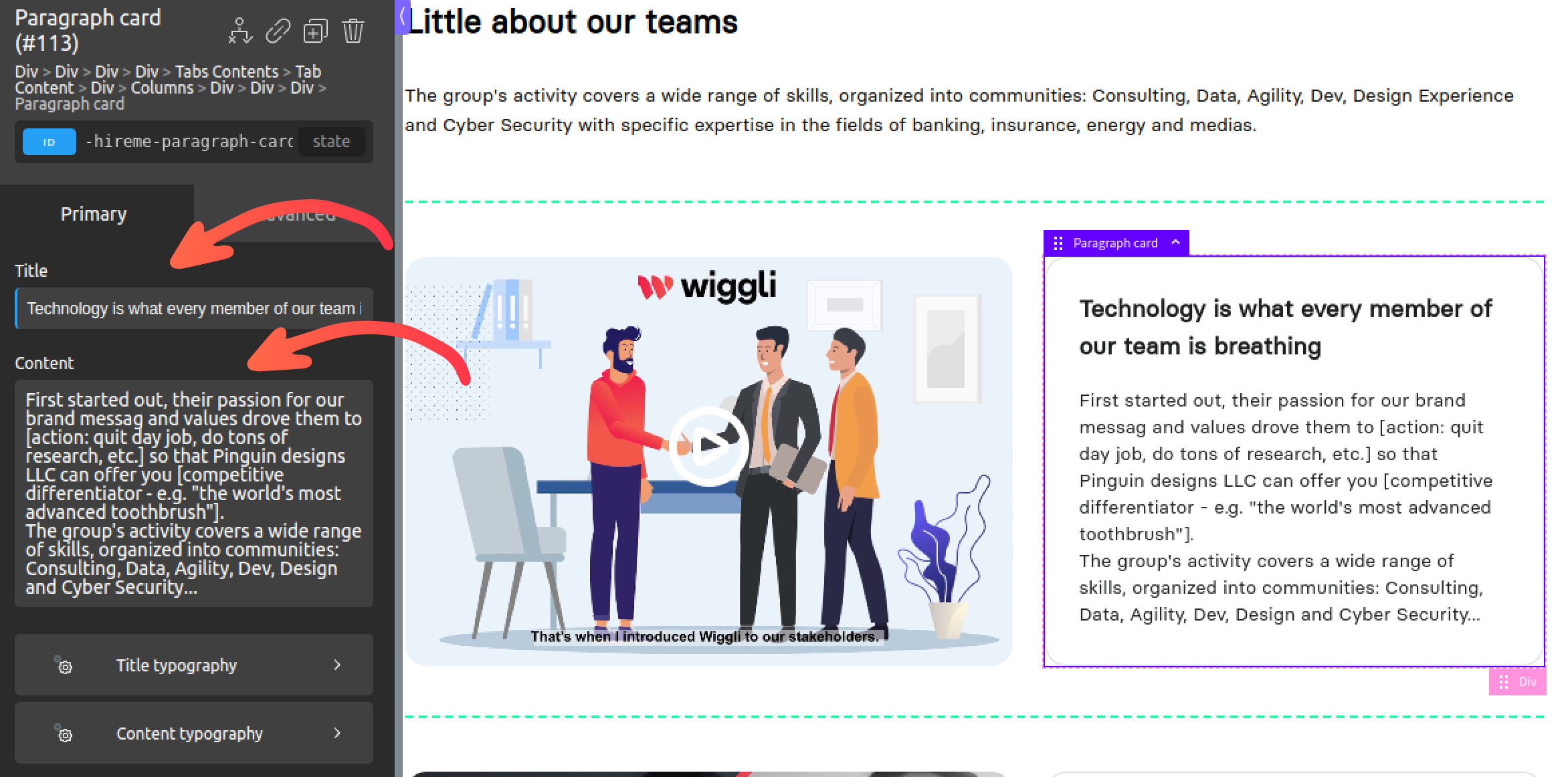
Paragraph card
Styled card to add paragraph element with title and content then adjust the typography.
Departments tab
Contains elements like the already used in previous tabs such paragraph card, YouTube video card and Image.
Recruitment process
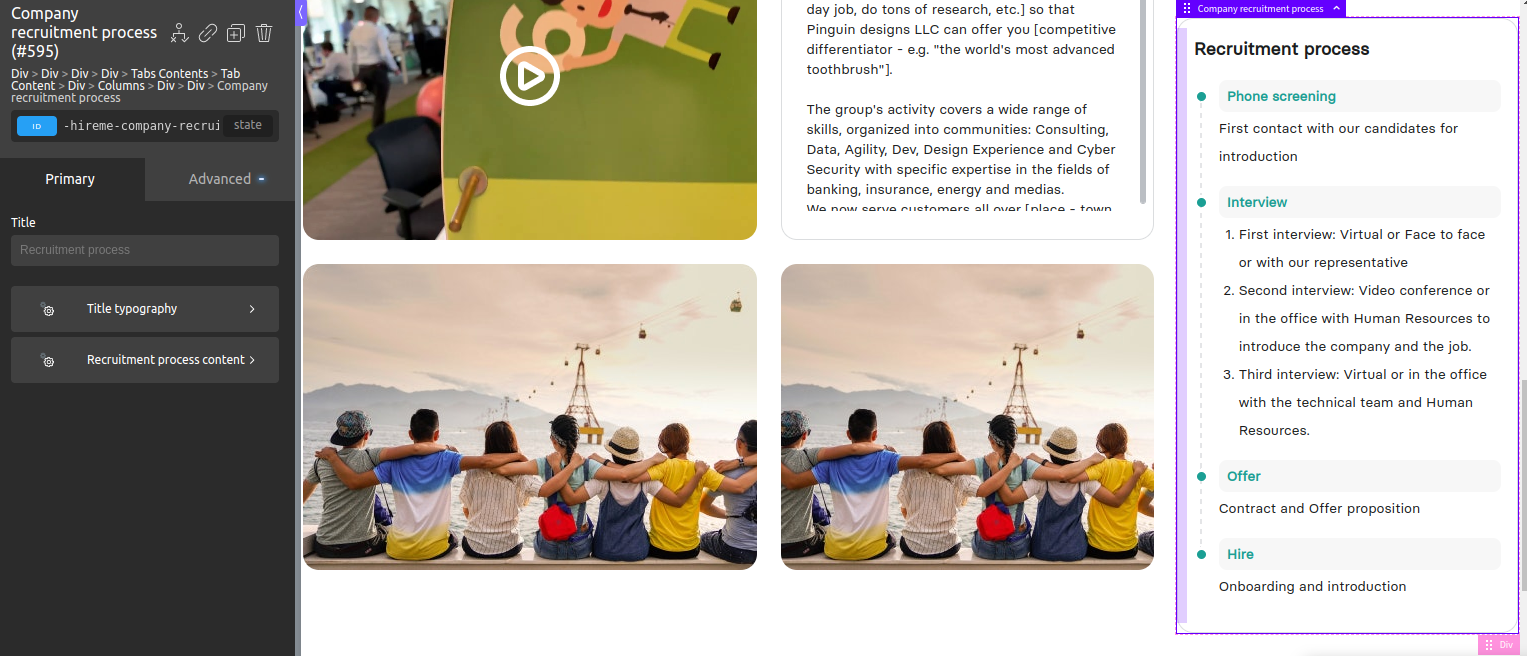
The Recruitment process element displays the process of recruitment for the company, you can edit by following the steps.
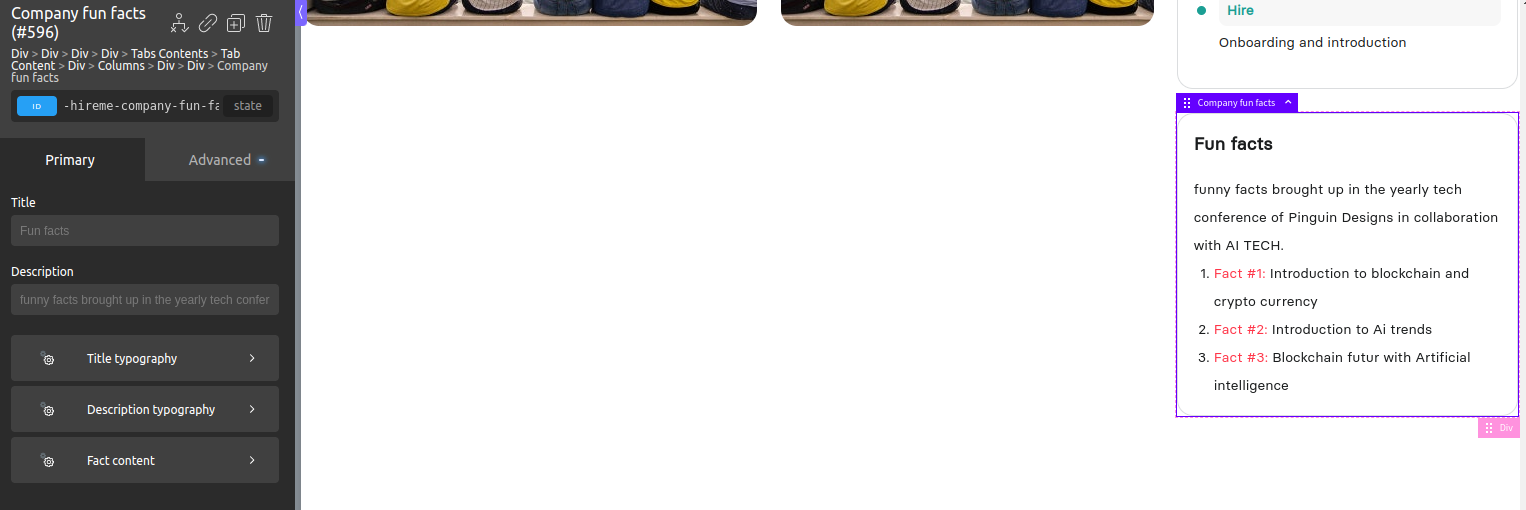
Fun facts
The Fun facts element displays the fun facts for the company, you can edit by following the steps
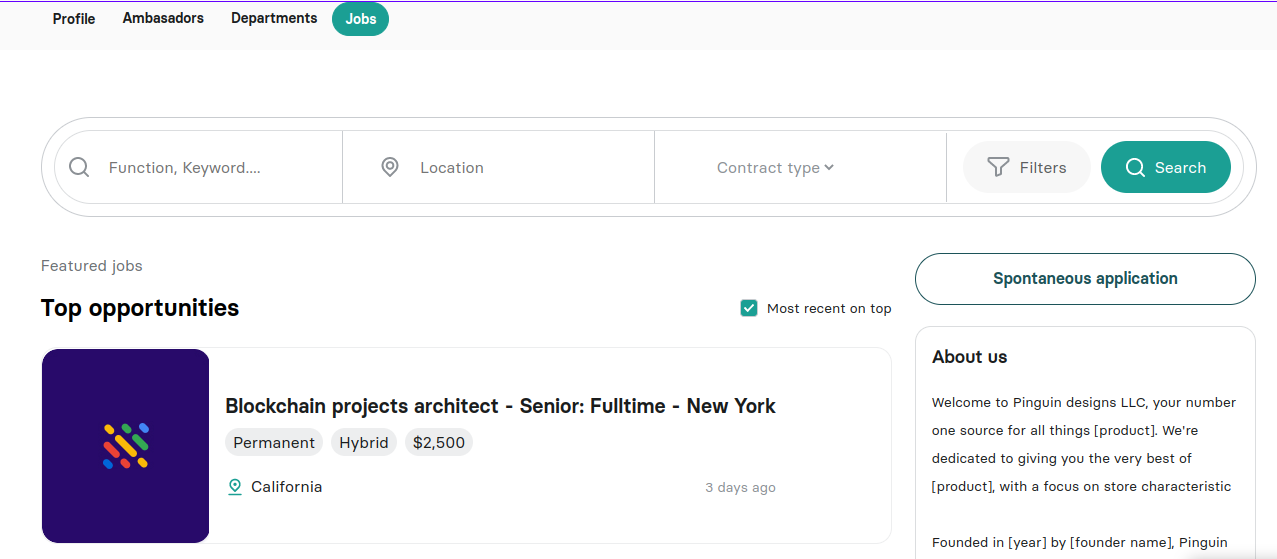
Jobs tab
Contains same sidebar as the departments tab, including list of jobs published by the company with filters.
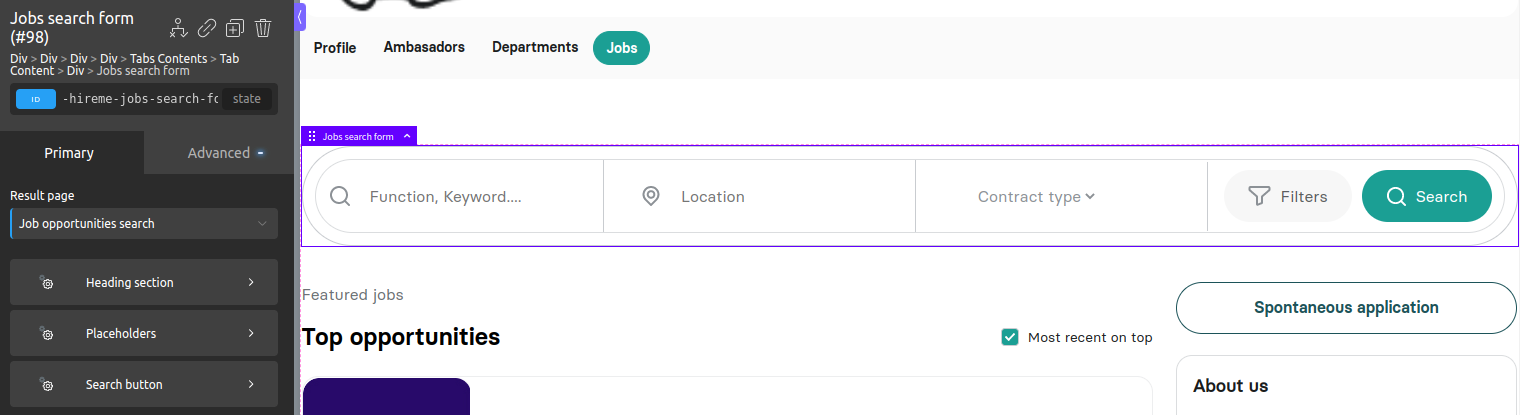
Jobs search form
Form contains filters that allow users specify the jobs they looking for.
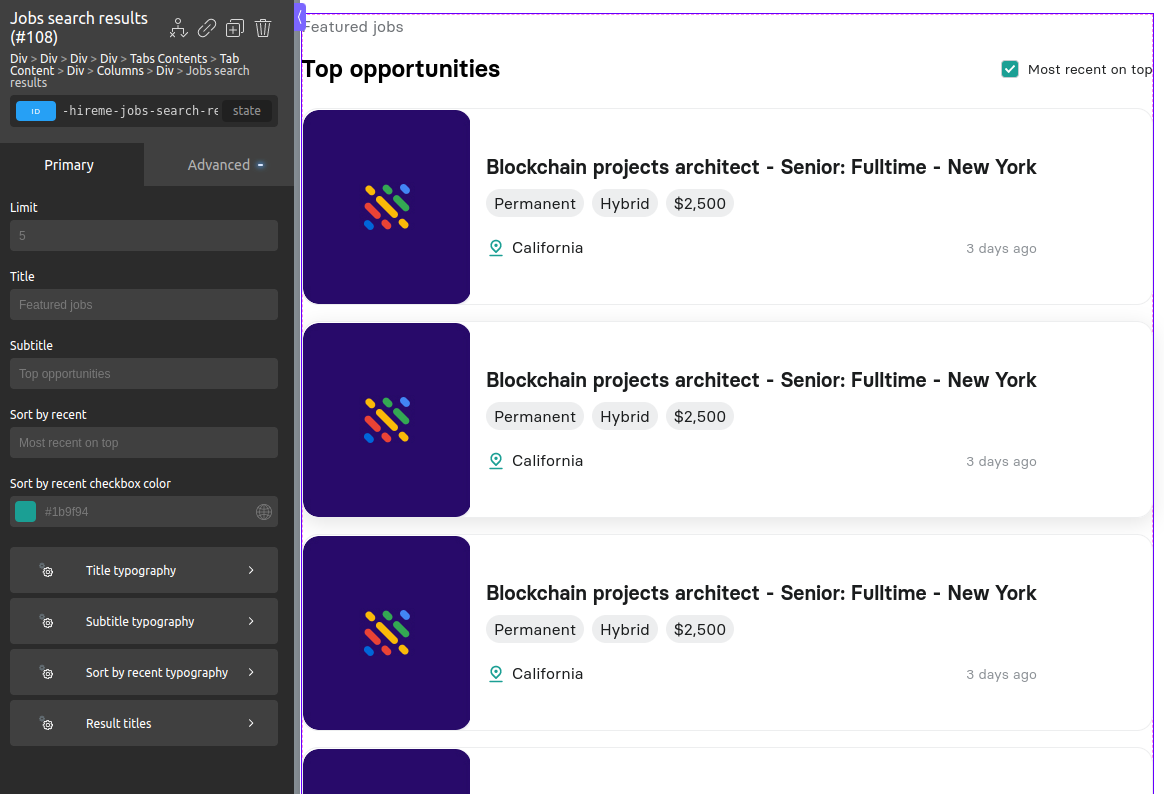
Jobs search results
Displays jobs search results this element work with the previous one otherwise it will only list top opportunities.
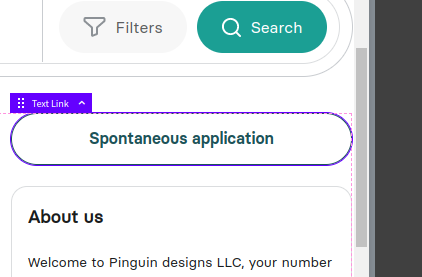
Spontaneous application
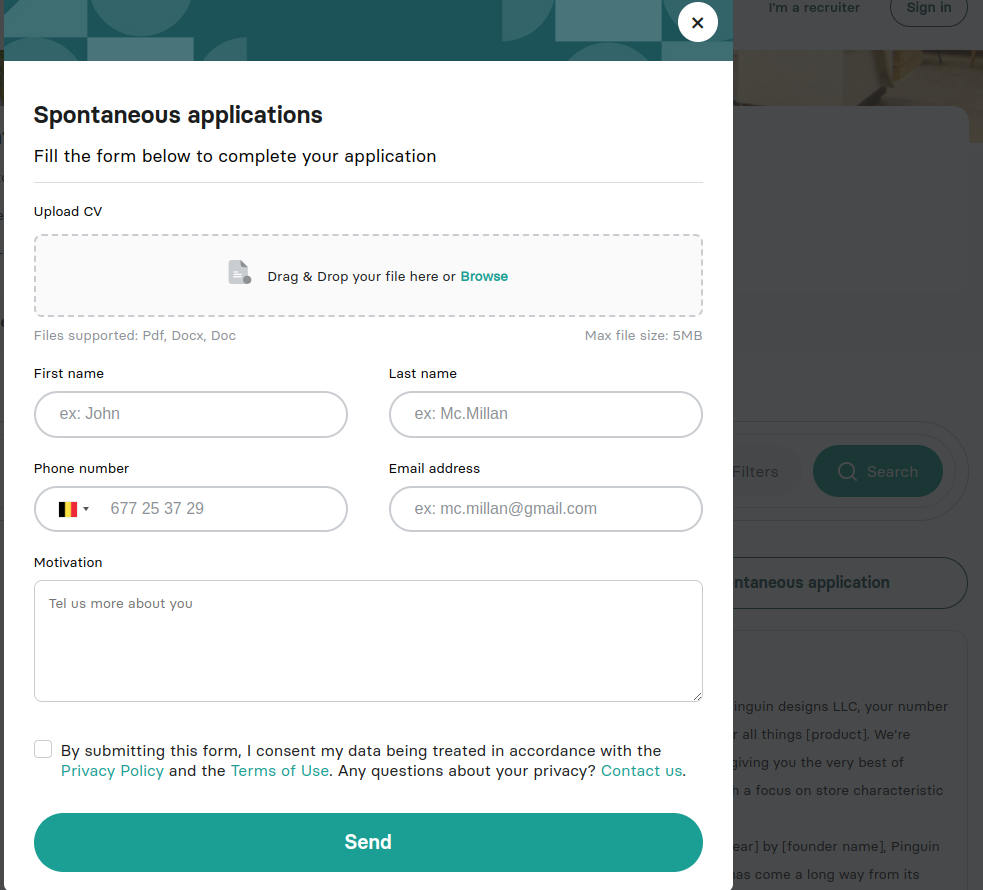
Button allow user to submit spontaneous application via a modal.
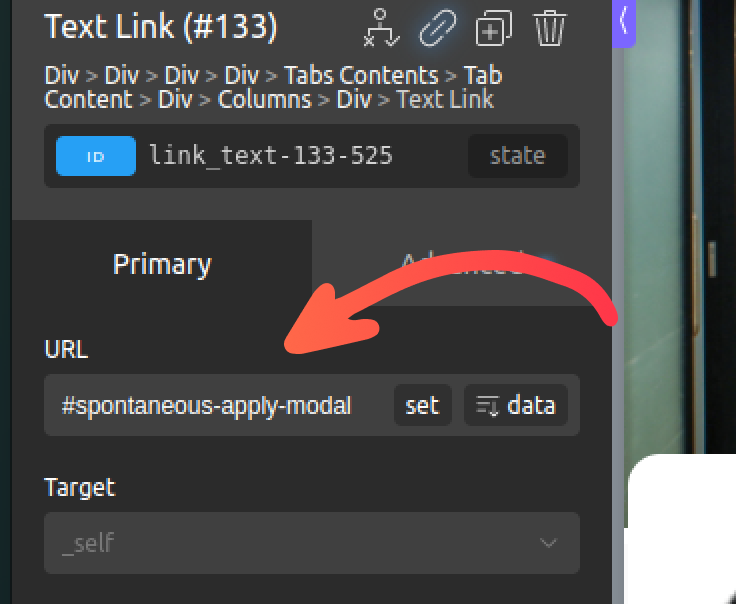
Make sure to set #spontaneous-apply-modal as the button link (href).
User behavior:
Get familiar with the builder
Employer Branding uses Oxygen Builder as the main templating tool, to edit pages, sections also elements you should get familiar with the builder.
You can check out the official tutorials of basics and the possible stylings ways of Oxygen Builder via the following playlist.
Custom elements
You can see all custom elements when working on Oxygen Builder by following those steps:
Go to sidebar > add element > scroll to other section
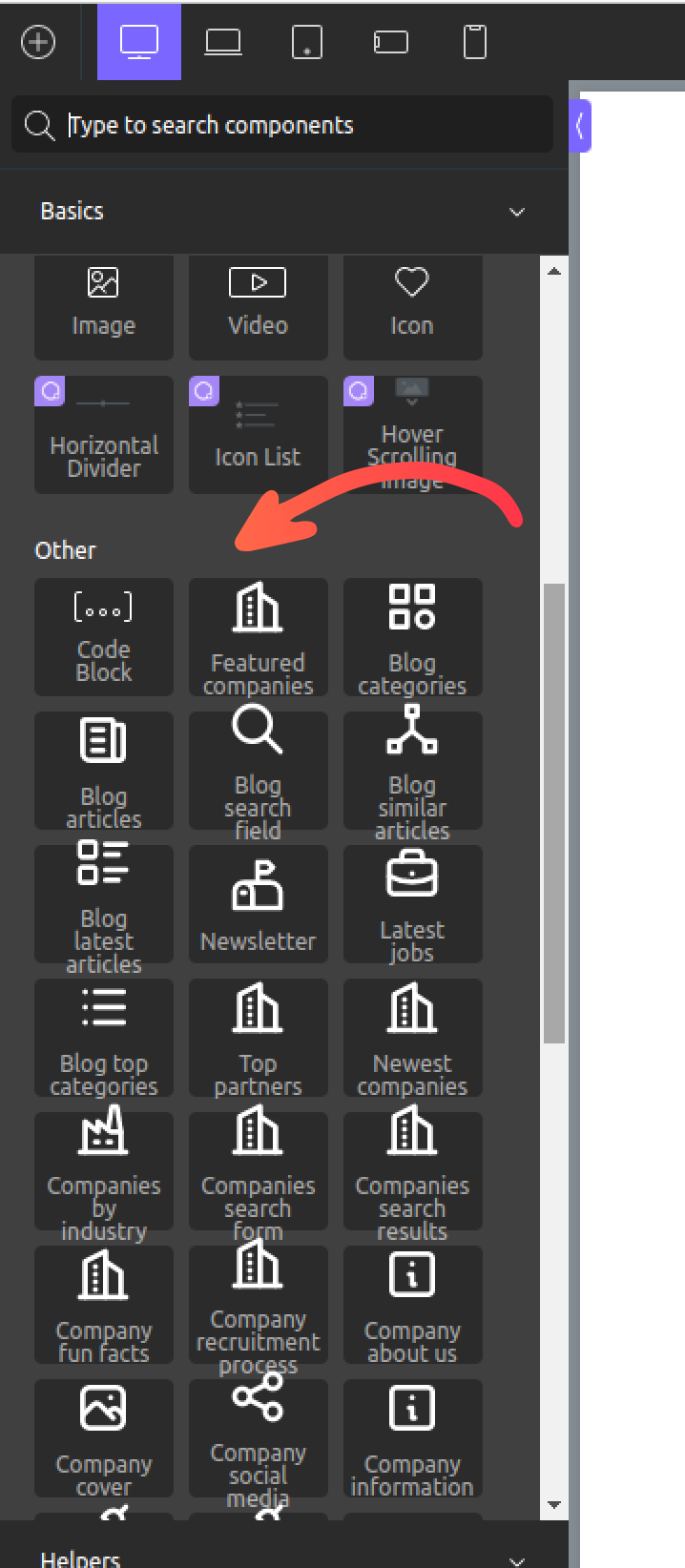
List of custom elements
| Element name | Element propose |
|---|---|
| Featured companies | List companies marked as featured grouped by industry and sorted by count of opened jobs |
| Newest companies | List new registered companies |
| Companies by industries | List companies industries |
| Companies search form | Form with companies search filters |
| Companies search results | List companies search form results |
| Company fun facts | List company fun facts |
| Company recruitment process | List company recruitment process |
| Company about us | Display company about us content |
| Company about us inline | Display company about us content inline style |
| Company cover | Display company cover |
| Company social media | Display company social media links |
| Company information | Display company information such as industries, address, and offices |
| Top partners | List top companies marked as featured |
| Top partners who have opened jobs | List top companies marked as featured and have opened jobs |
| Latest jobs | List latest opened jobs |
| Jobs search form | Form with jobs filters |
| Jobs search results | Display jobs search results |
| Job images slider | List images as a slider from the company page of the current viewed job |
| Job summary | List job summary details such as salary, benefits, and location |
| Job location map | Display job location on the map |
| About the job | Display about the job content |
| Job information | Display job information such as job type and location |
| Share job | Share links for the current viewed job |
| Job featured image | Display featured image of the current viewed job |
| Similar job opportunities | Display similar jobs to the current viewed job |
| Apply to job | Apply to the job via modal form |
| Spontaneous applications | Spontaneous application modal form |
| Newsletter | Form allows handling newsletter subscriptions using MailChimp |
| Hero image | Used for the home hero section slider |
| Language selector | Allows users to switch the translation language |
| Paragraph card | Used on company page or anywhere to display styled card containing a paragraph with or without the title |
| YouTube video card | Allow to add video from YouTube as a preview and play it in a modal |
| Contact Us Modal | Contact form as modal |
| Image gallery | Styled image card for company page tabs |
| Blog categories | List blog articles with categories slider |
| Blog articles | List blog articles with infinite scroll |
| Blog search field | Search input for blog articles |
| Blog similar articles | List similar articles for current view blog article |
| Blog latest articles | List of limited latest blog articles |
| Blog top categories | List of top blog categories |
| Blog article card | Display blog with information as a card |
| Blog top category articles | List top category blog articles as cards |
| FAQ search form | Search input for FAQ articles |
| FAQ search results | Display FAQ articles search results |
| FAQ links list | List of FAQ articles |
Translation
Employer Branding uses WPML plugin, to manage the translation globally and also for the content.
You can check out the official get started guide.
Settings
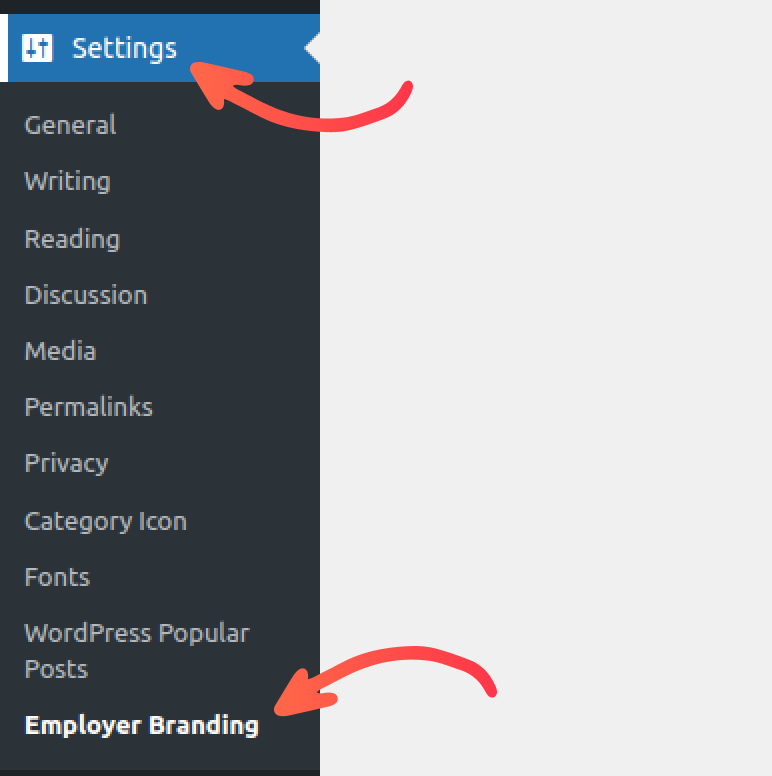
- Go to Settings > Employer Branding
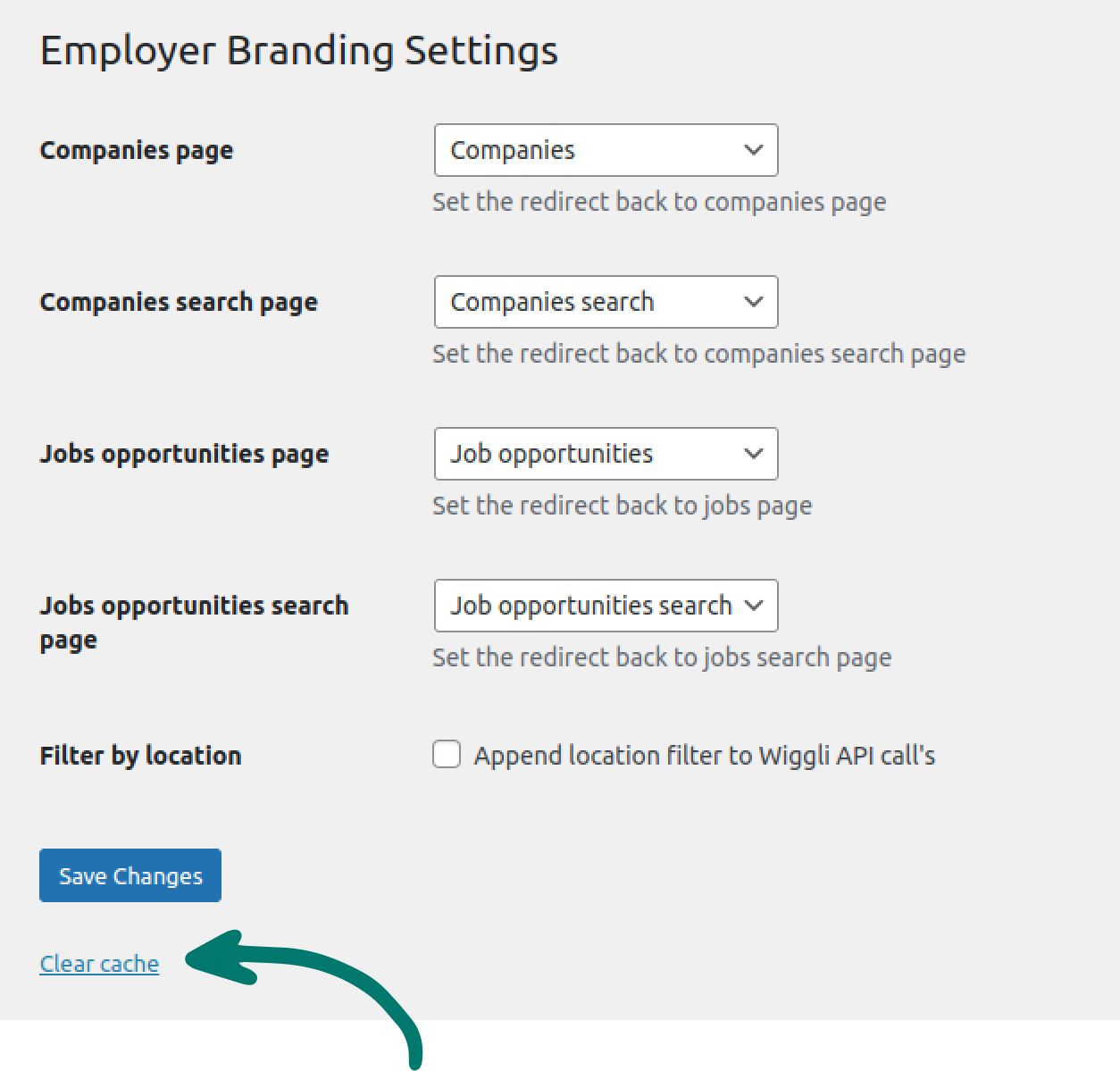
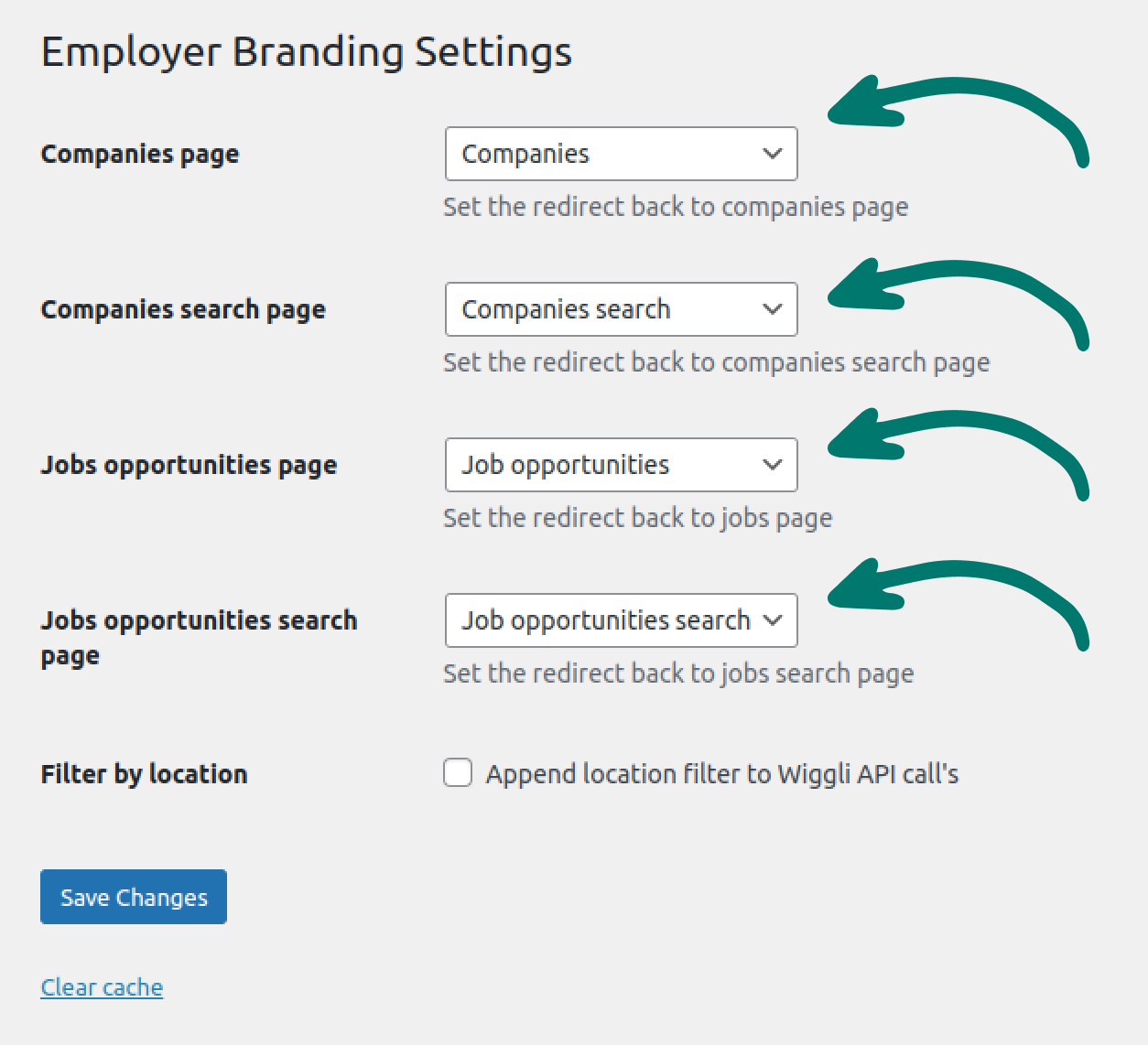
- Set Back pages
For the companies and job opportunities page if gets changed you should update the back pages settings.
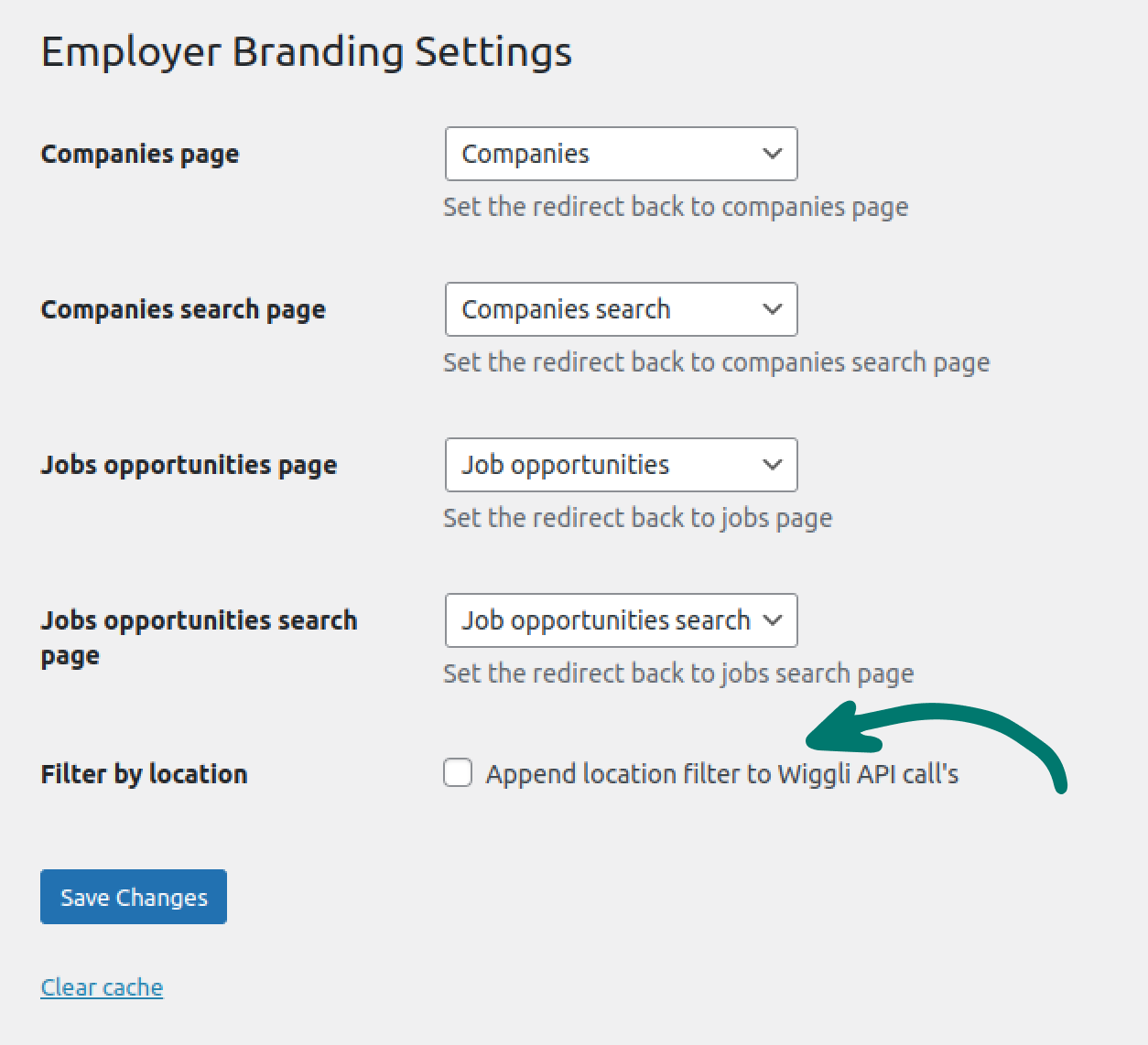
- Enable/disable auto-detect the user's geo-location
For the companies and job opportunities page search forms.
- Force clear companies and jobs cache